


Do you want to install a child theme on your WordPress site? Child themes are great for making customizations because they allow you to take advantage of powerful features of a parent theme or framework. In this article, we will show you how to easily install a child theme in WordPress.
What is a WordPress Child Theme?
WordPress child themes depend on a parent theme or a theme framework. Child themes borrow all features and appearance of their parent theme and can change them without touching the code of parent theme.
Most free and premium WordPress themes come with a lot of customization options. However, sometimes you may still need to manually add code to your theme.
If you add code directly to your theme’s files, then your changes will get overwritten when you update your theme. Child themes solve this problem by allowing you to add your customizations in child theme. This way when you update the parent theme, all your changes will remain intact.
Child themes are more commonly used with WordPress theme frameworks. These frameworks are robust parent themes that offer a solid base for theme developers to build upon.
Genesis is one such popular theme framework. There are tons of child themes available for Genesis that you can get from StudioPress.
To learn more about WordPress child themes, we recommend you to read our article on what is a WordPress child theme? Pros, cons and more.
Want to customize your WordPress theme with a child theme of your own? Follow the instructions in our step by step guide on how to create a WordPress child theme.
Having said that, let’s take a look at how to easily install a WordPress child theme.
Step 1. Installing the WordPress Child Theme
Installing the WordPress child theme is no different than installing any other WordPress theme.
Inside your WordPress admin area, head over to Appearance » Themes page and click on the Add New button.
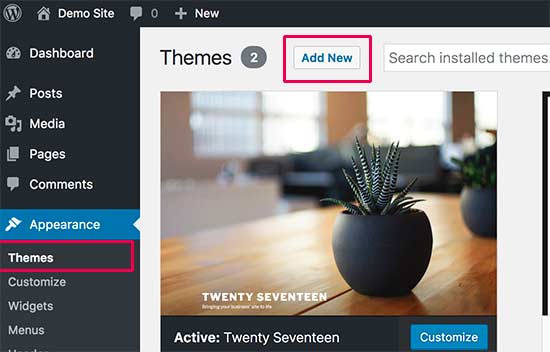
There are two methods to install your WordPress theme.
Method 1: If your child theme is available as a free theme on WordPress.org theme directory, then you can look for it by typing its name in the search box.
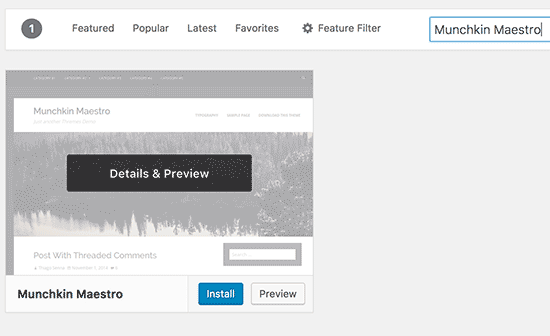
From the search results, take your mouse to the theme you were looking for and then click on the Install button.
WordPress will now download and install your child theme.
It will also look for required parent theme. If the parent theme is also available on WordPress.org theme directory, then it will automatically install it for you.
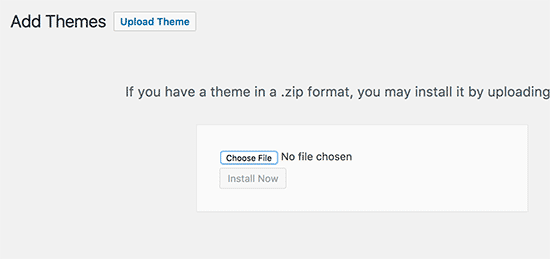
Method 2: If your child theme came as a zip file, then you need to click on the ‘Upload Theme’ button. This will show you theme upload option.
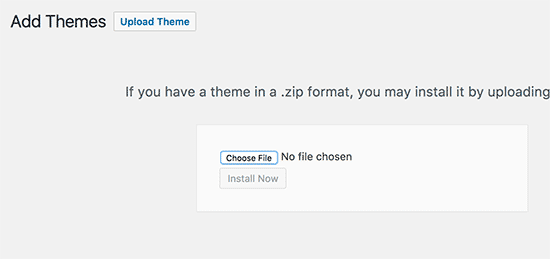
Click on choose file to select the theme zip file from your computer and then click on ‘Install Now’ button.
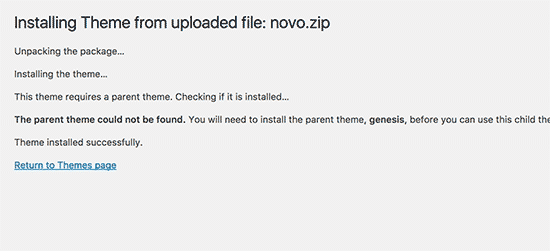
WordPress will now upload the theme zip file from your computer and install it. It will also check if the parent theme is installed. If parent theme is available from WordPress.org theme directory, then it will try to install it. Otherwise, it will let you know that you will need to install parent theme manually.
Step 2. Installing WordPress Parent Theme
WordPress will automatically try to install the parent theme if it is available on WordPress.org theme directory. If it fails to install the parent theme, then you will not be able to activate the child theme. It will show your child theme as broken on the themes page.
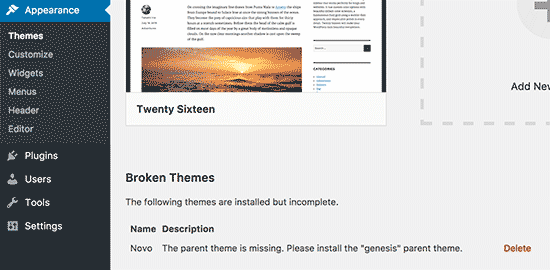
Here is how you will install your parent theme. First go to your parent theme’s website and download the theme zip file.
Now head over to Appearance » Themes page and click on the Add New button.
Click on the ‘Upload Theme’ button. This will show you theme upload option.
Click on the choose file button to select the theme zip file from your computer and then click on the ‘Install Now’ button.
After installing both parent and child themes, you can go ahead and activate the child theme.
Note: Keep in mind that you don’t need to activate the parent theme in order to use the child theme.
We hope this article helped you learn how to install a WordPress child theme. You may also want to see our guide on how to how to find which files to edit in WordPress theme.
If you liked this article, then please subscribe to our YouTube Channel for WordPress video tutorials. You can also find us on Twitter and Facebook.





Syed Balkhi says
Hey WPBeginner readers,
Did you know you can win exciting prizes by commenting on WPBeginner?
Every month, our top blog commenters will win HUGE rewards, including premium WordPress plugin licenses and cash prizes.
You can get more details about the contest from here.
Start sharing your thoughts below to stand a chance to win!
Lisa | Sassy Boss says
Thanks this was super helpful and concise
WPBeginner Support says
Glad our guide was helpful
Admin
Tamie says
Thank you for this!
I have a few questions:
Can you install a child theme after you have already installed and configured a parent theme or will this undo all of your work?
Do you really need a child theme if you are only adding css under the customizer or will that remain in place over when you update your theme?
Also, if do need the child theme and you have placed css under the customizer on the parent, should you move it over to the child?
WPBeginner Support says
You can install a child theme but you may need to set some of the settings in the original theme for your design.
If you are only adding changes in the customizer then a child theme is not required.
For safety, we would recommend moving CSS in the customizer on the parent to the child theme.
Admin
Tamie says
Thank you for your help!
Rohit Patel says
Great article. What happen if I am just using parent theme and not activate the child theme after install it.
WPBeginner Support says
Then you would not be using anything from your child theme.
Admin
Hannah Joy says
Thank you so much!!! Every other online tutorial was so confusing and added a lot of irrelevant detail or confusing and inapplicable info. I am creating a website for the first time and not trying to do anything fancy, I just want to get it right from the start. So grateful for pages like yours that break it down into easy to chew bits for us newbies!!
WPBeginner Support says
Glad our guide could help
Admin
Belinda Ciurleo says
Thank you for sharing this, it is very helpful.
I have one question..
I have already installed the parent theme and created pages, menus, etc.
I’ve come to installing the child theme because I need to create an endpoint in WooCommerce. I’ve done most of my site, just doing the finishing touches.
When I deactivate the parent theme, and activate the child theme, will it keep all the work I’ve done? Or will I lose it all?
WPBeginner Support says
You would keep all of your pages and content. Other customizations to styling may not transfer depending on the specific theme.
Admin
Annapurna Agrawal says
Hey, I have this serious question. Which one should I opt for? Creating a child theme? or building a theme from scratch?
If I create the theme from scratch, how do I manage the updates to functions in WP?
If I create a child theme, I will basically have to update the entire style for my website.
Help me get out of this!
WPBeginner Support says
If you create a child theme it will use whatever customizations you’ve added and if you do not specify a style it will take that from the parent theme. Creating a new theme would require you to have a style rule for everything you want styled.
You would update the functions as you would with any theme.
Admin
Allisa says
Hi, I have installed both Genesis and child theme Essence. While I love the framework, I don’t care for my theme. Do you have any articles or suggestions on how to install & switch child theme’s? Thanks in advance!
WPBeginner Support says
Hi Allisa,
Please see our article on how to install a WordPress child theme
Admin
Susana says
If I have already activated the parent theme should I deactivate it before installing and activating the child theme?
WPBeginner Support says
Hi Susana,
You can only activate one theme at a time in WordPress. When you install and activate the child theme it automatically deactivates the parent theme. You can also manually deactivate it if you want. However, you will need to keep the parent theme installed to use the child theme.
Admin
Mayur Lokhande says
I have installed Parent theme, I don’t know how to check weather I had installed child-theme or not. Why is there need to upload child theme. If one would not install child theme then what would happen?
WPBeginner Support says
Hi Mayur,
You only need to install child theme if you want to modify functionality of parent theme or if you are using a theme framework like Genesis.
Paul Mohan says
The child theme makes it a lot easier to edit wordpress sites later without expert knowledge.
Jude says
I have the parent theme (Hueman theme) installed. How do I find its child theme?
WPBeginner Support says
Hey Jude,
You can search WordPress.org theme directory or Google.
Admin
Juan says
How do I create a child theme if wordpress was not installed locally on my pc. During the installation I left the “Directory” section blank and I think that is why I do not have a local install. What are my options?
Allan Seabrook says
Hi Syed,
Thanks for sharing this article. Recently, I have started experimenting with the “One-Click Child Theme” plugin by tychay. It hasn’t been updated in two years by the developer. but appears to work as documented.
Have you had any experience with this plugin or anything similar?
Thanks!
Allan
Anton says
Hello,
What should I do if I already use main parent theme? How can I add child one? Do you guys have guide for that too?))
Markus Martin says
Hi Syed. I don’t know if it is only me, but my customizations in style.css for child theme don’t work anymore and am forced to use the custom css in wordpress customise dashboard. Is there a difference and is that really ok?