


Do you want to add a link in WordPress?
There are several ways to add links in WordPress. You can add links in your posts, pages, navigation menu, sidebar widgets, footer area, and more.
In this comprehensive beginner’s guide, we will show you how to add a link in WordPress.
Why Are Links Important?
Links are the bloodstream of the internet. They interconnect websites and web pages to form a World Wide Web of information.
Imagine visiting a web page that has no links for you to click. You would have no option but to click on the back button in your browser.
Hyperlinked text, buttons, and other elements take you from one page to another or from one website to another. Links will tell visitors to your WordPress website where they can find more information on a topic.
When you use links effectively, those visitors will spend more time on your site. They’ll discover more content, purchase more products on your online store, and are more likely to subscribe to your email newsletter.
That being said, let’s take a look at how to add links in different areas of your WordPress website easily. Since this is a detailed tutorial, please use the navigation below to jump to the section you need quickly:
- How to Add Links in WordPress Posts and Pages
- How to Automatically Add Links in WordPress Posts and Pages
- How to Add Links in WordPress Widgets
- How to Add Links in WordPress Navigation Menus
- How to Add Title and NoFollow to Links in WordPress
- How to Add Links to Buttons in WordPress
- How to Embed Linked Content in WordPress
- How to Add Affiliate Links in WordPress
- How to Manually Add a Link in HTML
- How to Add Anchor Links in WordPress
- How to Add Social Share Links in WordPress
How to Add Links in WordPress Posts and Pages
WordPress makes it easy to add links to your blog posts and pages using the block editor.
Simply edit your post or page, or create a new one.
Next, you need to highlight the text to which you want to attach the link. This selected text is called the anchor text for the link. Now you should click the ‘Link’ button in the toolbar.
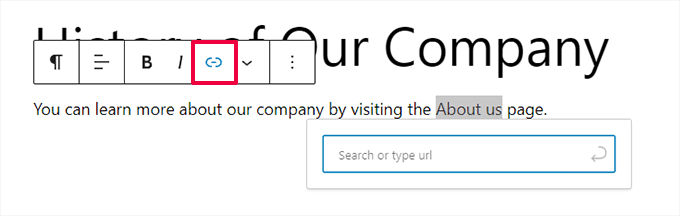
You’ll see a box where you can enter a URL. A URL is a web address. For instance, WPBeginner’s guide on how to start a WordPress blog has the URL:
https://www.wpbeginner.com/start-a-wordpress-blog
You can simply copy and paste the URL of the post or page you want to link to, like this:
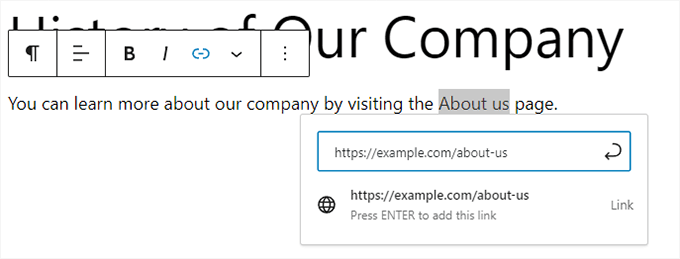
You’ll need to click the ‘Submit’ button or press the Enter key to insert the link into your post.
If you’re linking to content on your own site, then it might be quicker to search for the post or page. Type a word or two from your content title, and WordPress will find it:
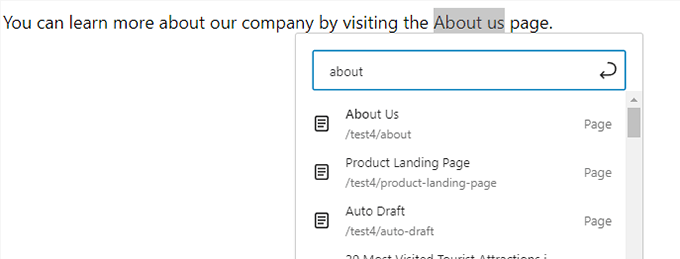
The link will be automatically added after you click on the title of the page or post you want.
If you want your link to open in a new tab, then first you need to add the link. After that, click on the link and check the ‘Open in new tab’ option.
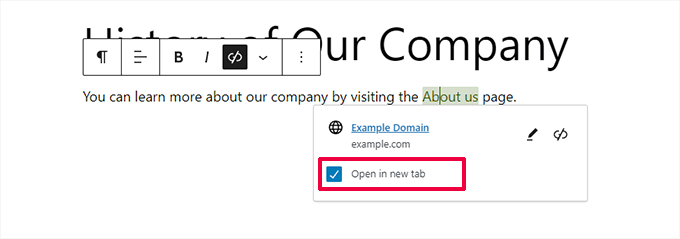
Note: We recommend that you only use this option for links to third-party websites. This way, your users don’t leave your website while visiting it.
Adding Links in the Classic WordPress Editor
If you are using the older classic editor instead of the block editor, then the process for adding a link is quite similar.
You’ll need to open the post that you want to edit or create a new one. Next, you should find the text you want to use as the link’s anchor and highlight it. Then, you need to click the ‘Link’ button which should appear on the toolbar.
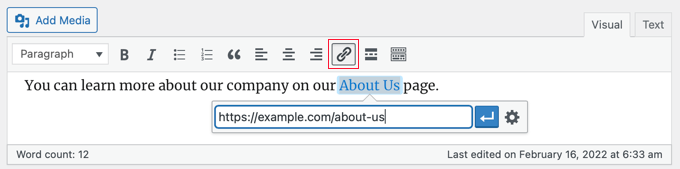
You can then paste the URL you want to link to or search for the post or page, as with the block editor.
Pasting your URL Directly Onto the Anchor Text
An even quicker way to add a link in both the block editor and classic editor is to simply paste the URL onto the anchor text.
First, copy the URL you want to link to. Then, highlight your chosen anchor text in your post.
Next, you can either right-click and select ‘Paste’ or simply press Ctrl+V (Windows) or Command+V (Mac) to paste the URL.

WordPress will automatically detect that you’re pasting a URL and will turn the anchor text into a link.
Tip: Take a look at our tips for mastering the WordPress content editor to learn more about using the block editor effectively.
How to Automatically Add Links in WordPress Posts and Pages
The step above covers how to manually add links to content on your own site. But manually adding internal links can be time-consuming.
To make internal linking easier to manage, we use the AIOSEO plugin. It is the best WordPress SEO plugin used by over 3 million websites.
They have a Link Assistant feature that will crawl your entire website and automatically find internal linking opportunities.
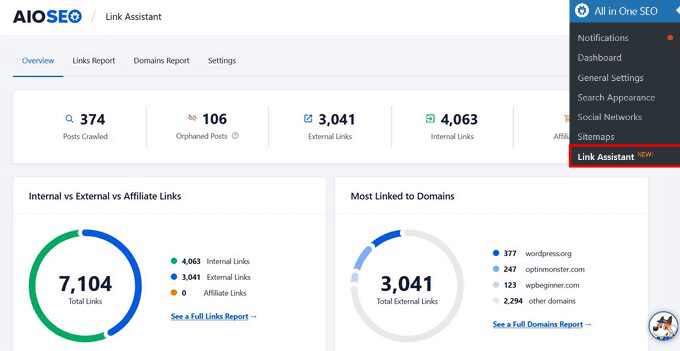
After installing the plugin, you can go to All in One SEO » Link Assistant in your WordPress dashboard.
This will open up the link assistant dashboard, where you can see an overview of your site’s internal and external links.
On the Links Report tab, you can see suggestions for relevant posts you can link to and the anchor text they recommend for best SEO rankings.
You can quickly add these links to your content by clicking the ‘Add Link’ button. There’s no need to open up each post individually.
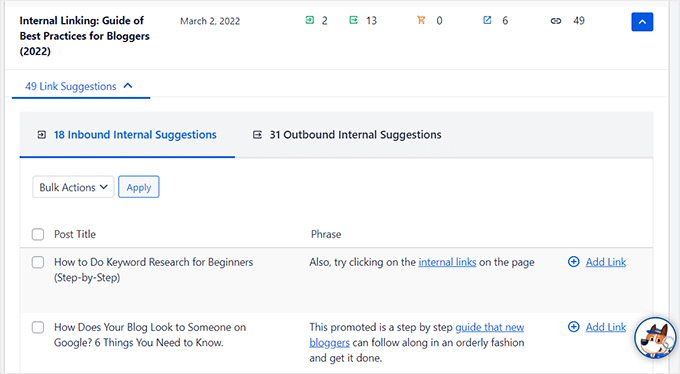
If you have a lot of content on your site, this internal linking plugin makes it simple to build a contextual relationship between your new and old posts.
How to Add Links in WordPress Widgets
WordPress allows you to add widgets to your site’s non-content areas like the sidebar and footer.
Some of these widgets are automated and do not have many options. For example, the Latest Posts widget automatically links your recent posts.
However, if you want to add some custom text with links in your sidebar, then you can use the Paragraph widget.
You’ll need to go to the Appearance » Widgets page and click on the blue ‘+ Block Inserter’ icon in the top left corner. After that, you should drag the Paragraph widget into your sidebar or other widget area.
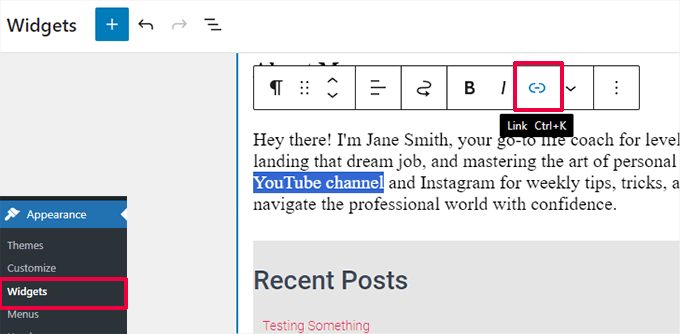
You can then type in your text and add a link just as you would when adding one to a post or page. Make sure you click the ‘Update’ button to store your new widget settings.
How to Add Links in WordPress Navigation Menus
Do you want to add links to your site’s navigation menu? WordPress comes with a built-in drag-and-drop menu editor, which allows you to create and manage navigation menus on your WordPress site.
Adding Internal Links to Navigation Menus
Depending on your WordPress theme, there are two easy ways to add internal links to your website’s navigation menu.
1. Add Links to Navigation Menu in Full Site Editor
If you are using a block theme with full site editing, then you can simply go to the Appearance » Editor page and then click on the navigation menu you want to edit.
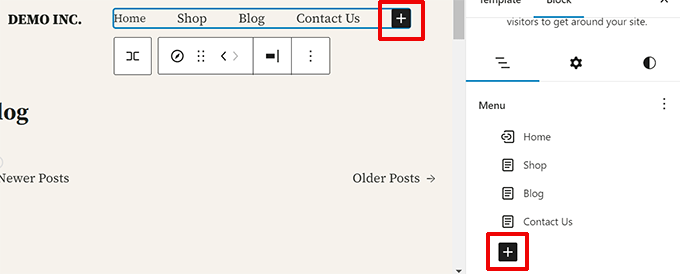
In the navigation block, click on the Add (+) button to add a new link.
Next, search to find the content that you want to link to or paste the URL. Hit enter on your keyboard to add the link.
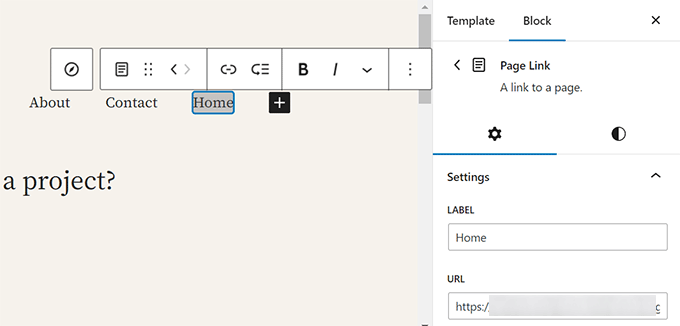
Need to edit a link? Simply click on it and then change the link in the right column.
2. Add Links to Navigation Menu in Classic Themes
Head over to the Appearance » Menus page. If you don’t already have a menu set up, you can create one by entering a menu name. To learn more, take a look at our beginner’s guide on how to add navigation menus in WordPress.
Simply select the posts or pages you want to add to your menu on the left-hand side, then click the ‘Add to Menu’ button.
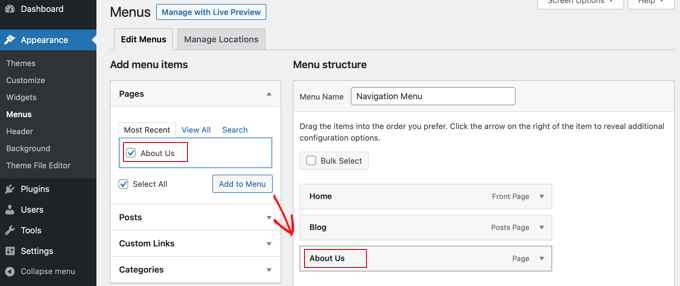
WordPress will automatically link to your selected posts and pages. You can rearrange the entries using drag and drop.
Adding External Links to Navigation Menus
You can also add custom links, such as a link to another website. For instance, you could add the URL of your Twitter profile to your navigation menu.
Just click the arrow next to the ‘Custom Links’ section on the left. You can then type in the URL and the text you want to use for the link, and then click the ‘Add to Menu’ button.
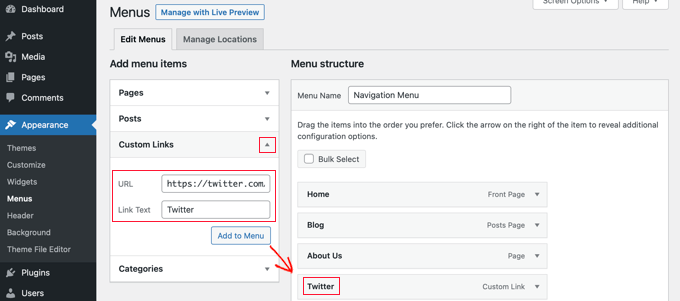
When you’ve finished adding links to the menu, don’t forget to click the ‘Save Menu’ button at the bottom of the screen.
How to Add Title and Nofollow to Links in WordPress
It’s often useful to give your links a title. This is the text that appears when someone runs their mouse cursor over the link, like this:

Adding a title often makes it clear where the link leads to. It can be helpful and even reassuring for your readers.
You may also want to add a nofollow tag to external links. This tells search engines not to pass your site’s SEO score to that link because you don’t own or control that website’s content.
However, WordPress does not allow you to add titles or nofollow tags to links with the default editor. Here are two ways that you can add them.
Adding Title and Nofollow Using the AIOSEO Plugin (Easy)
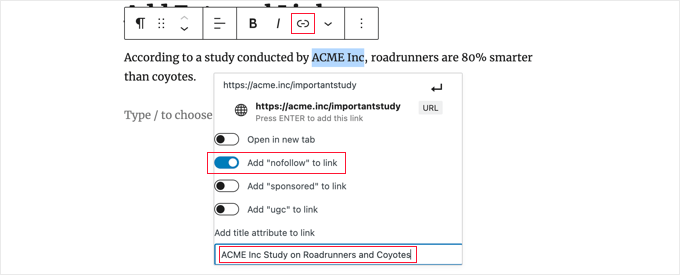
The free All in One SEO (AIOSEO) plugin for WordPress lets you add title, nofollow, sponsored, and UGC attributes to links.
In the block editor, the plugin adds toggle switches for nofollow and other attributes. It also adds a field for a title.
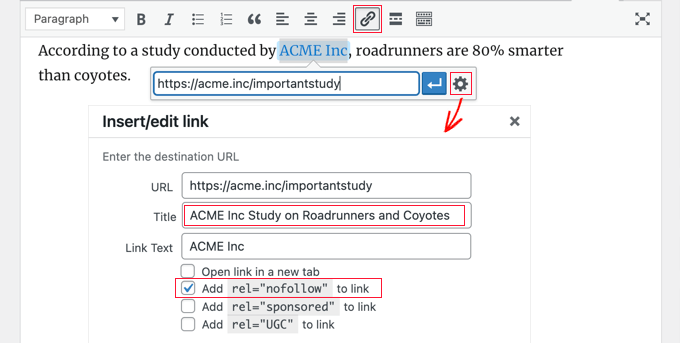
In the classic editor, you can access additional AIOSEO settings by clicking the ‘Link options’ gear icon. This will display an ‘Insert/edit link’ popup where you can enter a title, and click checkboxes for nofollow and other link attributes.
Adding Title and Nofollow Using HTML Code
If you don’t want to use AIOSEO, then you’ll need to manually add title and nofollow attributes to your links using HTML code.
First, add your link in the usual way, and then change the editor to HTML mode.
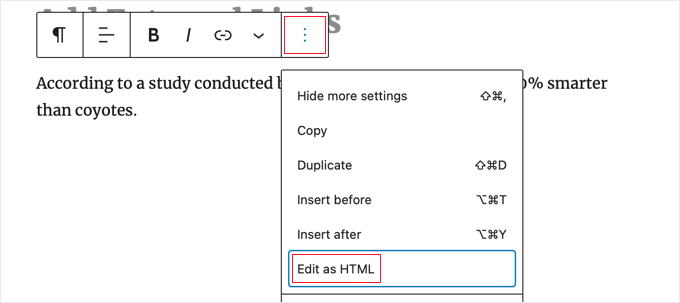
If you are using the block editor, then you need to click on the three vertical dots at the end of the toolbar and select ‘Edit as HTML’ to view the block’s HTML code.
If you are using the classic editor, then you will have to click the ‘Text’ tab to display the whole post as HTML.
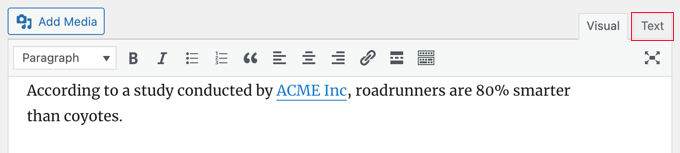
You’ll now see the HTML code for your link. A basic link will look like this:
<a href="URL">ANCHOR TEXT</a>
You need to add the title and nofollow attributes so it looks like this:
<a href="URL" title="TITLE" rel="nofollow">ANCHOR TEXT</a>
This is how it looks on our demo website (see the screenshot above):
<p>According to a study conducted by <a href="https://acme.inc/importantstudy" title="ACME Inc Study on Roadrunner and Coyote" rel="nofollow">ACME Inc</a>, roadrunners are 80% smarter than coyotes.</p>
You can change the title to anything you want. The nofollow attribute should always be rel="nofollow". Don’t forget the double quotation marks around the title and nofollow as your link won’t work correctly without them.
For more information, see our beginner’s guide on how to add nofollow links in WordPress.
Adding Title and Nofollow to WordPress Navigation Menus
The process for making your navigation links nofollow is a bit different.
Underneath the link’s navigation label, you’ll need to enter ‘nofollow’ in the Link Relationship (XFN) field.
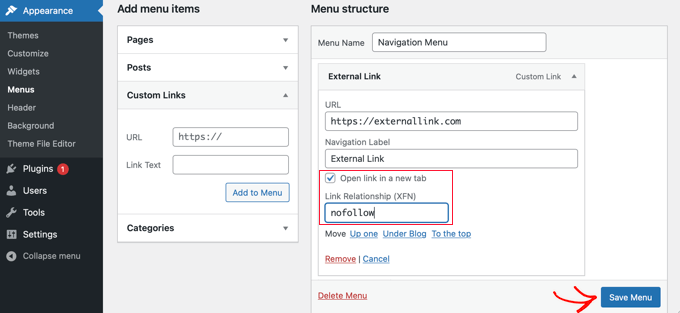
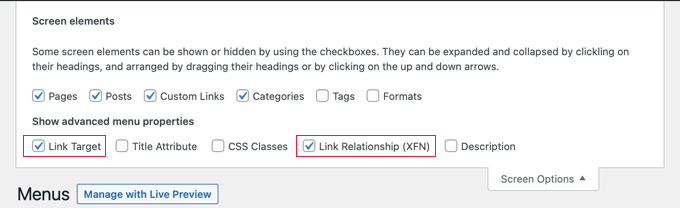
If you don’t see that field, you’ll need to add it under the Screen Options tab at the top right corner of the page.
For complete step-by-step instructions, see our guide on how to add nofollow links to navigation menus in WordPress.
How to Add Links to Buttons in WordPress
Do you want to add a button to your WordPress posts or pages? The easiest way to do this is using WordPress’s built-in Button block.
Once you create a new post or edit an existing one, you should click the (+) icon to create a new block. After that, you should drag the ‘Button’ block onto the post and then type the text for the button.
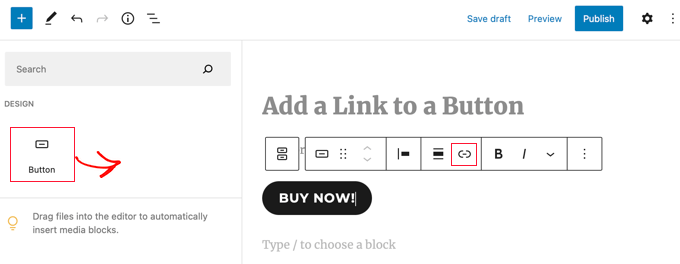
After that, you can add a link using the ‘Link’ button in the toolbar. This is just the same as when adding any other link using the WordPress block editor.
To learn more ways to buttons to your posts, see our guide on how to add call to action buttons in WordPress.
How to Embed Linked Content in WordPress
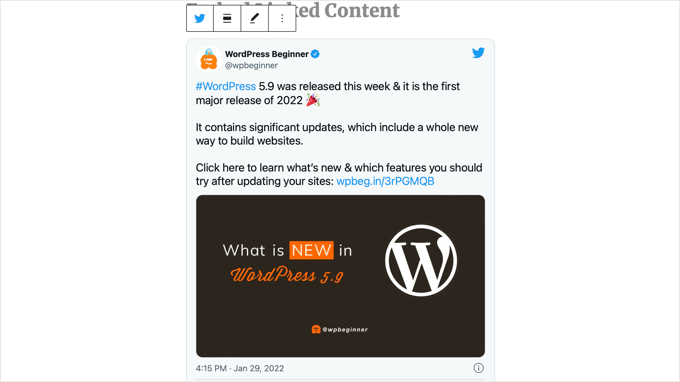
You can easily embed certain types of content in WordPress by simply inserting its URL in your post. This is sometimes called creating a ‘content card’ in your post.
Just paste the whole URL into its own paragraph block.
For example, if you paste a Twitter URL, the whole tweet, including images, likes, timestamp, and more will be embedded like this:
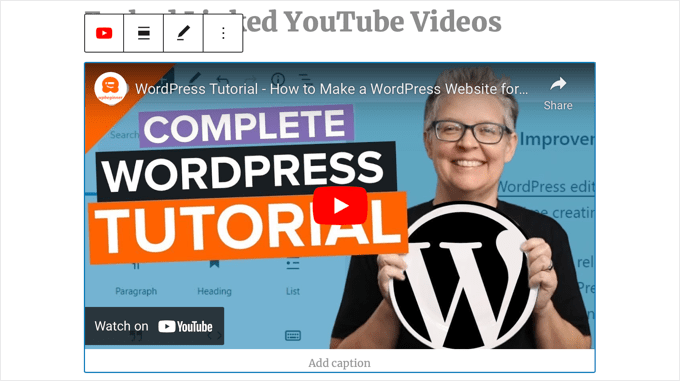
The process is the same for YouTube videos. Simply find the video you want to use on YouTube and copy the URL from the top of your browser window.

Next, paste the link into your post or page.
The video will be embedded automatically.
As well as being great for Twitter posts and YouTube videos, this method also works for many other types of content. You can find out more from WordPress’s support article on ‘Embeds’.
How to Add Affiliate Links in WordPress
Do you want to increase your site’s revenue by using affiliate links? Affiliate marketing provides a steady income to many blogs and websites.
All you need to do is add special referral links to products and services that you recommend. When your visitors purchase these products after clicking your links, you get a commission.
The problem that most beginners face is that each product or website they want to recommend has a different URL. It’s tricky to keep track of these, especially if you’re recommending lots of products.
The best way to add and manage affiliate links is by using an affiliate management plugin. We recommend using either Pretty Links or Thirsty Affiliates.
Both of these plugins work by creating redirect links that send people to your special affiliate link. They look like this:
www.yoursite.com/refer/partnersitename
The plugins will add a new option to your WordPress menu where you can add your affiliate links. Here’s how that looks with ThirstyAffiliates. You simply copy and paste your special affiliate link into the ‘Destination URL’ box.
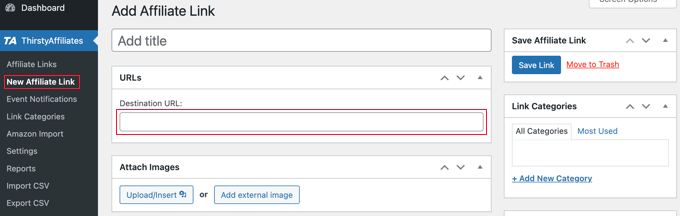
You can set specific options for your link on the right-hand side.
These include such things as deciding whether to nofollow it, opening it in a new window or tab, and more.
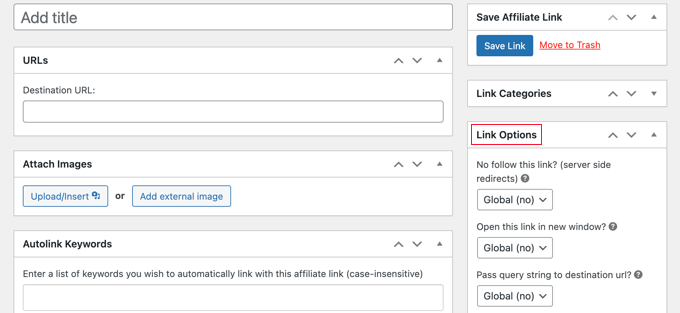
Once you’re done, make sure you click the ‘Save Link’ button.
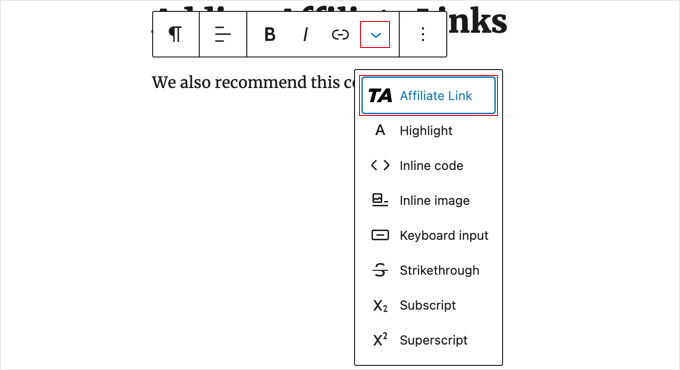
After you’ve set up your affiliate links, you can easily add them to your posts and pages. In a paragraph block, click the down arrow then select the ‘Affiliate Link’ option:
Next, type in the start of whatever you named that affiliate link.
In our example, that’s “Our Affiliate Partner”.
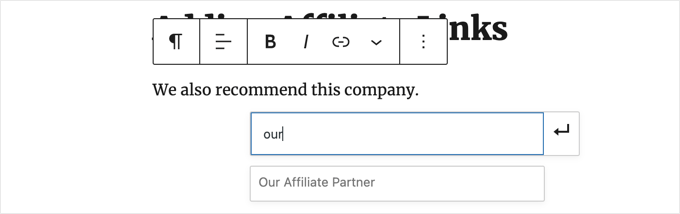
You can then click the name and click ‘Apply’ to add the affiliate link to your post.
It’s easy to change an affiliate link, such as when the company you’re linking to moves to a different affiliate program.
You just change the link once in the ThirstyAffiliates or Pretty Links page of your dashboard. The link in your posts will stay the same as before, but will now redirect to the new affiliate link everywhere it’s used.
For more handy affiliate plugins, check out our post on the best affiliate marketing tools and plugins for WordPress.
How to Manually Add a Link in HTML
Occasionally, you might want to add a link to your site using HTML code. This could happen if you need to use a custom HTML block or widget.
You might also need to directly edit a link in a theme file. Just make sure you always use a child theme so you don’t lose your changes when you update the parent theme.
It’s easy to create a link in HTML. To try it, add a custom HTML block to a post or page. You can find this block under ‘Widgets’ or you can search for it using the search bar.
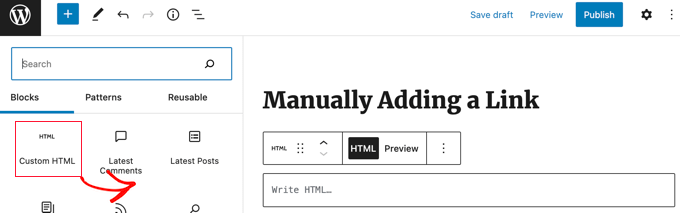
Next, you’ll see a box where you can write HTML. Copy this code into the box:
<a href="https://www.yourlinkhere.com">Text</a>
It should look like this:

You can click the ‘Preview’ tab to see how your code will look in your post or page:

Now click back to the ‘HTML’ tag so you can change the URL to the correct webpage. You can also change the word ‘Text’ to whichever word or words you want to use for your link.
You might like to add a title to the link as we did earlier. You’ll need to include code like this, and you can change ‘This is the title’ to anything you want.
<a href="https://www.yourlinkhere.com" title="This is the title">Text</a>
If you want your link to open in a new tab, then simply add target="_blank" to the HTML code, like this:
<a href="https://www.yourlinkhere.com" target="_blank">Text</a>
If you want your link to be nofollowed, then add rel="nofollow", like this:
<a href="https://www.yourlinkhere.com" rel="nofollow">Text</a>
You can include all of these at once. Here’s an example of a link with a title that opens in a new tab and is nofollowed:
<a href="https://www.yourlinkhere.com" title="This is the title" target="_blank" rel="nofollow">Text</a>
That’s how you create a link in HTML, if you ever need to.
How to Add Anchor Links in WordPress
An anchor link is a type of link on the page that brings you to a specific place on that same page. It allows users to jump to the section they’re most interested in.
Take a look at the animated screenshot below:
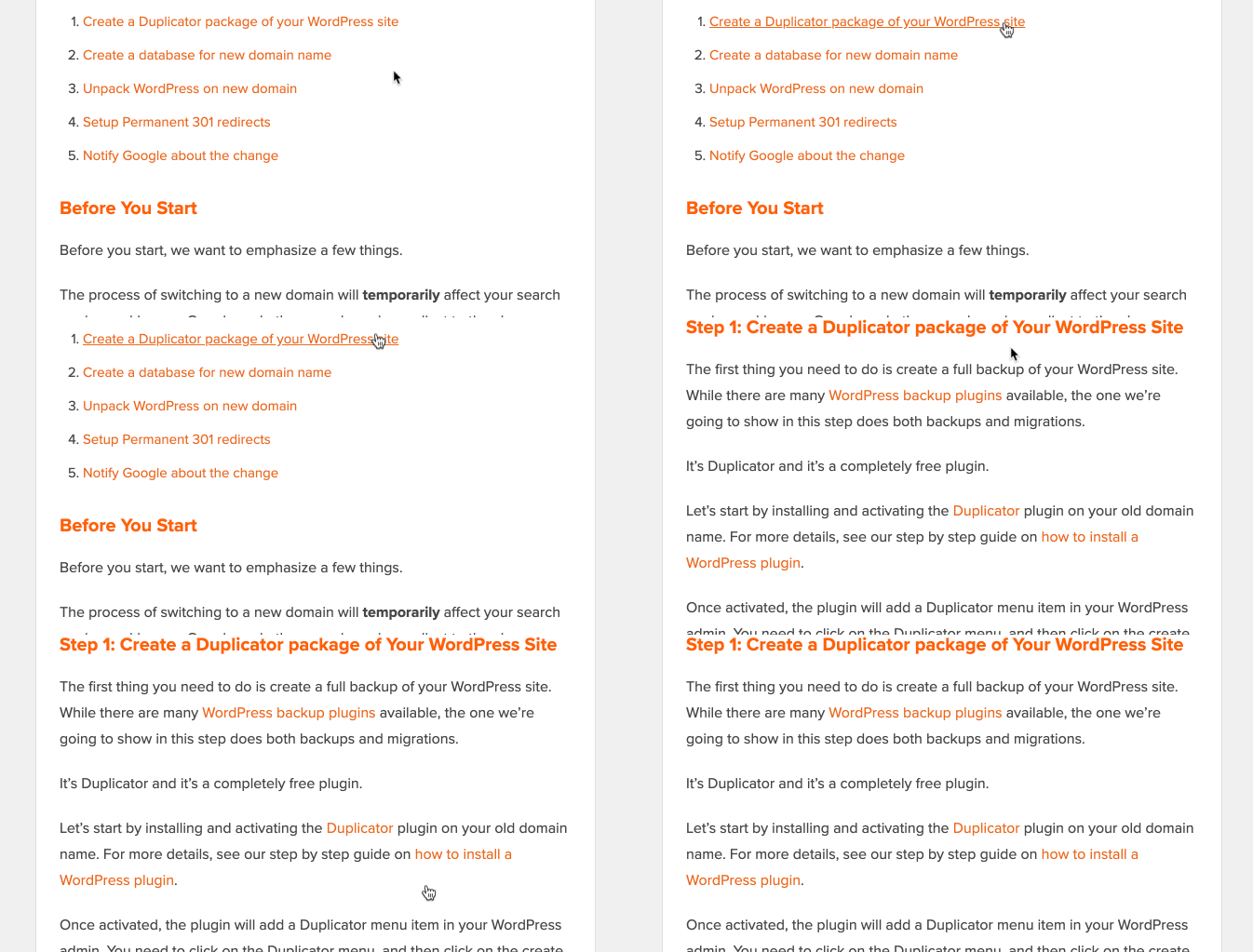
These types of links are really helpful when writing longer tutorials or content, so your users can easily jump to the section they’re most interested in.
We have created a detailed guide on how to easily add anchor links in WordPress.
How to Add Social Share Links in WordPress
Want to add social share links or buttons on your site?
These links make it easy for your users to share your content on their favorite social networks. Sometimes social share links or buttons are also accompanied by total share count.
We don’t advise users to add these links manually. Instead, you should always use a social share plugin. We have a step-by-step guide on how to add social share buttons in WordPress.
We hope this article helped you learn how to add a link in WordPress. You may also want to see our beginner’s guide on how to create a professional business email address, and how to start an email newsletter to grow your audience.
If you liked this article, then please subscribe to our YouTube Channel for WordPress video tutorials. You can also find us on Twitter and Facebook.




Syed Balkhi says
Hey WPBeginner readers,
Did you know you can win exciting prizes by commenting on WPBeginner?
Every month, our top blog commenters will win HUGE rewards, including premium WordPress plugin licenses and cash prizes.
You can get more details about the contest from here.
Start sharing your thoughts below to stand a chance to win!
Obert Mukuka says
Thanks, I have learnt a lot here. Now how can I hide URL external link under title e. g
mysite.com/bluehost-plans-and-pricing,
hiding URL under title:
Bluehost plans and pricing
instead of showing my visitors mysite.com/bluehost-plans-and-pricing then replace it with a smart title only, Pliz help
WPBeginner Support says
The title of the page should automatically link to the page itself if you mean a headings then it is the same as adding a link to a post or page.
Admin
Jiří Vaněk says
May I ask, what mean, at HTML code inside of link the aria label. It could be set in Elementor, but I dont know, for what I can use it.
WPBeginner Support says
The aria label is a tool to help with screen readers to help them understand what an HTML element is.
Admin
Jiří Vaněk says
Is it a big problem from the SEO point of view to give a URL as a link? I mean that the link text itself will be given the URL. I read somewhere that from the SEO point of view it is better to put text related to the link as keywords and clicking the url itself is not suitable?
WPBeginner Support says
It is not a big problem, it is mainly recommended to help users and search engines understand what the link is there for and what the link should be about.
Admin
Jiří Vaněk says
Thank you for the clarification. I just read the opinion that the URL link should not be written in the article just as a URL link, but always write, for example, the name of the website or another description in the article and only then make it a link. Thank you for your opinion. I appreciate him very much.
Fujio Okino says
“How to Add Links in WP navigation Menus” article is a great help!!
Could you possibly explain or instruct the same by using FSE ? Not a classic editor. I do not know how to open “Menus” page. In Non-FSE, eg: appearance > menus comes up
Thank you
Fujio
WPBeginner Support says
We will look to include that in the future
Admin
satta matka says
Not all external links are created equal. They come in two flavours – dofollow and nofollow. These links look the same to the visitor, but they have different code and look different to Google.
WPBeginner Support says
Correct, for most links we recommend setting nofollow.
Admin
Abbey says
Is there a way to make an icon an internal link without it being in a menu? We have trophy icons on our safety page of our website and I am wanting you to be able to click the trophy icon and it direct you to a seperate page discussing the specific project, but it is not letting me hyperlink the icon
WPBeginner Support says
It would depend on how you are adding the images but you should be able to add a hyperlink to an image block that is an internal link on your site.
Admin
Greg says
How can I insert an anchor half way down a long List (made with the List Block). The anchor appears to direct links only to the top of the block.
Thanks
WPBeginner Support says
You would need to add the ID using HTML to the specific list item instead of the list itself to link to one item in your list.
Admin
Samuel adekunle says
I find it difficult to add a link on my WordPress website, but thanks to these helpful guidelines.
WPBeginner Support says
Glad our guide was able to simplify the process for you
Admin
John Dodge says
How do I link to an article on another website, but instead of linking just to that particular page, have the link jump to a certain part of that article?
WPBeginner Support says
It would depend on what has in the content to allow for an anchor link. We have a guide on how to use anchor links below:
https://www.wpbeginner.com/beginners-guide/how-to-easily-add-anchor-links-in-wordpress-step-by-step/
Admin
Andrea says
I am adding links to the text of posts and it is automatically separating the link to the next line (so it’s all by itself). Why is this happening and how can I stop it? It makes it impossible to put links into a paragraph.
WPBeginner Support says
For troubleshooting issues like that, you would want to start by going through the steps in our article below:
https://www.wpbeginner.com/beginners-guide/beginners-guide-to-troubleshooting-wordpress-errors-step-by-step/
Admin
Mandy Kong says
Great wordpress tutorials. So easy to understand.
Is it possible to anchor a particular place on another linked page?
WPBeginner Support says
Yes, you would follow the same steps as you would with other anchor links, and even when you place them on another page they should work the same.
Admin
Shawn L says
Thanks for the information. For some reason a space is added to the front and back of a word/phrase that I turn into a link. Would you happen to know why this is happening? I will open up settings of the link and remove the spaces, but they show back up when I save/update.
Thanks!
WPBeginner Support says
Your theme may have custom styling, you can check using inspect element following our guide below:
https://www.wpbeginner.com/wp-tutorials/basics-of-inspect-element-with-your-wordpress-site
Admin
Jawad Fiaz says
Hello this is awesome Blog site
WPBeginner Support says
Thank you
Admin
Franki Robinson says
I have used the “old method” for years to post blogs for our golf course website. Now I have oodles of posts, so “they” want me to use a permaliks- I am totally lost!
WPBeginner Support says
You may want to confirm with them what they mean, the permalinks are normally what is used for posts/pages: https://www.wpbeginner.com/glossary/permalinks/
Admin
David Tarus says
Your tutorials are very nice and very interesting.I love them.
WPBeginner Support says
Thank you
Admin
Ted says
I have links at the bottom of my webpage and the list is getting a bit long. Is there any way to make them appear in two columns rather than a single long column?
WPBeginner Support says
It would depend on how you’re adding the links and your specific theme. If you reach out to your theme’s support there may be a design for your theme for two widgets in the footer rather than one if that’s how you’re adding the links.
Admin
Ken James says
I can’t seem to find a way to make links a specific color. I had heard you should select Theme Options from the Appearance category in the Dashboard, but there is no Theme Option. I also cannot find it in the Custom area. Where is it? thank you.
WPBeginner Support says
Different themes have different settings. Your current theme may not have a built-in method to change the link color in which case you could use custom CSS with inspect element: https://www.wpbeginner.com/wp-tutorials/basics-of-inspect-element-with-your-wordpress-site/
Admin
Neshad khan says
how simple and clear the way you teach i cou
ldn’t imagine that..
WPBeginner Support says
Thanks, glad our articles are clear
Admin
Toksfashion says
I am currently working in WordPress, and I cannot find the link button on the menu in the dashboard.
Please tell me has the ink button been taken out of the WordPress dashboard menu.
it used to be in this order
Post
Media
Link
Pages
Comment
Appearance
Plugin
Users …….
There is no link button on the 4.9.8 version of my WordPress.
WPBeginner Support says
Hi,
The link manager feature was removed from WordPress long ago (in 2012). You can still add the functionality back by using the Links manager plugin.
Admin
Margo says
This was so helpful and clear! Thank you!
David says
Hi is it possible if I have a link to add it to a blog post or page as the actual page and not the link?
So instead of a signup page as usual. When they open the page it goes directly to the sales page?
ty in advance
Awais Habib says
How to link a category to page url ???
Linda Shoaf says
Directions for simple link to blog seems to be outdated. Have used for years, but current option does not show “add link” just a list of former blogs. What happened?
WPBeginner Support says
Hi Linda,
Yes, you are right. We will be updating this article soon. Meanwhile you can still find the insert link button in the post editor. You can also use CTRL+K (Command+K on Mac) to insert link address.
Admin
hossam elbadry says
I have a problem when adding a link and making a link to the text begins to place the link in the appearance and disappear many times
Mathukutty P.V. says
What is the correct method of internal link? domain/post name OR just /post name? I have used /post name and that is working fine on site, but yoast not identifying as internal link. Kindly advise.
WPBeginner Support says
Hi Mathukutty,
You should use the complete URL of your article.
Admin
Mathukutty P. V. says
Thanks for the quick reply. I learned a lot and still reading blogs of wpbeginner and shoutmeloud.
Mark Abahi says
Wp begginer is the best way to learn WordPress thank allow, I have fined exactly post am looking for.
Michael says
Hi,
I have a website when I first got it about 3 months ago everything was fine. Now all of a sudden I can’t make any new post or pages. Also I can’t update anything in website configuration settings. I get a message something like wp-admin php index page not found or this page contains a unknown code. Any feedback on this problem will be greatly appreciated. I also can’t hyper link anything. Even if I could it wouldn’t do any good because I can’t publish anything. Can someone please help me I will recommend you on my website. Thanks!
Michael says
Any help will be greatly appreciated.
WPBeginner Support says
Hi Michael,
Please take a look at our WordPress troubleshooting guide. It will help you figure out what’s causing these issues and how to fix them.
Admin
Kara says
HELP!!! I am not a coder, and blogging just for pleasure, but I cannot get a link to work. I had my theme professionally installed and have not messed with the code any. The url works but the link text does not show up. I am left with blank spaces in my writing. If you know that something is there you can click on it, and it will re-direct you appropriately, but I do not know how to address the text not appearing. Any advice?
Here is a copy of a paragraph from a post:
In edit mode it looks fine, but if you view it live you can see the blank spot.
Thanks so much for any help.
WPBeginner Support says
Hey Kara,
It seems like the color settings for links in your theme are set to use white color for link text. You can check your theme’s settings by visiting Appearance » Customize and look for colors section. There you need to look for links color option it would be set to white. You will need to choose a darker color and then save and publish your changes.
If you cannot find the colors option in your theme settings, then you can go to Appearance » Customize and then click on the ‘Additional CSS’ tab.
This will show you a text box. At the end of this text box, add the following custom CSS:
.entry-content a { color: #000; }1-click Use in WordPress
See our article on how to add custom CSS in WordPress for more detailed instructions.
Admin
aimee fauci says
Since the last WP update, I am no longer able to add links. Any ideas on how to fix this?
Briona says
Hi,
I would like to add a link in the Primary Navigation that will jump down to a certain part of the homepage. Is that possible?
Niall says
Hi,
I want to add an internal link to a home page description.
I have a responsive theme and can’t see anywheee where I can input the link as in a post
WPBeginner Support says
Hi Niall,
You can use plain HTML in the description to add a link. Like this:
<a href="https://www.wpbeginner.com">WPBeginner</a>See our guide on how to add a link in WordPress to learn how to add links in different areas of your WordPress site.
Admin
Shadi M says
thanks thanks thanks
WPBeginner Support says
You are welcome
Admin
Marie Gilbert says
I am the senior writer for Biff Bam Pop. com and also have my own wordpress blog gilbert speaks and on both sites, the link button will not work for me. This problem began a month ago and nothing I or the administrator for BBP have done has worked. I do reviews of television and film and also interviews for Biff Bam Pop and not having a link button is very stressful. Would you be willing to walk me through this frustrating matter over the phone?
dee says
I am still having problems adding links. I am now getting some links happening but not others even within the same post? What is going on? It can’t be any plugin issue because some links work and others wont. I’m following the same process! Help. Feeling VERY frustrated!
Vickie says
Hi,
I am having the same problem as Tara above. Only I can link some and when I look on the preview some of the links will be highlighted but not all. I am doing it the same exact way for all the links. What is causing this?
dee says
It seems I’m having a similar problem to you Vickie. Have you had any luck fixing it?
Dee says
I have tried to insert a link and it all seems to work until I update the blog post. It just appears as normal text in the post and is not a link! Any suggestions?
I’ve done it before in other posts and have not added any new plug ins.
Renee Walstad says
I am trying to add a link to amazon associates page in a post. when I click on link it takes me to a blank page site. But in the widgets it works and takes me to the amazon product. Am I missing something.
Thanks
Peter Anderson says
Great article!
I have a problem that is when I click “Add Link” button in the editor I do not get a selector for the articles/pages I have. Thus, I have to enter the URL manually
Any ideas how to resolve that?
WPBeginner Support says
You need to click on the text that says ‘Or link to existing content’, it will expand the Insert Link popup and will show a search field. Type something from the post/page title that you want to link to and it will start showing it in the result. Please see the Gif animation in the article.
If you do not see the ‘Or link to existing content’ text or your it does not work, then this could mean that a plugin or your theme is causing conflict. Try after disabling all your WordPress plugins temporarily. If it works, then enable plugins one by one and retest until you find the one causing the conflict.
Admin
Tara says
So, I’ve successfully entered a hyperlink using the “Insert/Edit Link” button, but when I preview my blog page, the link does not show up (it’s a blank white space) until I hover my mouse of the space and then it shows up red. How can I get the link to display without hovering my mouse over the link?
WPBeginner Support says
This is a CSS issue in your theme’s style sheet or may be a plugin is causing the issue. You can try these steps:
1. Deactivate all your WordPress plugins and then see if the link color returns back to normal. If it does, then activate plugins one by one until you find the culprit.
2. If it is not a plugin, then it could be a change you made to your theme. You can try installing a fresh copy of your WordPress theme but we will warn you that if you made any changes to theme code, then you will lose them.
3. Your theme may be using a dark color as background which you changed to a lighter background?
Admin
J Ireri says
Best beginner’s tutorial on WordPress. Thank you! All other ”tutorials” read like physics lectures.
Patty says
Thank you for this valuable information.
I get your WordPress weekly tips.
I was able to fix a web link with your widget instructions.
I really like the Forget Short Code Plugin. I was able to add in new boxes, etc. to enhance my site.
Bridgitte says
Hi,
My blog is a free blog. I promote books so I have pages for each book. How do I include an image with every tweet that is sent. Every one would have to be different for each page. I don’t know what you call this so I don’t know what to search for. I have noticed there is an image, sometimes, but not always.
Thanks for the help!
WPBeginner Support says
Please take a look at our guide how to add Twitter cards in WordPress.
Admin
Howard Lieberman says
I don’t know how I made this mistake, but….after I put in link (between 2 pages) when I click on either one I get “WordPress cannot find this page”. If I erase and start over here, I get the same one. What did I do the is incorrect? website: ; jake361denis. category: A Thing Compendium. Post: Dromedary Dreams.
How avoid this?
Rogers says
Hi Syed,
Great complete presentation.
I have already learnt alto about compress in less than a month. Am satisfied I subscribed to wpbeginner.com.
Keep up educating the world.
Cheers.
Jeremy Gordon says
Thanks for the tips. I have a question about the amount of plugins that are appropriate. I’ve heard that too many plugins (as in more than 15) slows down a page and is unnecessary. What are your thoughts?
WPBeginner Support says
Please see our guide on how many plugins you should install on your site
Admin
dinesh pandey says
I think it’s a very illustrative and very useful guidelines!
Thanks!