


Have you ever wondered how WordPress actually works behind the scenes?
For a typical user, it seems simple because you type in a URL, and a page loads in a few seconds, but there is a lot that happens behind the scenes.
In this guide, we will walk you through how WordPress actually works behind the scenes, and we have created an easy-to-follow infographic as well.
What Is WordPress?
WordPress is a website builder and content management system. It is open-source software that anyone can use to make any kind of website imaginable.
It started out as a blogging platform in 2003 but soon transformed into a CMS and later a full-fledged website-building platform. Today, it powers more than 43% of all websites on the internet.
To learn more about its evolution, history, and pros & cons, you can see our comprehensive guide on what is WordPress, and how much it costs to build a WordPress site.
Why Should You Learn How WordPress Works?
WordPress is an open-source software, which means anyone can study its code and write their own apps (plugins) and templates (themes) for it.
Learning how WordPress works and what goes on behind the scenes can help you understand what you can do with it.
You can learn about improving WordPress performance and writing better code for your projects.
This guide will walk you through the whole process step-by-step. We will start when a user requests a page and end when that page is fully loaded.
Ready? Let’s get started.
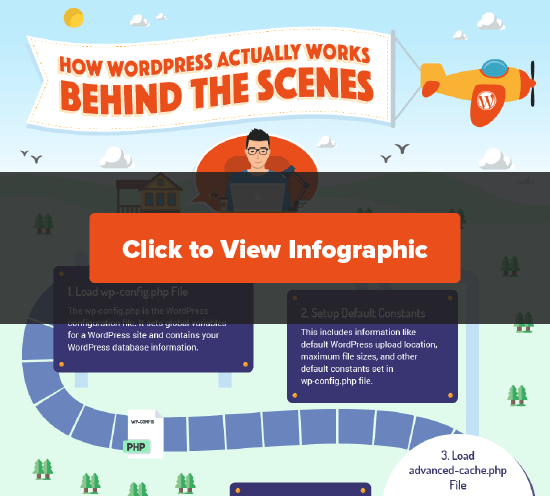
You can also follow our written tutorial below for more details.
1. Load wp-config.php File
The wp-config.php is the WordPress configuration file. It sets global variables for a WordPress site and contains your WordPress database information. This is the first file WordPress loads for obvious reasons.
Learn more about the wp-config.php file and how to edit it.
2. Set Up Default Constants
After loading the wp-config.php file, WordPress will move on to set default constants.
This includes information like the default WordPress upload location, maximum file sizes, and other default constants set in the wp-config.php file.
3. Load advanced-cache.php File
If an advanced-cache.php file exists on your site, then WordPress will load it next.
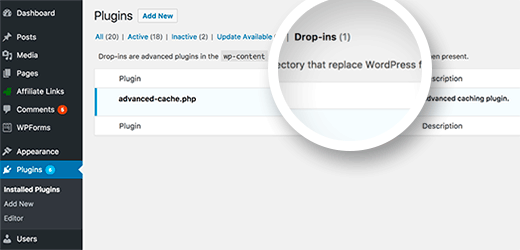
This file acts as a drop-in file and is used by several popular plugins, particularly WordPress caching plugins. If your site uses this file, you will see a new item on the plugins screen called Drop-ins.
4. Load wp-content/db.php File
WordPress allows developers to create their own database abstraction layers and load them in a db.php file placed inside the wp-content folder. WordPress caching plugins commonly use it to improve database performance.
If your website has this file present, then WordPress will load it.
5. Connect MySQL and Select Database
WordPress now has enough information to proceed further. It will connect to the MySQL server and select the database.
If WordPress cannot connect to the database, you will see the “Error establishing database connection” error, and WordPress will quit right here.
If everything works fine, then it will move on to the next steps.
6. Load object-cache.php or wp-includes/cache.php File
WordPress will now look for the object-cache.php file. If it doesn’t exist, then WordPress will move on to load the wp-includes/cache.php file.
7. Load wp-content/sunrise.php File
If it is a multisite network, then WordPress will look for the sunrise.php file if it exists in the wp-content folder.
8. Load Localization Library
WordPress will now load the l10n.php library in the wp-includes folder. This file loads the WordPress localization system, loads translations, sets locales, etc.
You can see our guide on how to use WordPress in other languages.
9. Load Multisite Plugins
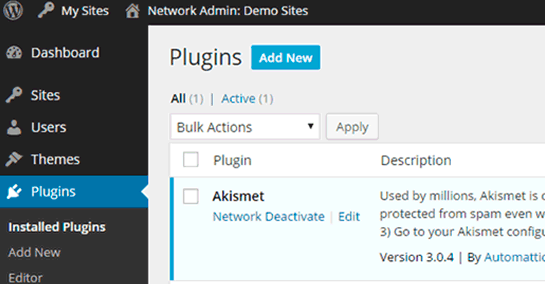
If it is a multisite network, then WordPress will load the multisite plugins. Learn more about how plugins work on WordPress multisite network.
10. Do Action ‘muplugins_loaded’
The action muplugins_loaded is now run by WordPress. This action is available only to network-activated plugins on a WordPress multisite.
11. Load Active Plugins
WordPress will now load all active plugins on the site. It does that by looking in the active_plugins entry in the options table of your WordPress database. This allows WordPress to ignore plugins that are installed on your site but not activated.
12. Load pluggable.php File
The pluggable.php file contains functions that can be redefined by WordPress plugins.
WordPress will now see if another plugin already defines the functions inside this file. Otherwise, it will define those functions themselves.
13. Do Action ‘plugins_loaded’
WordPress will now run the action ‘plugins_loaded’.
It allows developers to hook their functions to run after all active plugins have been loaded.
14. Load Rewrite Rules
WordPress will now load the rewrite rules. These rewrite rules help WordPress use SEO-friendly URLs.
15. Instantiate $wp_query, $wp_rewrite, $wp
At this point, WordPress loads the following objects:
$wp_query: The global instance that holds WP_Query class. It tells WordPress what content is requested in a typical WordPress query format.
$wp_rewrite: The global instance that holds your WP_Rewrite class. It contains your rewrite rules and functions, which tell WordPress which URL to use to display the requested content.
$wp: The global instance of the WP class contains functions that will parse your request and perform the main query.
16. Do Action ‘setup_theme’
WordPress will now move on to run the ‘setup_theme’ action. This action runs before your WordPress theme is loaded.
17. Load Child Theme’s functions.php File
The functions.php file acts as a plugin and is used in WordPress themes to add theme-specific features to your website. If you are using a child theme, then WordPress will now load your child theme’s functions.php file.
Otherwise, it will go on and load your current active theme’s functions.php file.
18. Load Parent Theme’s functions.php File
If you are using a child theme, then WordPress will now load your parent theme’s functions.php file.
19. Do Action ‘after_setup_theme’
This action runs after WordPress has set up the theme and loaded theme functions. It is the first action available to themes.
20. Setup Current User Object
At this point, WordPress loads the current user object. It allows WordPress to manage the request in accordance with the user’s role and capabilities.
21. Do Action ‘init’
WordPress has so far loaded all the crucial information it needs. Now it fires the ‘init’ action. This action also registers blocks available in the core or provided by any plugins installed on that website.
This action enables developers to add code that needs to be executed after WordPress has loaded all previously mentioned information.
22. Do Action ‘widget_init’
The widget_init action allows developers to register widgets and run the code they need to run at this time.
23. Run wp()
WordPress now calls the wp() function, which is located in wp-includes/functions.php file. It sets up the WordPress query globals $wp, $wp_query, $wp_the_query, and then calls $wp->main.
24. Parse Request
Now WordPress has all the information it needs to parse the user request. It starts by checking the rewrite rules to match the user’s request.
And then runs query variable filters, requests a action hook, and sends a header request.
25. Run Query
If no content matches the query, then WordPress will set is_404 variable.
Otherwise, WordPress will go on to load query variables.
It will then run WP_Query->get_posts().
Next, it fires DO_ACTION_REF_ARRAY ‘pre_get_posts’ action with WP_Query object.
WordPress will now run apply_filters to clean up the query and run some final checks.
Now, it fetches posts from the database and applies posts_results and the_posts filters.
The query part ends with WordPress returning the posts.
26. Do Action ‘template_redirect’
WordPress will now run the template_redirect action. This hook runs just before WordPress determines which template page to load.
27. Load Feed Template
If the requested content is an RSS feed, then WordPress loads the feed template.
28. Load Template
WordPress will now look for the template file based on the WordPress template hierarchy. It then loads the template, which usually contains a WordPress loop.
29. Do Action ‘shutdown’
Just before ending all PHP execution, WordPress fires the last action called shutdown.
WordPress stops working here. It has run the code and generated the user’s requested web page.
Now, your web hosting server replies to a user’s request by sending them the web page generated by WordPress.
This page contains HTML, CSS, and Javascript code, which tells the user’s browser how to display it on screen.
Amazing, isn’t it? All these things happen within milliseconds. If you are using one of these best WordPress hosting services, your page will ideally load in a couple of seconds.
We hope this article helped you learn how WordPress works behind the scenes. You may also want to see our step-by-step guide on how to boost WordPress speed and performance and our expert picks for the best WordPress plugins to grow your website.
If you liked this article, then please subscribe to our YouTube Channel for WordPress video tutorials. You can also find us on Twitter and Facebook.



Syed Balkhi says
Hey WPBeginner readers,
Did you know you can win exciting prizes by commenting on WPBeginner?
Every month, our top blog commenters will win HUGE rewards, including premium WordPress plugin licenses and cash prizes.
You can get more details about the contest from here.
Start sharing your thoughts below to stand a chance to win!
MJB says
hm – I am kind of missing step 0
so is this a correct assumption`?
a URL comes in at my hosted webserver
requesting let’S say my home page
then the webserver fires up step (1) ?
which then runs until step (24)
where WP parses the incoming URL to figure out next steps?
WPBeginner Support says
Step 0 can certainly be a URL linking to the site, around step 15 is where the specific page would be considered.
Admin
Mike Ross says
What about index.php in the root?
I don’t get it…There are guides out there that lay out a totally different sequence of WordPress initialization.
WPBeginner Support says
Index.php would be for the theme files, we cover the theme hierarchy in our guide below:
https://www.wpbeginner.com/wp-themes/wordpress-template-hierarchy-explained/
Admin
Mike Ross says
No, I’m not talking about the theme’s homepage template. I’m taking about the index.php at the root, which is a part of the WordPress core. It triggers wp-blog-header.php, which then loads wp-load.php which sets up the entire WordPress environment.
WPBeginner Support says
The index.php in the root folder tells WordPress to load your theme
Admin
Terry Woods says
That is correct
Jason says
Why start from wp-config.php ? I thought it was from index.php
WPBeginner Support says
That would be for themes and not WordPress itself, for the index.php you would want to take a look at the template hierarchy in our guide below:
https://www.wpbeginner.com/wp-themes/wordpress-template-hierarchy-explained/
Admin
Petru Ciucur says
This is THE Article. Thanks !
WPBeginner Support says
Glad our guide was helpful
Admin
Juan Johnson says
HI wpbeginner.
I noticed that in your sequence, you mentioned that wp does this and then that. Physical, where is the instance of wp()? On the server? Does this happens in between an initial load page post request when I use google browser and the final loading of the wp dashboard after login?
WPBeginner Support says
You may want to take another look at the infographic for understanding the loading and how it works.
Admin
Juan Johnson says
I am a programmer. I am getting more into the web page design, however, I cannot let go of wanting to know what is going on behind the scenes. You article has given me a foundation to start confidently constructing web pages.
WPBeginner Support says
Glad our guide was helpful
Admin
Paul McDevitt says
This is brilliant. Ran into several issues with old, expired plugins, updating PHP, etc, and a virus (probably because of the prior items.) So all locked down and scrubbed up now, but wanted to understand better the sequence of events as looking into any one PHP file is like trying to read a bowl of spaghetti, as I did not understand the sequencing of the activities. So absolutely amazing. Love this.
Thanks
WPBeginner Support says
Glad our article was helpful
Admin
Naresh says
very clear article.
WPBeginner Support says
Thank you
Admin
Chinenye says
I want to really know what wordpress does, how can I make and share posts through word press? What does it do for me apart from creating a site?
WPBeginner Support says
WordPress allows you to create a site without needing to have knowledge of HTML and CSS. For sharing your posts, you would normally want to take a look at social media plugins: https://www.wpbeginner.com/plugins/best-social-media-plugins-for-wordpress/
Admin
ganesh says
very interesting
Adrian says
Interesting but not really a definition of how WordPress works. This describes what it does, not how it does it. Would be useful to also know how it does things as well as what it does. For example how does it know which theme to load? Without the how all the above is very high level.
amir saleem says
17. Load Child Theme’s functions.php File
The functions.php file acts as plugin and is used in WordPress themes to add theme specific features to your website. If you are using a child theme, then WordPress will now load your child theme’s functions.php file.
Otherwise, it will go on and load your current active theme’s functions.php file.
18. Load Parent Theme’s functions.php File
[ If you are using a child theme ], then WordPress will now load your parent theme’s functions.php file.
check the text in brackets and match all the wording here will be replace [ if you are using a parent theme ].
Thanks.
Caleb says
Amir, I think what the OP is trying to say is that if there is a child theme, then obviously there would be a parent and child functions.php and wordpress first loads the child themes functions.php before loading the parent’s. Otherwise, it just loads the parent’s functions.php straightaway.
Altab Hossen says
Thanks for this nice explanation and info-graphics is so cool !!
Kristian says
And people wonder why WordPress sites are slow. It does all that at run-time for every single page view!
Johnpaul Onwueme says
Thanks for the info graphics
deborah says
still seems complicated to me, but all tech does
Jason says
Would you be willing to offer this as a printed poster? I don’t know if it would generate much interest or make you any money, but since it is such a nice graphic it might make a nice office wall hanging.
anis says
Thank you for this article . I wanted to know since long time
the different steps for loading .
What is a database abstraction layer and how to configure it ?