


Are you looking to add a contact form on your WordPress site?
A contact form is essential for any WordPress website. However, with so many plugins out there, it can be difficult to find the perfect solution for your WordPress site.
In this article, we have hand-picked the best contact form plugins for WordPress and compared their pros and cons.

Which Is the Best WordPress Form Plugin? (Video)
The best WordPress contact form plugin will vary based on your needs and use cases.
While WPForms is the fastest-growing WordPress form plugin, in some cases, Formidable Forms or another plugin might be a better fit. This is why we have created a comprehensive video guide to help you pick the best WordPress form builder.
If you prefer the text version, then please continue reading. Simply use the quick links below to jump straight to the plugin you want to learn more about:
How We Test and Review Plugins
At WPBeginner, our best WordPress plugin showcases are written by a dedicated team of people with over 16 years of experience in WordPress, SEO, web hosting, eCommerce, and online marketing. Our WordPress experts extensively review each plugin or tool that is featured here and thoroughly test them on real websites. We look at multiple factors, including ease of use, customization options, pricing, and more, to ensure a plugin is the best solution for our readers. To learn more, see our complete editorial process.
Overview of the Best Contact Form Plugins
| Best For | Price | Free Version | ||
|---|---|---|---|---|
| 🥇 | WPForms | Easy and powerful forms | Starts at $49.50/yr | ✅ |
| 🥈 | Formidable Forms | Creating advanced forms | Starts at $39.50/yr | ✅ |
| 🥉 | HubSpot Forms | All-in-one marketing tool | Free | ✅ |
| 4 | Gravity Forms | Highly customizable forms | Starts at $59/yr | ❌ |
| 5 | UserFeedback | Collecting user feedback | Starts at $49.50/yr | ✅ |
| 6 | Jetpack Forms | Extra WordPress tools | Free | ✅ |
| 7 | Ninja Forms | Simple contact forms | Starts at $99/yr | ✅ |
| 8 | Typeform | Conversational forms | Starts at $25/mo | ❌ |
| 9 | FormStack | HIPAA compliant forms | Starts at $50/mo | ❌ |
1. WPForms
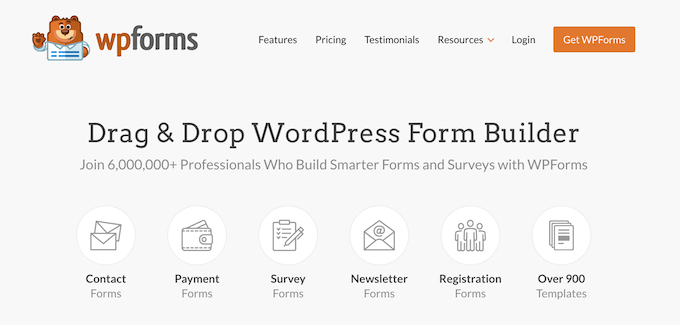
WPForms is the most beginner-friendly WordPress contact form plugin. We use it on WPBeginner and all of our other websites.
WPForms is built by the same team as WPBeginner with a single goal: Make a WordPress forms plugin that’s both easy and powerful.
Pros
WPForms’ drag-and-drop form builder makes it the most user-friendly form plugin for WordPress, and that’s why over 6 million websites use it for form creation.
WPForms Lite is available for free in the official WordPress plugin directory, meaning you can install it on as many sites as you like.
The free version comes with all the essential contact form features, including basic form fields, recaptcha to block contact form spam, email notifications, and a thank-you page for form confirmation. You can also accept payments via Stripe with just a 3% fee.
The premium version allows you to extend the functionality, so you can build any type of form, such as multi-page forms, email subscription forms, advanced payment forms, registration forms, and more.
It integrates with payment platforms like Stripe, PayPal, Square, and Authorize.net, so you can quickly create payment forms and accept one-time or recurring payments. Plus, there are no additional transaction fees.
WPForms Pro also comes with other powerful form fields and features like smart conditional logic, file upload, digital signatures, user-submitted content (post submissions), login and user registration for WordPress, and over 1,500+ pre-built form templates.
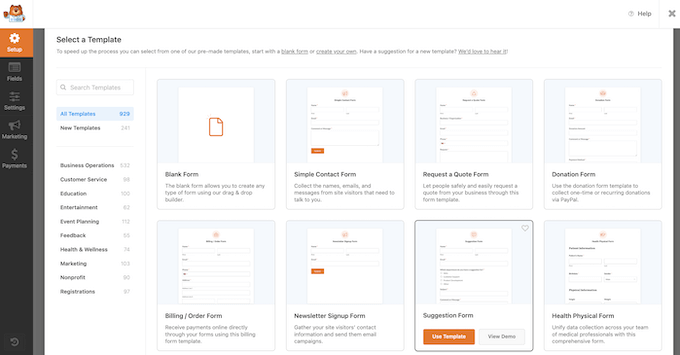
You can see all your form submissions right inside your WordPress dashboard and get customized email notifications. You can even set up conditional notifications so the right person in your team gets notified.
WPForms surveys & polls addon is by far the best WordPress survey solution in the market. It comes with interactive survey reports, real-time polls for WordPress, and all smart survey fields like star ratings, Likert scale, NPS, and more. This saves you from paying for extra subscriptions for expensive survey platforms like Survey Monkey.
They also have a form landing page solution to help you create distraction-free form pages in WordPress, which makes WPForms the best Wufoo and Google Forms alternative.
WPForms Pro also includes their signature Conversational Forms for WordPress, which helps you improve your form completion rate by making your forms feel more like a conversation.
In addition, WPForms offers:
- Features like form revisions and access control to improve your workflow.
- Integrations with all popular email marketing services like Mailchimp, Salesforce, HubSpot, and dozens more.
- Conversion-focused features like user journey reports, form abandonment, geolocation data, a coupons addon, and more.
- Integrations with WordPress automation plugins like Uncanny Automator to further automate your workflows.
There are documentation and guides available, along with excellent email support and a Facebook group to help you when you need it.
Cons
While the Lite version is free, you need to upgrade to Pro to unlock more powerful features.
Even though WPForms is powerful, the #1 goal of this plugin is to make it user-friendly. That’s why it doesn’t have the more complex features that some other form plugins offer.
Why we chose WPForms: WPForms is hands down the best WordPress contact form builder on the market. With its ready-made templates, you can embed a contact form in your website, blog, or eCommerce store with just a few clicks. It also has built-in spam protection. If you want more powerful features, then you can explore settings such as conditional logic, conversational forms, automated workflows, and Ajax form submission.
Pricing: Licenses start from $49.50 per year. However, WPBeginner readers can use this WPForms coupon to get 50% off the premium version of WPForms.
Alternatively, you can start with WPForms Lite for free, which, in our opinion, is the best free WordPress form plugin.
You can see our complete WPForms review for more details.
Bonus: If you are a registered non-profit organization, then you can qualify for WPForms non-profit discount, which gives you 75% off the regular price.
2. Formidable Forms
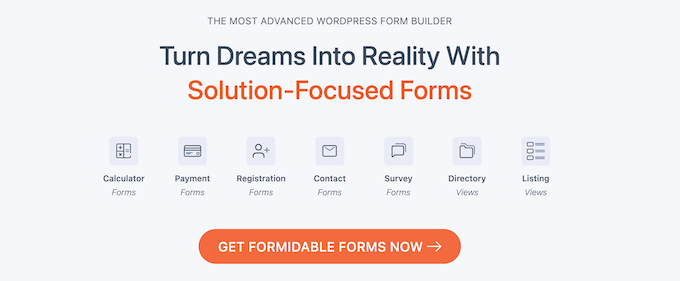
Formidable Forms is the most advanced WordPress form plugin on the market.
They specialize in helping developers build complex form-focused solutions quickly and offer built-in spam protection.
Pros
Formidable Forms is an all-in-one WordPress form builder that comes with powerful addons to help you go beyond simple contact forms.
You can use the Formidable Forms drag-and-drop interface to create advanced forms like quizzes, surveys, payment forms, custom user registration forms, profile forms, and more.
It comes with all the form field types you need, including radio buttons, checkboxes, dropdowns, text, phone number, HTML, and more.
Advanced users will really love the Formidable Views feature because it allows you to format, filter, and display user-submitted data on your website’s front end. You can use this feature to create directories, job board listings, management systems, event calendars, rating systems, and more.
You can use Formidable’s advanced calculation fields to create powerful order forms as well as smart calculators like a mortgage calculator, car payment calculator, request a quote calculator, and more.
Formidable Forms integrates with all popular email marketing and payment platforms. They also have a powerful WooCommerce integration to help you build product forms and even WooCommerce product configurator forms that tie directly to your cart.
Cons
The Formidable Forms builder is not as intuitive as WPForms because it focuses on advanced users and developers.
However, this does make it the most extendable form solution on the market. If you are a developer or agency looking to build form-based solutions or data-driven web applications, then nothing in the market comes close to Formidable Forms.
Why we chose Formidable Forms: If you are looking for an advanced contact form plugin, then Formidable Forms is great value for money. To get the same features from a plugin such as Gravity Forms, you would need to buy a ton of third-party addons.
Pricing: Yearly licenses range from $39.50-299.50.
3. HubSpot Forms

HubSpot’s WordPress plugin is a free all-in-one marketing plugin that comes with tools like a WordPress form builder, live chat, analytics, CRM, and more.
Pros
HubSpot is an all-in-one marketing toolkit that comes with a form builder, live chat, popups, analytics, and other marketing features for your website. The main appeal for HubSpot is the plugin seamlessly integrates with their powerful CRM and sales tools.
You can connect your forms, manage contacts, segment contacts into groups and lists, and see every interaction a visitor has had with your website. This gives you great insight into your marketing and sales performance.
If you are using HubSpot’s email marketing and other sales tools, then it makes sense to use their form builder. However, HubSpot also easily integrates with other form tools in our list, such as WPForms and Formidable Forms, so you have lots of options.
Cons
While you can use the CRM, forms, live chat, and analytics for free in the HubSpot base plugin, you have to upgrade to a Starter plan (starting at $30 per month) or above to use HubSpot’s other paid features. This can get quite expensive, especially if you are just starting out or have a limited budget.
HubSpot Forms are not as powerful as WPForms or Formidable Forms since they lack WordPress-specific features like custom user registration forms, login forms, post submissions, and more.
Why we chose HubSpot Forms: If you are already using any HubSpot tools, then the form builder integrates perfectly with these tools. This can save you a ton of time and effort and improve your marketing workflow.
Pricing: You can download the HubSpot Forms plugin for free. However, you’ll need to upgrade to a paid plan in order to remove HubSpot’s branding from your forms, unlock additional features, and use multiple automated emails per form.
4. Gravity Forms
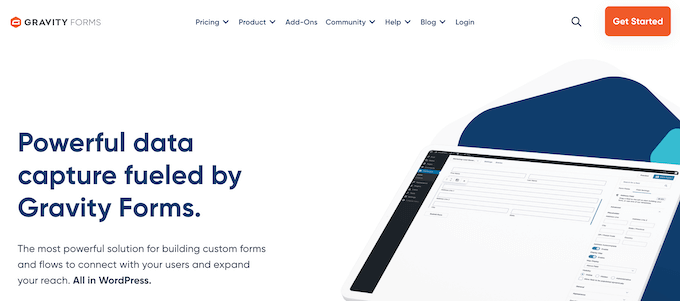
Gravity Forms is a paid WordPress form builder plugin that comes with a lot of advanced functionality and features. They also specialize in helping developers build complex form-related solutions.
Pros
Gravity Forms is a powerful drag-and-drop contact form plugin for WordPress.
With the help of additional add-ons, Gravity Forms can be used to create surveys, user-submitted content, quizzes, and even a web directory.
It integrates with many popular plugins and apps, including Heroic KB. This requires users to search your knowledge base before they can submit a support ticket form.
Gravity Forms also comes with premium support options like FAQs, forums, and email support. This means that help is available when you need it.
For more on this topic, please see our guide on how to properly ask for WordPress support and get it.
Cons
Gravity Forms does not have a free version, so it can be a bit more expensive compared to other WordPress contact form plugins. However, if you are using Gravity Forms on multiple sites and projects, then the licenses still represent decent value for money.
By default, Gravity Forms does not include powerful features like Views, tables, and directories. Instead, you will need to purchase these addons from 3rd-party developers like GravityKit and GravityWiz, which will increase your annual costs.
By contrast, all these features are included in the iBusiness plan of Formidable Forms, which can save you a ton of money. For a more in-depth comparison, please see our guide on WPForms vs. Gravity Forms vs. Formidable Forms.
Why we chose Gravity Forms: Gravity Forms is a highly customizable contact form plugin with many addons. It is easy to use, and you can make any kind of form using the drag-and-drop form builder.
Pricing: Gravity Forms licenses range from $59-159 per year.
5. UserFeedback

UserFeedback is the best WordPress user feedback plugin on the market. It lets you easily create pop-up forms to collect information from your website visitors in real-time. You can create contact forms, lead forms, surveys, and more.
Pros
UserFeedback takes only a few minutes to set up and it comes with a growing library of 20+ pre-made survey and form templates. You can also use the beginner-friendly builder to create any type of form from scratch.
It displays one question at a time, which gives it a more conversational feel and helps improve form completion rates.
You can set the form widget to automatically pop up in the corner of your site or use the shortcode to embed it anywhere. You can control when the form is displayed and where you want it to be shown, including on specific pages and devices.
UserFeedback also seamlessly integrates with Google Analytics and MonsterInsights. This lets you track your forms and get important insights, right from the WordPress dashboard.
Cons
UserFeedback lacks some of the powerful features, such as payment forms, file uploads, and calculation fields, that other form builders like WPForms and Formidable Forms provide.
There is a free version of UserFeedback that you can use to create forms. However, it offers limited features. You’ll need to upgrade to the Pro version to access premium templates, all question types, custom branding, page-level targeting, and the ability to export your results.
Why we chose UserFeedback: UserFeedback is a user-friendly and customizable form builder for collecting multiple types of feedback on your website. Plus, it offers unlimited surveys, questions, and responses.
Pricing: UserFeedback starts at $49.50 per year. Alternatively, you can get started for free with the UserFeedback Lite plugin.
6. Jetpack Forms
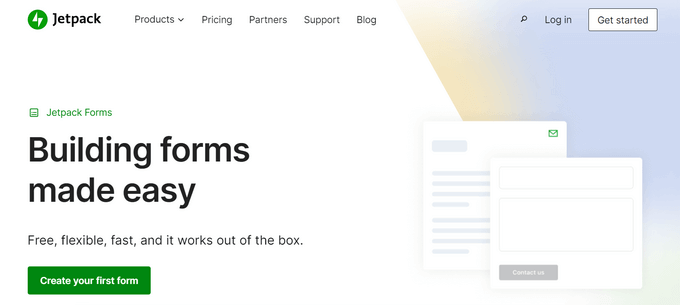
Jetpack offers a suite of tools to enhance your WordPress website, including a flexible form builder. You can create contact forms, registration forms, login forms, feedback forms, and more.
Pros
Jetpack’s form builder works with the WordPress block editor, allowing you to build forms visually and edit the form settings from right inside the WordPress editor.
It also comes with a variety of pre-made form templates, an AI assistant to automate form creation, dashboard notifications, and Akismet anti-spam to protect your forms.
Along with the form builder, Jetpack includes tools like WordPress security, backups, performance optimization, and more.
Cons
Jetpack Forms has limited functionality compared to other contact form plugins. Aside from conditional logic and file uploads, it lacks many of the features and customization options offered by other form builders.
The plugin also comes with a ton of extra website tools that you may not need. While you can disable these tools, they still add bloat to your website and can impact page load speed.
To learn more about the pros and cons of Jetpack, see our guide on the best Jetpack alternatives.
Why we chose Jetpack Forms: If you’re already using the WordPress Jetpack plugin, then Jetpack Forms is a great option for creating contact forms. It’s free and you can make unlimited forms without any coding.
Pricing: You can download the Jetpack plugin for free. For advanced features, you can upgrade to a premium Jetpack bundle starting at $14.97 per month.
7. Ninja Forms
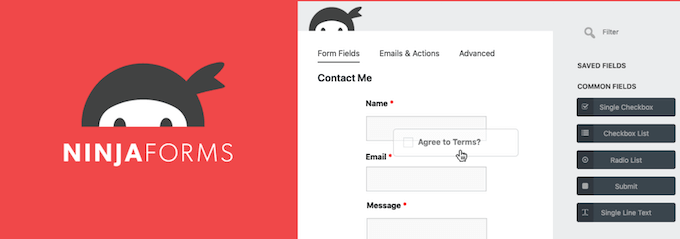
Ninja Forms is a freemium contact form plugin for WordPress. You can use it to create highly interactive forms with very little effort.
Pros
You can download the base plugin for free from the official WordPress repository. This means you can download and install it on as many sites as you like, so it’s perfect if you own multiple websites or run a WordPress multisite network.
There are premium extensions that allow you to add advanced features. For example, you can connect the Ninja Forms plugin to Campaign Monitor, FreshBooks, Salesforce, SMS notifications, and more.
Cons
Even though you can download the main Ninja Forms plugin for free, you’ll need to pay for the extensions. Buying two or more extensions or even the developer bundle will cost you nearly the same amount as WPForms or Formidable Forms, so this isn’t the best option if you have a limited budget.
Why we chose Ninja Forms: Ninja Forms lets you create unlimited forms with no coding skills. As a freemium plugin, you can start with the free base plugin and then add extensions as required. This makes Ninja forms a great fit for all kinds of projects.
Pricing: You can download the base plugin for free from the official WordPress repository. You can also purchase individual addons or even buy an addon subscription starting at $99 per year.
8. Typeform
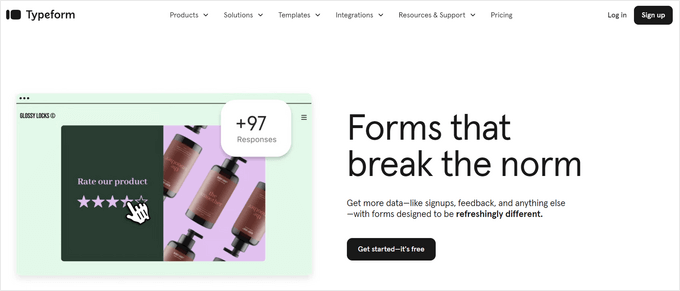
Typeform is a popular online tool for creating forms, surveys, quizzes, polls, applications, and more. It has a modern, conversational interface that presents questions one at a time, which offers a more interactive experience.
Pros
Typeform comes with a library of 3,000+ beautifully designed form templates. There are 28 editable question types and you can easily customize the forms with your own logos and colors to match your brand.
It also comes with powerful AI (artificial intelligence) features to help you optimize your forms. Typeform’s AI can automatically draft questions and improve question phrasing for higher conversions.
The forms can also adapt to your users in real-time for better personalization. For example, with logic jump, you can automatically change the flow of questions based on users’ responses.
Cons
Typeform is expensive compared to other form builders that we looked at. It starts at $25 per month for the basic plan. This plan only allows you to receive 100 responses per month and you can’t remove the Typeform branding.
In addition, Typeform is a SaaS (software as a service) tool and it stores data on its external servers. This can cause security vulnerabilities that put your customers’ personal data at risk.
There are many Typeform alternatives that are more affordable for small businesses and offer better security for your customers’ data.
Why we chose Typeform: Typeform is a stylish and easy-to-use web-based form builder. If you have a bigger budget, it’s a great tool for creating highly engaging and interactive forms.
Pricing: The Basic plan starts at $25 per month, which limits you to 100 responses. To get 1,000 responses per month and the ability to remove Typeform branding, you need to upgrade to the Plus plan for $50 per month.
9. FormStack
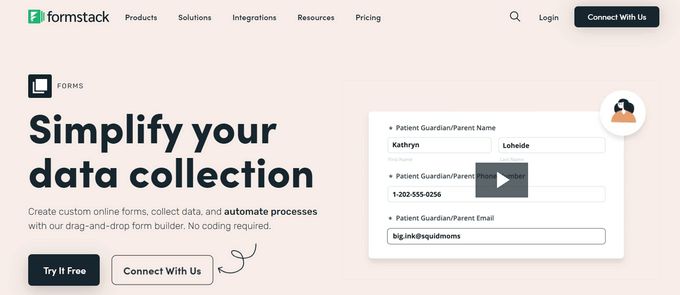
FormStack is a powerful form builder for government agencies and businesses in the healthcare, education, insurance, and financial industries. You can create PCI and HIPAA compliant forms for prescription refills, insurance applications, and more.
Pros
Formstack simplifies the process of building forms, preparing documents, and collecting eSignatures. You can easily create no-code workflows to automate processes like sales, patient onboarding, insurance claims, and more.
It also integrates with popular payment processors like Stripe, PayPal, Authorize.net, Braintree, and others, to create payment forms.
Cons
FormStack is the most expensive contact form builder on our list. The basic Forms plan costs $50 per month. This plan only allows you to create 20 digital forms, while many other form builders offer unlimited form creation.
Even the most expensive Suite plan, which costs $191 per month, limits you to 25 forms.
If you don’t purchase the Suite plan, you also have to pay extra for addons like digital signatures. Solutions like WPForms offer electronic signatures as part of their Pro plan at a much more affordable price.
Why we chose FormStack: If you need to create HIPAA compliant forms, we recommend using FormStack. It’s a great option if you’re looking for an all-in-one solution for form building, document preparation, and collecting signatures.
Pricing: Starts at $50 per month, which includes 20 online forms and 1,000 submissions per form.
Avoid: Contact Form 7

Although we don’t recommend Contact Form 7, this list cannot be complete without the oldest and most downloaded contact form plugin in the official WordPress plugin directory.
Pros
There are really no pros except for the fact that it’s a free contact form plugin. Often, beginners make the mistake of installing Contact Form 7 because it has a high active install number since a lot of old sites are using it.
There are also several third-party plugins that act as addon plugins for Contact Form 7, and you can download most of them for free.
If you are looking for a free WordPress form plugin, then WPForms Lite, Formidable Forms Lite, and Ninja Forms are all significantly better solutions than Contact Form 7.
Cons
Contact Form 7 is a below-average solution for creating a basic contact form for your blog. It is very difficult to set up for absolute beginners, and it’s hard to find your way around the user interface.
Since it is a free plugin, you only get limited support.
There are several third-party addons available for Contact Form 7. Unfortunately, the official plugin website doesn’t have an addons directory, which makes it difficult to find addons to extend the functionality of the base plugin.
Which Is the Best Contact Form Plugin for WordPress?
The plugins we mentioned in this article can all help you create contact forms. However, the best WordPress form builder plugin will vary depending on your needs.
If you are a beginner and don’t want to spend any money, then we recommend WPForms Lite.
If you are a business owner and want to create powerful custom forms without learning CSS code or hiring a developer, then go with the WPForms Pro version.
If you are a developer trying to build more complex forms, then there’s no better solution than Formidable Forms.
Our overall pick for the best WordPress contact form plugin is WPForms.
Frequently Asked Questions About WordPress Contact Forms
Having helped tens of thousands of people select the best WordPress form builder for their needs, here are some of the questions we’ve been asked time and time again.
Where is the WordPress contact form data stored?
Most WordPress plugins will store the contact form data in your WordPress database. This means that the data is self-hosted on your server, and you have full ownership of everything.
Some WordPress form plugins like WPForms can even automatically route every contact form submission to your email address, store the data in Google Sheets, send it to your CRM, or add the subscriber to your email marketing service.
Are WordPress form plugins GDPR compliant?
Yes, most popular WordPress form plugins like WPForms are fully GDPR compliant because the customer data is stored on your server and not in any third-party platform.
WPForms also has built-in GDPR enhancements that allow you to disable cookies on forms, prevent the storage of user IP, add a GDPR agreement field, and perform other important GDPR-compliant tasks.
Which WordPress contact form plugin is best for surveys & polls?
In our research, we found WPForms to have the best survey and poll features.
WPForms automatically creates beautiful reports with graphs and charts based on survey responses. You can show survey results on any WordPress page with a shortcode or redirect your users to the results page after they fill out the survey.
Unlike other WordPress form plugins, WPForms even allows you to enable survey reports for any of your existing forms.
Formidable Forms would be our second pick.
Can I automatically add WordPress form plugin data to Google Sheets?
Yes, you can easily configure most WordPress contact form plugins to automatically add data to your Google Sheets.
For example, WPForms has a Google Sheets integration that lets you connect any form to Google Sheets, map form fields to specific columns, use conditional logic, and more.
Even if a form builder doesn’t have a native Google Sheets integration, you can often use Uncanny Automator, which is one of the best WordPress plugins for automation.
Uncanny Automator lets you connect WordPress form plugins to Google Sheets, including WPForms, Formidable Forms, Contact Form 7, Gravity Forms, and more.
You can even connect your form builder to additional services, such as Airtable, without the middle-man fees you get with other automation tools like Zapier.
Which is better, WPForms or Contact Form 7?
WPForms is a far better form maker than Contact Form 7 because it has a beginner-friendly drag-and-drop interface. By contrast, you have to write code to build a form using Contact Form 7.
Even when comparing just the WPForms free version, WPForms has far better anti-spam features (Google reCAPTCHA instead of Honeypot), customization options, and more.
How do I create a beautiful contact form in WordPress?
Your WordPress theme controls how the contact form looks. However, some WordPress form builders allow you to customize the form.
For example, WPForms allows you to configure your form field layouts using a drag-and-drop interface. You can also use the conversational form addon to create a beautiful, modern, full-page contact form that looks great on mobile.
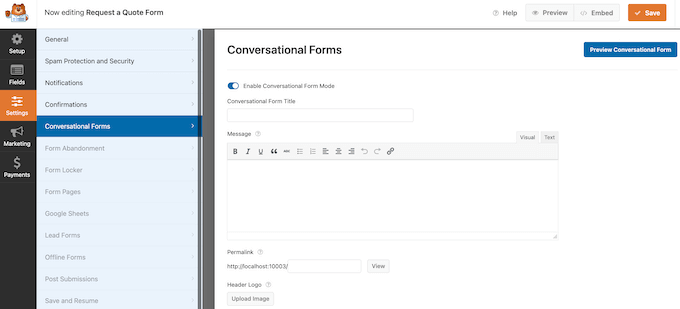
Formidable Forms also offers a similar conversational form feature.
For more details, see our guide on how to create a contact form in WordPress.
Which is the best WordPress form plugin for non-profits?
Almost all major WordPress contact form plugins allow non-profits to create a donate form, so it ultimately comes down to the price. WPForms offers non-profit organizations a 75% discount on their normal pricing, so in our opinion, that’s the best choice.
If you are looking for a completely free WordPress payment form plugin to accept donations, then we recommend taking a look at WPForms Lite or WP Simple Pay.
Which is the best free form plugin for WordPress?
The top three best free form plugins for WordPress are:
- WPForms – over 6 million active installs.
- Formidable Forms – over 300,000+ active installs.
- HubSpot Forms – over 300,000+ active installs.
Are there other WordPress form builder plugins that are not included in this list?
Yes, there are literally hundreds of online form software options out there, but our goal is to help readers avoid choice paralysis.
In our research, we also looked at Survey Monkey, Wufoo, Google Forms, Elementor Forms, Fluent Forms, Forminator, Everest Form, Jotform, and WeForm. However, we believe that the WordPress form builders we’ve listed in the article are the absolute best.
Which is the best WordPress form builder, in your opinion?
Our top choice for the best WordPress form builder plugin is WPForms. It’s easy to use and powerful, and with over 6 million users, it’s the fastest-growing form software on the planet.
If you are just getting started, then you can try the WPForms free version and upgrade to the paid version later as your business grows.
We hope this guide helped you choose the best contact form plugin for your WordPress site. You may also want to take a look at our guide to the best WordPress page builder plugins or our expert picks of the best WordPress backup plugins.
If you liked this article, then please subscribe to our YouTube Channel for WordPress video tutorials. You can also find us on Twitter and Facebook.





Syed Balkhi says
Hey WPBeginner readers,
Did you know you can win exciting prizes by commenting on WPBeginner?
Every month, our top blog commenters will win HUGE rewards, including premium WordPress plugin licenses and cash prizes.
You can get more details about the contest from here.
Start sharing your thoughts below to stand a chance to win!
Ayanda Temitayo says
Wao… Thank you for this info. I’m so used to using contact form 7 for creating a form in my contact us page for any website I build. This post has enlightened me to use some better contact us plugin option.
Nice one.
WPBeginner Support says
Glad we could share some additional options
Admin
Vincent Nyagaka says
I started with Contact 7 but when I came across WPForms I was impressed by its features and I had to switch to WPForms. I have been using WPForms for 5 years now and I am so impressed.
WPBeginner Support says
Glad to hear you’ve been enjoying WPForms
Admin
Jiří Vaněk says
I’ve always used contactform7 for my contact form, so I’m surprised you don’t recommend it. I still have it on several older sites. However, I have been using the paid version of WPForms for the past 4 months and am happy with it. Since it has an unlimited license for the number of websites, I will make the exchange based on your recommendation. Otherwise, after my experience with WPForms, I can confirm that, in my opinion, this is really the best solution. Recently, after reading your article about the newsletter, I also used WPForms to collect email addresses and connected it to Mailchimp. And it really works like a charm. I can already see the first addresses in the list and I am very happy about it. WPForms has really advanced my blog a lot.
The only thing that bothers me a little about WPForms is the somewhat complicated appearance adjustment using CSS if I want to customize each form.
Mrteesurez says
For a plugin having post submissions, login and user registration and over “1300+ pre-built form templates”, it’s a great plugin.
I normally use Fluentform because of it design, easy and featured rich.
I may give a trial to WPform later
WPBeginner Support says
We hope you find it helpful
Admin
Ahmed Omar says
nice detailed comparison for important part of site management.
personally I am using WP forms which is convenient and easy to work
Thank you
James Auble says
What’s with the anti contact form 7 slant? I’ve had great success with the plugin.
WPBeginner Support says
We give our reasons in this article. We are a site for beginners and while someone can eventually figure out how to use it, it is not something we would recommend for beginners. Our other reasoning can be found in the article itself including the pros of using the plugin.
Admin
Yash Bhanushali says
Nice post and very informative
WPBeginner Support says
Glad you found it helpful!
Admin
Jeff Cope says
I have had great luck using Gravity Forms.
WPBeginner Support says
Thanks for sharing the plugin you’re using
Admin
Harish BISHT says
I have tried all the plugins, but wpforms is the certainly the best. From creating a form to customizing it, the process is so easy.
WPBeginner Support says
Thank you for sharing your preferred form plugin!
Admin
Joy says
Hi. Thanks for sharing.
WPBeginner Support says
You’re welcome, glad our list was helpful!
Admin
Isabel says
Thank you for sharing.
WPBeginner Support says
You’re welcome Isabel
Admin
Chetan ck says
mentioned all contact form wordpress plugins are very useful.
WPBeginner Support says
Glad you feel we’ve shared the useful plugins
Admin
Web Guy Nick says
These plugins are great for any wordpress website!
WPBeginner Support says
Glad you think so!
Admin
Matthew Hogan says
I can’t emphasis enough my appreciation of the free help.
WPBeginner Support says
Glad you found our comparison helpful!
Admin
Sunil Ilanthila says
I personally use Formidable Forms on my website and it meets my expectations. Finally a very good comparison article.
WPBeginner Support says
Thank you for sharing your preferred form plugin
Admin
Abbas Ishrat says
Very informative article.
WPBeginner Support says
Glad you found our list helpful!
Admin
Albert Ho says
WP Forms is easy to use. Thank you WP Forms.
WPBeginner Support says
Glad to hear you found a plugin from our list helpful!
Admin
Daphane says
I’m a nonprofit and I like to have peer-to-peer campaigns run where the number of volunteers and funding goals are tracked and displayed on the website each time a volunteer joins and a donation is made. Which form would be best and easier at doing this? I might like a progress bar, but it’s not necessary because I can use the goal number.
WPBeginner Support says
For what you’re wanting we would recommend taking a look at some of the plugins in our data visualization list below:
https://www.wpbeginner.com/showcase/best-data-visualization-wordpress-plugins/
Admin
Oliver says
I couldn’t agree more about contact form 7 total pain in the butt. so complicated to do the simplest of things had to add custom css to my site just to make the characters big enough to be read. anything is better that it I loke others saw how popular it is but dont be fooled choose something else
WPBeginner Support says
Thank you for sharing your experience with the plugin
Admin
Jessili says
I am a beginner and using wordpress forms in my website. Is there anyway possible to put all data from the forms that come on the emails to a google sheet or an excel file with/without the use of additional plugins so I dont have to manually sort the data?
Looking forward to a way out!
Thanks in advance!
WPBeginner Support says
It would depend on the plugin being used, some have that option in their pro version.
Admin
J Rux says
Can you send a pdf file to the customer after they submit a form using WP Lite?
WPBeginner Support says
You can certainly add a download link to your confirmation message if you wanted.
Admin
Jan says
Thanks a lot for the guide! I installed WPForm and It seems that WPForm Lite doesn’t allow you to see your entries unless you upgrade to the Pro Version. The free version is basically not usable or am I missing something? Thanks a lot for your feedback
WPBeginner Support says
The plugin is still useable, it will still send entries to the email address you set in the form settings
Admin
Ranojit Kumar says
Can I create complex form with WPForms?
WPBeginner Support says
It would depend on the complexity, you can reach out to WPForms to see if what you want is doable and if not, Formidable Forms should be able to handle more complex forms.
Admin
Vincent Olaer says
I have tried using Gravity Forms and Contact form 7. Before, I thought that Contact form 7 is the best. So I used it in many projects. However, as years passed by, it was actually left behind and has been plagued by spam.
Gravity Form is the second contact form that I have tested. I have used it in many projects and it’s very versatile.
Wishing to use “WP Forms” hopefully.
WPBeginner Support says
Thanks for sharing your experience with these plugins
Admin
Paul says
Before I joined my new department, they built the site to use Caldera Forms for the user registration. How hard would it be to convert to WPForms? How would I export and import the customer data from Caldera Forms to WPForms?
WPBeginner Support says
You would want to reach out to WPForms support for the currently recommended method of transferring
Admin
Taslim Hossain says
The #1 Contact form for WordPress is WPForms. The user interface is Beautiful and easy to set up, Excellent !
WPBeginner Support says
Glad you’re enjoying using WPForms
Admin
Yasir Mehmood says
I am using WP Forms lite for my blog but I am not receiving e-mails for the entries posted. Any solution?
WPBeginner Support says
It would likely be due to how your site is sending the emails, you should be able to get around that issue using SMTP which we cover in our article here: https://www.wpbeginner.com/plugins/how-to-send-email-in-wordpress-using-the-gmail-smtp-server/
Admin
Andrew Marcelli says
Thanks for the great article. I love WPForms. I use it on all my sites. I tried multiple plug-ins for forms and WPForms was the easiest to get up and running.
WPBeginner Support says
You’re welcome, glad you’ve been enjoying WPForms
Admin
Shakeel Anjum says
I’m currently using the WPForms Lite version and I absolutely love it. It’s the most beginner friendly & no. 1 free WP contact form plugin.
WPBeginner Support says
Glad you like the WPForms plugin
Admin
Louise says
Is a good beginning to collect data for site
WPBeginner Support says
Thank you, glad you like our article
Admin
Caroline Veilleux says
If you want to make a really simple contact form, I really recommend Ninja forms. In case you want to make something more complicated and add Paypal payments, go for Gravity forms. WPforms works great but is really expensive.
WPBeginner Support says
Thanks for sharing your opinion
Admin
WPBeginner Support says
Thank you for your feedback, if you’re looking for calculator fields for the moment we would recommend Formidable Forms
Admin
Bhabishya Bhatt says
WPForms is great plugin very easy to use, firstly I used Contact Form 7 it stops working sometime…
WPBeginner Support says
Thank you for your feedback, glad you’re enjoying WPForms
Admin
Munna Chowdhury says
I used to use CF 7. Now I’ve moved to WPForms for me and my clients as it saves our time. Recommended for both techies & non-techies.
WPBeginner Support says
Thank you for sharing your recommendation
Admin
Unarine Leo says
Hi, After installing wp contact form how do I make the recepient receive an auto response?
WPBeginner Support says
Each plugin has a different location for that so the where and how depends on the plugin you installed.
Admin
Muhammad junaid says
It’s explained very well thanks for such information.. you are not only wpbeginner but also expert pro and pro❤❤
WPBeginner Support says
Thank you, glad you found our article well explained
Admin
David TC says
I currently use Formidable forms, and I so much love it. But, for the sake of this post, I’m going to install Wpforms on the new site I’m working on. Maybe I might fall in love with it, too.
WPBeginner Support says
Thanks for sharing what you’re using, we hope you enjoy WPForms as well as Formidable
Admin
Muhammad Waqas says
Very helpful post.
WPBeginner Support says
Thank you, glad it was helpful
Admin
Umer hassan says
Nice post learned a lot from it. I really needed this one thanks a lot.
WPBeginner Support says
Glad our post could be helpful
Admin
Purity says
Am a new user to wp forms and so far I love the layout and the simplicity….the best part is that one can create a beautiful contact form without any help…
WPBeginner Support says
Glad you’ve been enjoying WPForms
Admin
Jochen Gererstorfer says
WPForms Lite is a good way to go, if you can’t spend money.
But simple calculator fields would be nice.
Louise Findlay says
I love how simple WP Forms makes creating a contact form. It’s easy, has a great free plan and is responsive.
WPBeginner Support says
Glad you’ve been enjoying WPForms
Admin
Lauren Nicole says
Any ideas for a form plugin that generates a unique url for each form and not a shortcode? I want to link a form to a button by using the form’s url, but I am having a hard time finding a plugin that does this. WP forms gives me a shortcode and an embed code but neither will work with a button.
WPBeginner Support says
For what it sounds like you’re wanting, as you have WPForms you would want to take a look at the form pages addon
Admin
Mike says
created a form with wpform lite from blank but don’t get notification despite setting everything up in notification with my email. was it because i created from bank. ? because the contact form is working
WPBeginner Support says
If your contact form is not sending the messages, then it is due to how WordPress sends messages by default and you would need to look into using SMTP: https://www.wpbeginner.com/plugins/how-to-send-email-in-wordpress-using-the-gmail-smtp-server/
Admin
Alex Smyrk says
Is there a way with any form plugin for logged in users on the front-end to submit a form, and at a later date login and update it (on the front-end)? I am currently trying to do this with 10web Form Maker plugin (using their MYSQL Mapping) and Participants Database and also using Form Makers own table wp_formmaker_submits. But it’s not so straightforward.
WPBeginner Support says
For that, you would want to check with the form plugin’s support for what is available at the moment.
Admin
Brian Haines says
RE: WPForms
“The free version comes with all the basic contact form features including basic form fields, captcha for spam protection, email notifications, and a thank-you page for form confirmation.”
Actually “captcha for spam protection” is not included in the free version of WPForms.
WPBeginner Support says
You would want to go under WPForms>Settings>reCAPTCHA for where to activate CAPTCHA in the free version
Admin
Andrew Zicklin says
Is there a form solution that will transfer the information to a spreadsheet. In other words, as people sign up, Their info gets downloaded one by one into a spreadsheet?
Thanks,
WPBeginner Support says
You could use WPForms to collect the information and then export the entries to a CSV which can be opened as a spreadsheet
Admin
Pratik says
I did not find a solution to what I was looking for. I have 15 services on my website and I have 15 separate web pages for each of the services. I want to have a small request for quote form in every service page. Will I have to create 15 different forms to identify what service someone is requesting for?
WPBeginner Support says
You could do that or create a dropdown for users to select the service and add the same form to each page.
Admin
amit sharma says
thanks for the information about WordPress plugin it is really useful
WPBeginner Support says
Glad you found our content helpful
Admin
Jeff says
I enjoyed your article like I do all your articles, and I check your website for answers to everything I am researching for my WordPress website before making any decisions.
I was using WPForms Lite with dependable success and then one day my form turned to just the code, and I redid the form over and over with the same results never figuring out what the problem was. I now need to add a new contact form and after reading your article I am going to give WPForms Lite another try in hopes this time it works for me.
Thank You
WPBeginner Support says
Thank you for trying the plugin again, if you continue to run into that issue please reach out to the plugin’s support and they should be able to assist.
Admin