


Are you wondering how to install a WordPress theme?
There are thousands of WordPress themes available (both free and paid). As a beginner, you may want to try out a few of them on your site until you find the right one.
In this beginner’s guide, we will share detailed step-by-step instructions on how to install a WordPress theme. We will cover three different ways to install a WordPress theme, so you can choose the method that works best for you.
Before You Install a WordPress Theme
Installing a WordPress theme is easy, but keep in mind that if you activate a new theme, then it will change how your WordPress website looks and functions.
If you are switching from an existing theme, then you may want to look at our checklist of things you need to do before changing WordPress themes.
If you are installing a theme when starting a new WordPress website, then you are good to go.
Bonus Tip: See our list of the best and most popular WordPress themes for some ideas.
Video Tutorial
If you don’t like the video or need more instructions, then just continue reading. Simply click the links below to jump to the section you need:
Method 1: Install a Theme Using WordPress Admin Theme Search
If you are looking to install a free WordPress theme from the WordPress.org themes directory, then you can explore this directory from inside your WordPress dashboard.
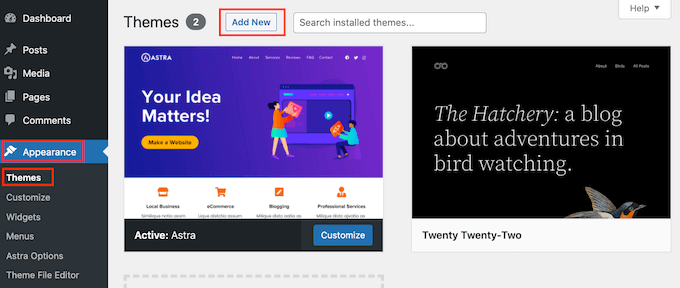
To do this, log in to your WordPress admin area. Next, visit the Appearance » Themes page and click on the ‘Add New’ button in the top right corner.
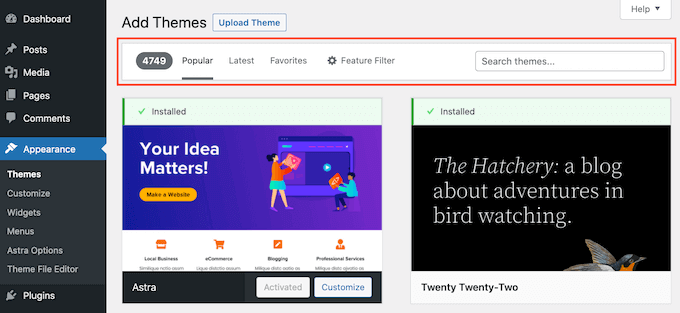
On the next screen, you can choose from: Popular, Latest, or Favorites.
If you already know the theme that you want to use, then simply type its name into the ‘Search themes…’ field.
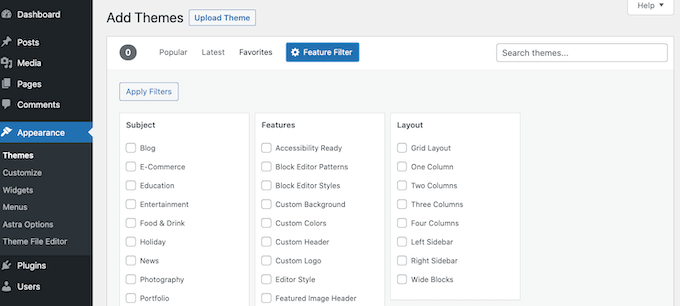
Clicking on ‘Feature Filter’ will allow you to sort themes based on different characteristics.
You can sort themes by subject, specific features, and layout.
Based on your search, you will see a list of themes that meet your criteria. In our case, we searched for the popular Astra theme.
When you see the theme that you want to install, simply hover your mouse over its image. This will reveal the Install, Preview, and ‘Details & Preview’ buttons.
Go ahead and click on the ‘Install’ button.
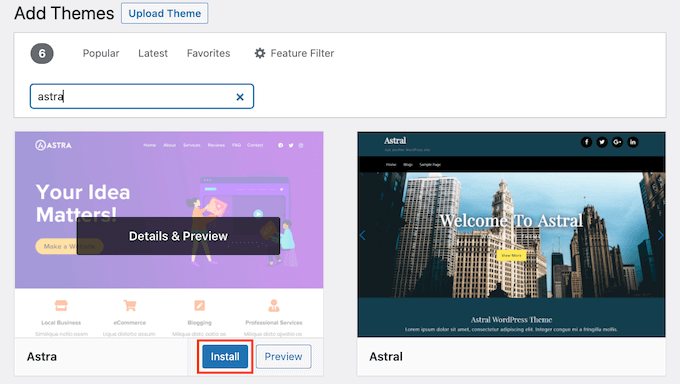
WordPress will now install your theme.
When your theme is ready, WordPress will show a success message.
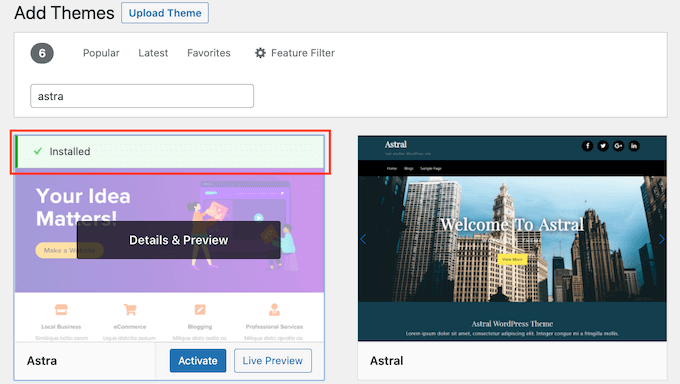
WordPress will also display the ‘Activate’ and ‘Live Preview’ buttons.
To start using this theme on your WordPress website, click on the ‘Activate’ button. You’ve now successfully installed and activated your WordPress theme.
If you visit your site, it will now be using this new theme.
Some themes have additional settings that you may need to configure.
For instance, your theme may ask you to install some must-have WordPress plugins, download demo data, or review its settings.
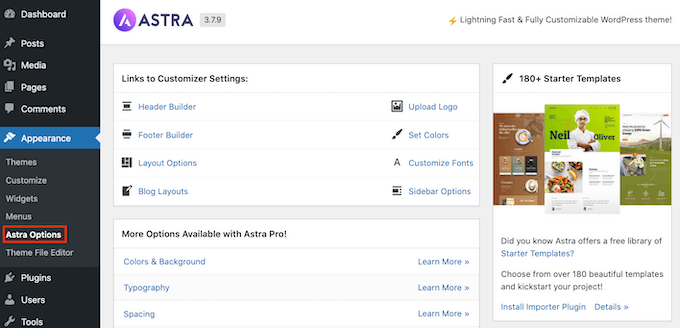
You can follow the onscreen instructions. As you can see, the Astra theme adds an ‘Astra Options’ section.
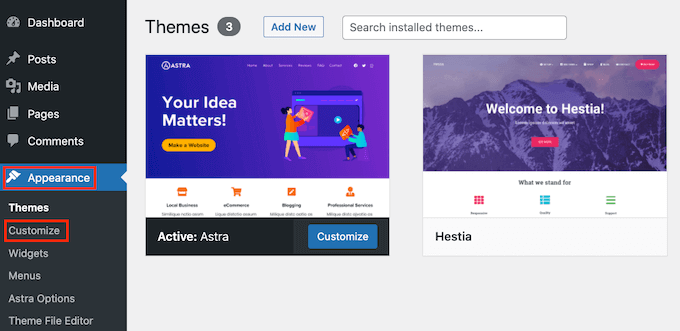
You can also edit your theme using the built-in WordPress theme customizer.
To do this, you must select Appearance » Customize.
For more details, see our guides on how to use the WordPress theme customizer like a pro.
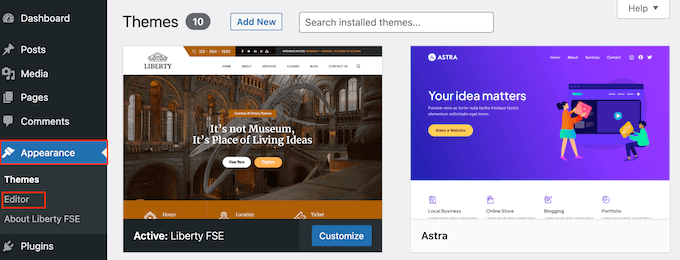
If you are using a WordPress block theme, then you will need to go to Appearance » Editor instead. This will launch the full site editor, allowing you to edit your theme’s page templates and template parts.
For more details, see our guide on how to use WordPress full site editing.
Method 2: Install a Theme Using the Upload Method From WordPress Admin
The first method that we covered only allows you to install free themes that are available in the WordPress.org theme’s directory.
What if you want to install a premium WordPress theme from companies like StudioPress, Elegant Themes, or Themify?
Or what if you want to install a custom theme? In this case, you would need to install the theme by uploading it to your WordPress account.
Start by downloading the .zip file of the theme that you purchased from a marketplace or a commercial theme shop.
Next, head over to the Appearance » Themes page in your WordPress admin area and click on the ‘Add New’ button at the top.
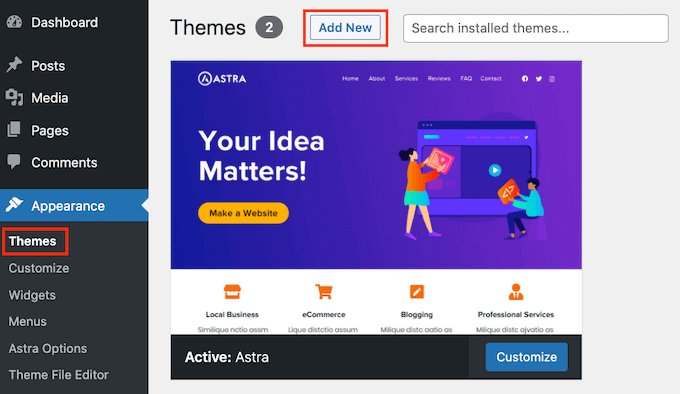
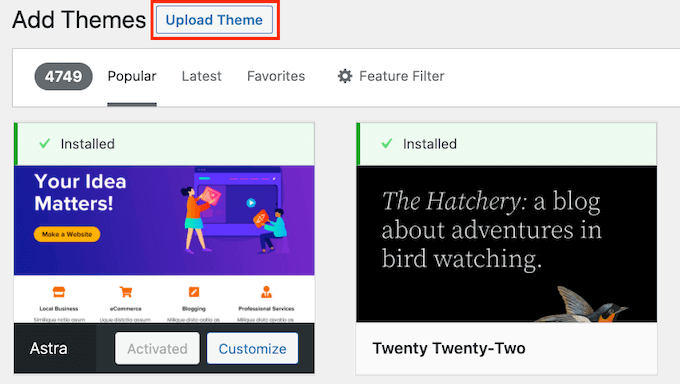
This will take you to the Add Themes page showing featured free themes.
Since you already have the theme you want to install, simply go ahead and click on the ‘Upload Theme’ button.
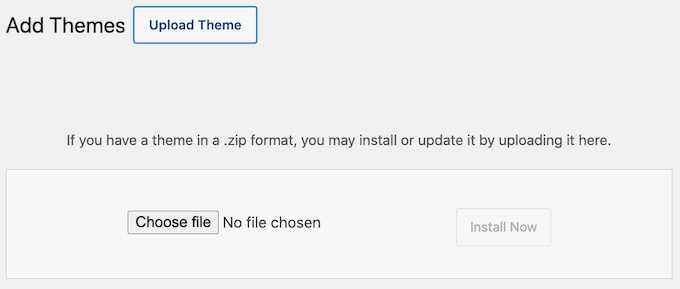
You can now click on ‘Choose from’ and select the .zip file that you downloaded earlier from your computer.
Then simply click on the ‘Install Now’ button.
Once your theme is installed, you will see a ‘Theme installed successfully’ message.
You’ll also see links to preview or activate your theme. To start using this theme on your WordPress website, just click on ‘Activate’.
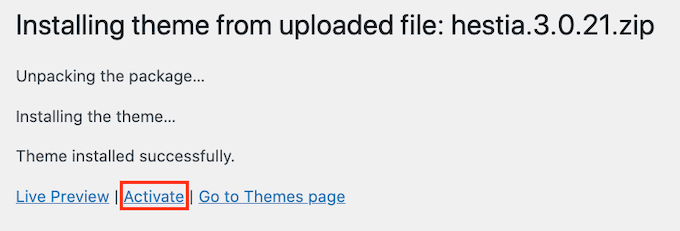
If you visit your website, you should now see your new theme in action.
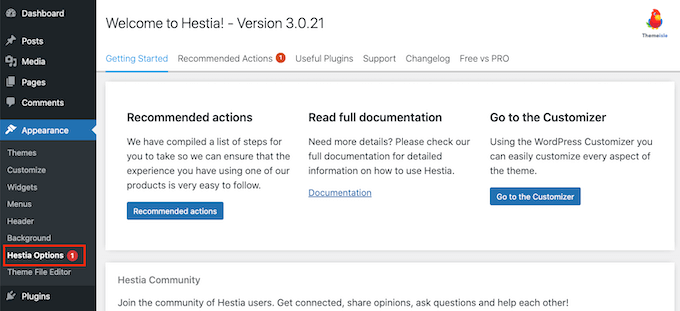
Some themes add extra settings that you may need to configure. Depending on your theme, you may need to make these changes in the WordPress customizer or through a separate theme options panel.
In the following screenshot, you can see the Hestia Options menu. This is a special theme options panel that you can use to configure the Hestia WordPress theme.
Note: The theme upload feature is only available for self-hosted WordPress.org users. If you are using WordPress.com, then you will not see this option because it limits you.
In order to use the custom theme upload feature, you need to use self-hosted WordPress.org. For more details, see our comparison between WordPress.com vs. WordPress.org.
If you want to switch from WordPress.com to WordPress.org, then read our tutorial on how to properly move from WordPress.com to WordPress.org.
Method 3: Installing a WordPress Theme Using FTP
If you are feeling adventurous and want to take your skills to the next level, then you can learn about installing a new WordPress theme using FTP.
Remember, this method is not for true beginners because it is a little bit more advanced.
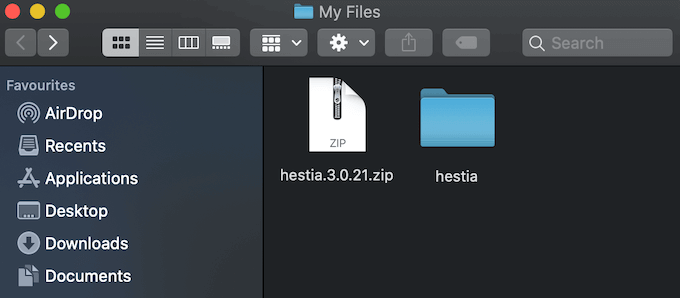
First, you need to download the theme .zip file to your computer. After that, you need to unzip the file.
This will create a new folder with the theme’s name on your computer. We downloaded the free version of the Hestia WordPress theme.
Now that you have the theme files, you are ready to upload them to your website.
To do that, you must connect to your WordPress hosting account using an FTP client. If you need help, then see our guide on how to use FTP to upload WordPress files.
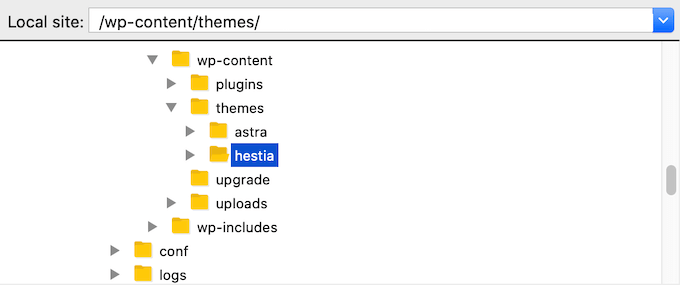
Once connected, you have to go to the /wp-content/themes/ folder. Inside, you’ll see folders for all themes currently installed on your website.
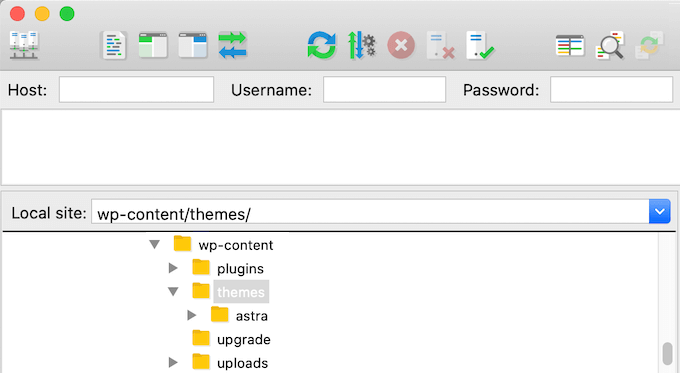
You can upload your new theme by adding it to the wp-content/themes folder.
Select your unzipped theme folder from your computer. You can then drag and drop this theme folder into your website’s themes folder.
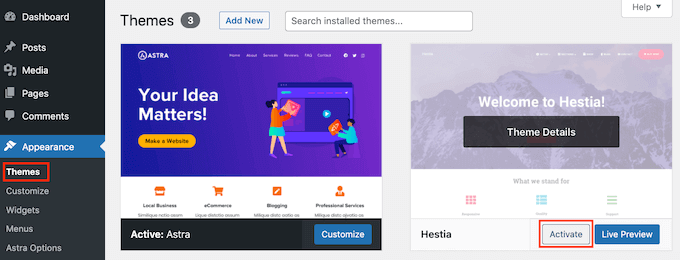
Once you have uploaded the theme, switch back to your WordPress dashboard. Then go to Appearance » Themes.
You should now see the theme that you just uploaded.
To use this theme on your website, simply hover your mouse on top of that theme. Then click on the ‘Activate’ button.
FAQs About Installing WordPress Themes
The following are some of the most commonly asked questions about installing WordPress themes.
1. How many themes can I use in WordPress?
You can only use one theme at a time. However, you can install as many themes as you like. Not all installed themes on your WordPress website are active.
As soon as you activate a WordPress theme, it automatically deactivates your previous active theme and makes the new theme your active one.
2. What is a child theme in WordPress?
A child theme in WordPress is a sub-theme that inherits all the functionality, features, and style of its parent theme. To use a child theme, you’ll need to install both parent and child themes on your website and then activate the child theme.
For more details, see our guides on how to create a child theme in WordPress and how to install a child theme in WordPress.
3. Can I build my own WordPress theme?
It is possible to create a custom theme for WordPress. Even better, you can design, build, and publish your own theme without having to write any code.
To do this, you just need a WordPress plugin.
SeedProd is the best WordPress theme builder in the market. You can easily create completely custom pages for your website using SeedProd’s drag-and-drop builder.
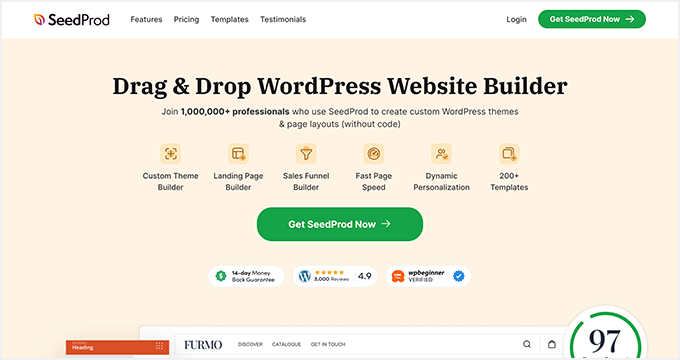
You can also use SeedProd to build your WordPress themes. For more details, please see our guide on how to easily create a custom WordPress theme.
4. What is a WordPress theme framework?
Theme frameworks are highly optimized WordPress themes that are designed to be used as parent themes.
Intended for advanced users and developers, these theme frameworks contain several code and speed optimizations that help other developers quickly build upon them to create their own themes.
Genesis by StudioPress is the best example of a WordPress theme framework. For more information, you can see our article on WordPress theme frameworks.
5. Premium vs Free themes – Which one should I use?
If you are just starting out on a limited budget, then we recommend choosing a flexible free theme. See our pick of the best free WordPress themes for blogs and best free themes for business websites.
If you can spend a little more, then we recommend choosing a premium theme. These themes come with priority support which comes in handy, particularly for beginners.
For more on this topic, see our guide on free vs. premium WordPress themes, or check out how much it really costs to build a WordPress website.
6. How do I choose the best theme for my website?
There are so many WordPress themes out there, and most of them are designed by professionals, so they look really great.
This makes it a bit confusing for beginners to choose the perfect theme for their website.
We recommend keeping it simple. Choose a minimalist theme that closely resembles the finished design you have in mind. Make sure that the theme looks great on mobile, and run a website speed test on the theme’s demo site.
See our beginner’s guide on how to choose the perfect WordPress theme for your website. You may also want to take a look at our expert pick of the best web design software.
7. Can I use the same theme I have seen on another WordPress site?
If it is not a custom WordPress theme, then you can find and use the same theme on your own website. See our guide on how to find out which WordPress theme a site is using.
We hope this step-by-step guide helped you install a WordPress theme on your site. You may also want to see our ultimate guide to boost WordPress speed and performance and our expert picks for the best WordPress themes for graphic designers.
If you liked this article, then please subscribe to our YouTube Channel for WordPress video tutorials. You can also find us on Twitter and Facebook.




Syed Balkhi says
Hey WPBeginner readers,
Did you know you can win exciting prizes by commenting on WPBeginner?
Every month, our top blog commenters will win HUGE rewards, including premium WordPress plugin licenses and cash prizes.
You can get more details about the contest from here.
Start sharing your thoughts below to stand a chance to win!
Jillian says
I’m trying to upload my theme, but it’s telling me I need to buy a business account for $300 to do that?? Help!
WPBeginner Support says
That is a limitation of WordPress.com, our tutorials are for WordPress.org sites. For a better understanding of the differences, we would recommend taking a look at our article below:
https://www.wpbeginner.com/beginners-guide/self-hosted-wordpress-org-vs-free-wordpress-com-infograph/
Admin
Noon Babiker Ali says
How can I install theme with its content??
Kathy Friend says
I need some help. From the appearance tab, I have no option to add a new theme. The site I am trying to update was made with Divi (and no one knows that password for that site) – so I need to update it using one of the WP free themes.
WPBeginner Support says
You may want to check your user role permissions following our guide below:
https://www.wpbeginner.com/beginners-guide/wordpress-user-roles-and-permissions/
Admin
Ken says
So this is a common issue? Free themes has this issue all the time?
WPBeginner Support says
It depends on the specific theme, some have demo content and others do not. It does not matter if the theme is free or not.
Admin
Ken says
Hi
I have activated a free theme from the list you provided but the website does not look same as the demo. I get a single blog page “sample page”. No other pages or anything else.
How to fix this issue?
WPBeginner Support says
If you want the site to look the same as the demo, you would want to reach out to the theme’s support for if they offer demo content that you can import to your site.
Admin
ericka says
i do not have an “add new” button at top of screen as shown. how do i install?
WPBeginner Support says
Are you using WordPress.com? We would recommend taking a look at our guide below for the comparison below:
https://www.wpbeginner.com/beginners-guide/self-hosted-wordpress-org-vs-free-wordpress-com-infograph/
Admin
Rabiul Sany says
If I want to develop a website on localhost server by premium theme,how to install the premium theme?
WPBeginner Support says
It would depend on the specific theme, you would want to reach out to the theme’s support for how they handle local installs
Admin
Sumaiya Patel says
Hello
I can’t find the Appearance tab in my WordPress. Please help me
WPBeginner Support says
f you are using a WordPress.org site you may be seeing their interface, for the difference between WordPress.com and WordPress.org you would want to take a look at our article below:
https://www.wpbeginner.com/beginners-guide/self-hosted-wordpress-org-vs-free-wordpress-com-infograph/
Admin
Dan says
Hi,
If I install a new theme after loading demo data from the first, but without creating any live content, will I have a problem installing the demo data from the new theme?
WPBeginner Support says
It would depend on the theme but for the most part, you shouldn’t have an issue.
Admin
kaushal says
Uhhhh…. I have following ur methods but when I go to Appearance> Theme page… I don’t see “add new” icon…. so what to do???????
WPBeginner Support says
You may be on WordPress.com, in which case you would want to take a look at our article below:
https://www.wpbeginner.com/beginners-guide/self-hosted-wordpress-org-vs-free-wordpress-com-infograph/
Admin
lbahi says
hi thank you for the information
please i have a question about paid themes, could i use my licenses to design my website on localhost and then move it to live because i want to familiarise with the theme and design it the way i want before .
have a nice day
WPBeginner Support says
It would depend on the specific theme for their limitations but you should normally be able to do that.
Admin
imlil says
Can I use a premium them multiple times and in different websites
Thank you
WPBeginner Support says
It would depend on the specific theme. If you reach out to your theme’s support they should let you know their licensing limitations.
Admin
Andrea says
Hey,
When I try to do this, the web tells me that I have to upgrate to a paid version, is there any way I can install this theme on my free account?
WPBeginner Support says
Not on the free WordPress.com at the moment, part of your confusion would be our guides are for WordPress.org sites and we cover the difference here:
https://www.wpbeginner.com/beginners-guide/self-hosted-wordpress-org-vs-free-wordpress-com-infograph/
Admin
zainul says
amazing information
WPBeginner Support says
Thank you
Admin
Will says
When i download my themes for some reason it seems I am missing something. For instance the last them i downloaded and installed had a graphic next to the page title and that wasn’t there, there was a graphic on the side bad, again not there…. as well as the background color. Which was sorta lavender and as well that was not their either.. What am i doing wrong?
WPBeginner Support says
Not all themes have their demo content as their defaults. If you reach out to your theme’s support they can let you know if they offer their demo content.
Admin
Will says
Ok. The themes that are with WordPress should have all the demo content there right? or is that also just for demo
WPBeginner Support says
You would need to reach out to each theme for if their demo content is available.
Stephen Newdell says
I want to know how to open a theme on my desktop so I can work with it here as a “Local Server” and then either copy/paste a page to my WordPress site or upload with FTP. I have the theme in a zipped folder on my desk now but how do I open it and put it to work learning my way around it?
Please help: Advanced Thanks
WPBeginner Support says
Modifying a theme would require some coding knowledge, for a starting point you may want to take a look at our child theme article here: https://www.wpbeginner.com/wp-themes/how-to-create-a-wordpress-child-theme-video/
Admin
Ahmad says
Hello,
I followed the instructions to upload my custom theme, however, there isn’t an “Add New” button. Any ideas?
WPBeginner Support says
Is your site on WordPress.com? We have an article explaining the differences here:
https://www.wpbeginner.com/beginners-guide/self-hosted-wordpress-org-vs-free-wordpress-com-infograph/
Admin
Dogood says
How do I maintain the graphics that comes with a theme? Themes will look very beautiful on vendor’s site but after installation, it’ll be looking boring. I’m sure there’s something I’m not doing correctly.
WPBeginner Support says
You would want to reach out to the theme’s support for if they have a method to replicate their demo content for how much of the demo content is available
Admin
Emmanuel Kileo says
Not Found
The requested URL /index.php was not found on this server.
Additionally, a 404 Not Found error was encountered while trying to use an ErrorDocument to handle the request.
Please I need some help guys
WPBeginner Support says
You may want to recreate your htaccess file using the steps in: https://www.wpbeginner.com/beginners-guide/beginners-guide-to-troubleshooting-wordpress-errors-step-by-step/
Admin
Douglas Hamilton says
Thankyou. Unfortunately (i wont mention the website), dosent actually show you how to install the themes properly. They give you a brief look over, but not actually how to do it step by step. Sometimes, its what you need, thanks again.
sweta says
Hi, I uploaded a new theme and activated it. But i am unable to visit the particular site. One default theme is showing. Why? How can i visit the site which i uploaded?
Ken Hay says
Pity you don’t make it very obvious at the start that you are ONLY working with WordPress.org
Morgan says
So I just followed these instructions to add a theme and after the theme uploaded successfully and I clicked “Activate”, I received a Parse error. How do I now undo this issue? Thanks!
WPBeginner Support says
Hey Morgan,
You can undo this by connecting to your website using FTP or File Manager in cPanel dashboard. Once connected, go to wp-content/themes/ folder and delete the theme you were trying to install.
Admin
Carla says
I have dowloaded the Pro version of my basic free wordpress theme because the Pro version unlocks more features for colours and design. In my free theme it said : Go Pro. So that’s what I want to do.
However when I upload the pro version through WP theme installer, it says installation failed because there is already a folder with that name. Do you think the Pro zip file has the same name as the free basic version?
What should I do? Use an other theme for a few minutes and de-install the free basic theme first? And then install the pro zip file? I’m unsure what to do. And will deinstalling it from my wordpress theme collection also deinstall it from my host server?
Editorial Staff says
You would want to first reach out to the theme’s support to ensure they do not have a recommended method to change to the pro version as it could have the same name.
Admin
Kennedy Mukaria says
Hi
I found a new theme that I have downloaded and subsequently installed onto my WordPress site for under Add Themes> upload theme. I want to activate it and move no contents from the existing site. I intend to have it the way it is. Any advice?
Thanks in advance
Lola says
I bought a premium theme which I tried to upload to WordPress localhost. It keeps giving me this message;
Warning: post content length of 26678057 bytes exceeds the limit of 8388608 bytes in unknown on line 0
Are you sure you want to do this?
Please try again.
What could be wrong? And how can I rectify it?
Thanks
WPBeginner Support says
Hi Lola,
Please follow the instructions in our guide on how to fix WordPress memory exhaustion error.
Admin
Kristy Em says
Hi, I am having issues here.. I have followed all this site’s steps to get my website on wordpress.org. I have a domain I bought a while ago, transferred it and have it successfully hosted now on BlueHost. I just purchased a WordPress premium theme for $125 (which is p expensive..) and I can’t get the .zip file anywhere.. Also, it auto installed onto the example.WORDPRESS sites instead of my wordpress.org Bluehosted nerdvegan.com and I have no idea how to switch it since there is nowhere to download the .zip file. Also, having multiple sites listed in and of itself is messing me up, how do I get rid of everything but just the example.com that is on wordpress.org? please help!~ thank you in advance!!
WPBeginner Support says
Hi Kristy,
Please contact the theme shop you purchased the theme from to help you find the ZIP file you need to install. Once you are certain that you have the theme’s zip file on your computer. Go a head and login to your WordPress website where you want to install the theme. Go to the Appearance » Themes page and then click on the Add New button. Next, you need to click on the upload button to upload the theme file from your computer.
Please see the screenshots in the article above.
Admin
Kelly says
I am on WordPress right now and there is no button to add a theme as the screenshots show. Did their pricing models change? Does it require a premium version now to be able to do this?
Eghenure Peace says
This’ really helpful
Thanks a lot
Greg says
Do you guys have a tutorial for homemarket themes? Can you guys help me find one? Thanks
Manikandan says
I will installed wp in my Linux fedora 24 64-bit laptop wp theme add button is hide never to see my localhost site
kristiana says
Thank you so much, this was so simple and clear, I hope you live a truly blessed life
robert edward says
hi i tried using all the options but still installation of new theme fails, what might the problem be???
fuad says
I am using a free plan wordpress theme. And i have download a new theme I liked. When I tried to install the new, there was no upload button. How can I install the new one?
Thank you
WPBeginner Support says
Hi Fuad,
It looks like you are using WordPress.com. Please see our guide on the difference between WordPress.come and WordPress.org.
Admin
Alexis G says
I just purchase my premium plan with my domain name and storage space (that whole package). When going to appearance>themes, there is no add new button? Recommendations?
WPBeginner Support says
Hey Alexis,
Are you sure you are using self hosted WordPress.org? Please see our guide on the difference between self hosted WordPress.org vs free WordPress.com blog.
Admin
idan says
Hi I don’t find the add new button what you suggest to do?
I have your help!!?
Thanks!
vamshi says
how to install .rar files in wp
Selin says
Thanks for the article. I have a few questions as I’m a bit confused. I already have a live website hosted by Inmotion hosting. I wanted to change the design so I found a theme on Envato by Themeforest, the provider was Themezaa – and I bought the theme I liked. It was a wordpress theme. After I bought, I realised I don’t know the difference between a normal theme and a wordpress theme. I found out that I can only use this wordpress theme I bought from a wordpress editor – which is fine by me as I’m not a coder (I only received a 3 month online course on html and css circuits) so I know a bit about editing html and css. Now that I bought the wordpress theme, I’m thinking, can I simply download the wordpress editor, keep my existing host (inmotion hosting), install this new theme, edit the contents and colors and then when I’m done simply connect my domain to my new website?
Is this how I’m suppose to do it?
or do I need to cancel my existing host, and start paying wordpress.com to host my website as I’m using their editor? Can you please let me know how this works?
Selin
WPBeginner Support says
Hi Selin,
First, please see our guide on the difference between self hosted WordPress.org vs free WordPress.com blog.
Your theme would only work with self-hosted WordPress.org site.
Having said that, follow the instructions in our step by step WordPress installation tutorial to get started with WordPress.
Admin
Lorna says
Hi
I also I found a theme on Envato by Themeforest that I have downloaded and subsequently tried to upload onto my WordPress site for under Add Themes> upload theme and it does not want to install. It just says: “Error: fail to upload.” Any advice?
I then went to load it through the C-Panel- I loaded the Zip file, unzipped it and went to my dashboard. The theme box comes up empty, I pressed activate and the theme shows up only as HTML.
Suggestions?
Thank you
Lorna
WPBeginner Support says
Hi Lorna,
Please see your theme’s installation instructions. Some theme developers on themeforest actually send you package which has documentation, PSD files, and theme itself is a separate zip file inside the main folder.
Khet Kumar says
If you don’t have the domain name or hosting still can you make the website on WordPress? After finishing the design can we buy the hosting and domain? Is it possible?
Somnathdas says
Do not charge my font
vaibhav arora says
it’s quite easy to follow
thanks
Kevin says
It doesn’t matter what one believes they know. Or .. How much of whatever it may be they THINK they know.
With an open mind to receive an understanding. One may even amaze themselves of how easy life can be.
I Didn’t realize just how easy it was to install a theme I purchased. I’ve been at this marketing THING 8+ years. And I still don’t know everything there is to be successful online/
Thanks!
WP Beginners for simplest advice for installing my “purchased” theme.
Sourav says
I have clicked in appearance>theme. But i didn’t found add new button. Please help me sir. Make new and updated article.
Pankaj Patidar says
Go to theme and then upload a theme then you will see add new theme.
sandeep says
when iam trying to click on appearance->theme-> they were not showing add new option
RAASHID DIN DAR says
are you premium user or free user
Dejan says
Every time I install a new theme the old one get derange (menu, sliders…)
Any idea why? tnx
Floramae Hallazgo says
Thank you a bunch! All articles thatI have read and video tutorials I have watched here really helped me a lot. Congratulations to all the people behind this. It’s really amazingly helpful.
Nancy Upchurch says
How long does it usually take to down load your theme? I’m importing demo data & it’s been 4 hours. I’m thinking something is wrong.
Thanks
WPBeginner Support says
Please contact your WordPress theme developer.
Admin
Yogi says
Hello Nancy,
There is something wrong. I bought some themes from themeforest and they are all 60 to 90 mb in size. It took me about 20 minutes to download them. So i think that the 4 hours download (which still did not completes), there is something wrong.
You should contact the website admin from where you are downloading the theme.
Kind regards,
Yogi
Axel (Quibblehead) says
Do I need to be a Premium User to upload a theme?
WPBeginner Support says
No. Not if you are using the self hosted WordPress.org. Please see our guide on the difference between self hosted WordPress.org vs free WordPress.com blog.
Admin
Joe says
Great piece keep up the good work
Connor Moulton says
There is no button for me to press to upload a theme, what should I do?
neeshu says
after applying theme into exiting once no slider supported with image please solve problem