


Do you want to display code in your WordPress blog posts?
If you try to add code like regular text, then WordPress will not display it correctly. WordPress runs your content through several cleanup filters each time you save a post. These filters are there to make sure someone does not inject code via a post editor to hack your website.
In this article, we will show you the proper ways to easily display code on your WordPress site. We will show you different methods, and you can choose the one that best fits your needs.

Why Display Code on a WordPress Website?
If you are writing blog posts on technical topics or creating documentation for your products, then showing code snippets is really useful. Your users can simply copy the piece of code and add it to their website.
However, displaying code on a WordPress website is not that straightforward.
WordPress will interpret the snippets as functional code and try to implement it on your website instead of displaying it as text. It would also not show the code accurately, which would lead to errors when users enter them on their website.
Besides, WordPress uses multiple filters as security measures. It filters the content to prevent hackers from injecting malicious code into the content editor and hacking your website.
That said, there are different ways you can show code in WordPress. You can click the links below to jump ahead to your preferred section:
Method 1. Display Code Using The Default Editor in WordPress
This method is recommended for beginners and users who don’t need to display code very often.
Simply edit the blog post or page where you want to display the code. On the WordPress content editor screen, add a new Code block to your post.
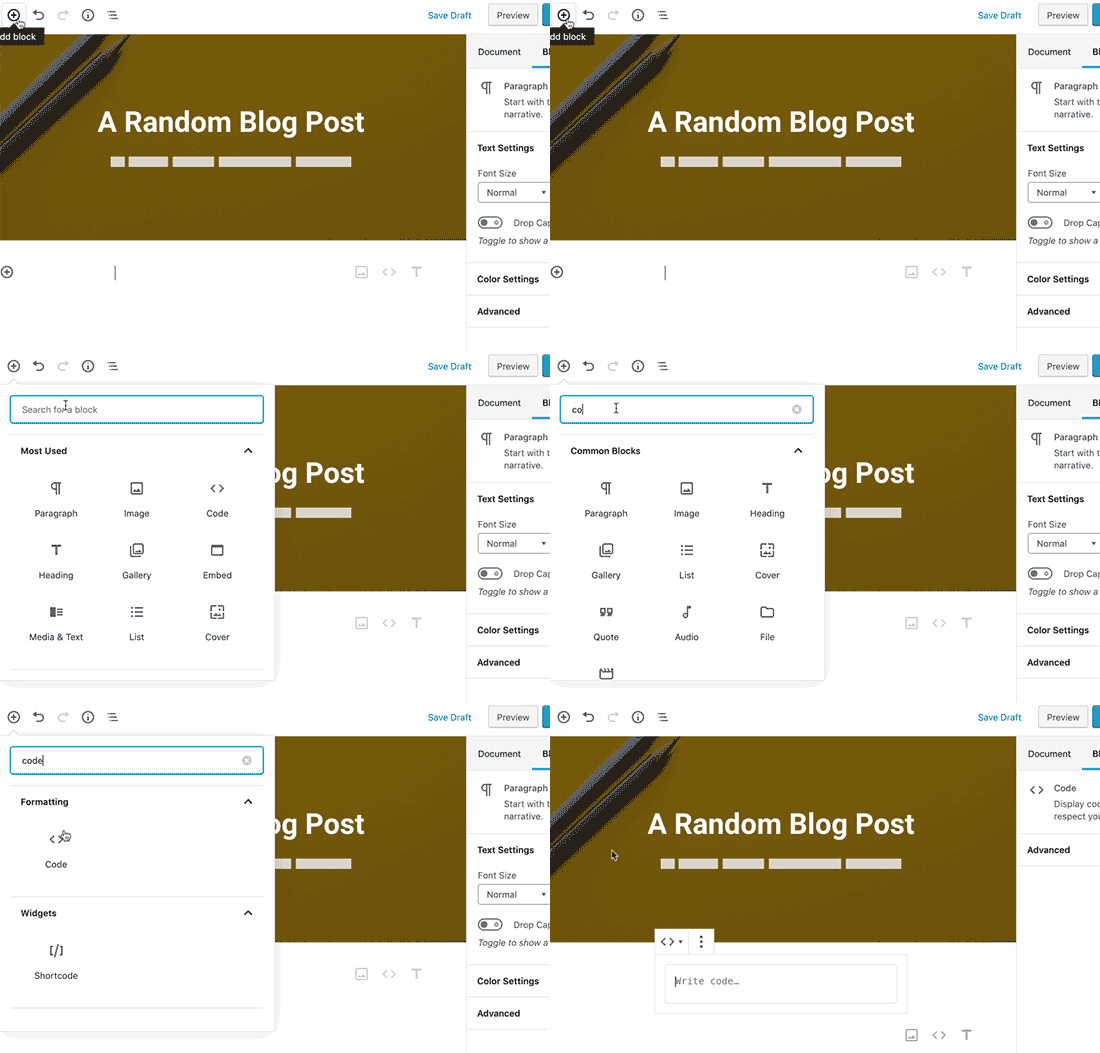
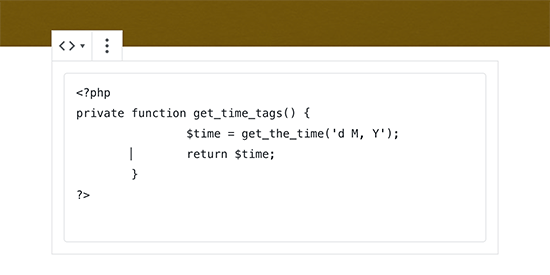
You can now enter the code snippet in the text area of the block.
The code block will show a preview of your code.
After that, you can save your blog post and preview it to see the code block in action.
Once you are satisfied with the appearance of your code, go ahead and publish your blog post.
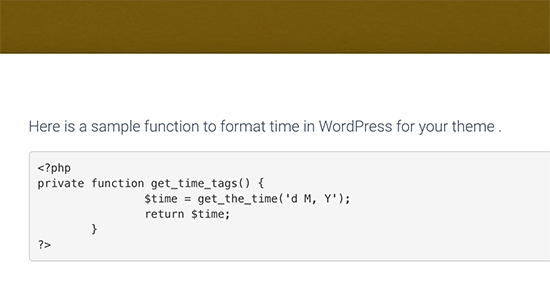
Depending on your WordPress theme, the code block may look different on your website.
Method 2. Display Code in WordPress Using a Plugin
For this method, we will be using a WordPress plugin to display code in your blog posts. This method is recommended for users who often display code in their articles.
It gives you the following advantages over the default code block:
- It allows you to easily display any code in any programming language.
- It displays the code with syntax highlighting and line numbers.
- Your users can easily study the code and copy it.
First, you need to install and activate the SyntaxHighlighter Evolved plugin. For more details, see our step-by-step guide on how to install a WordPress plugin.
Upon activation, you can go ahead and edit the blog post where you want to display the code. On the post edit screen, add the ‘SyntaxHighlighter Code’ block to your post.
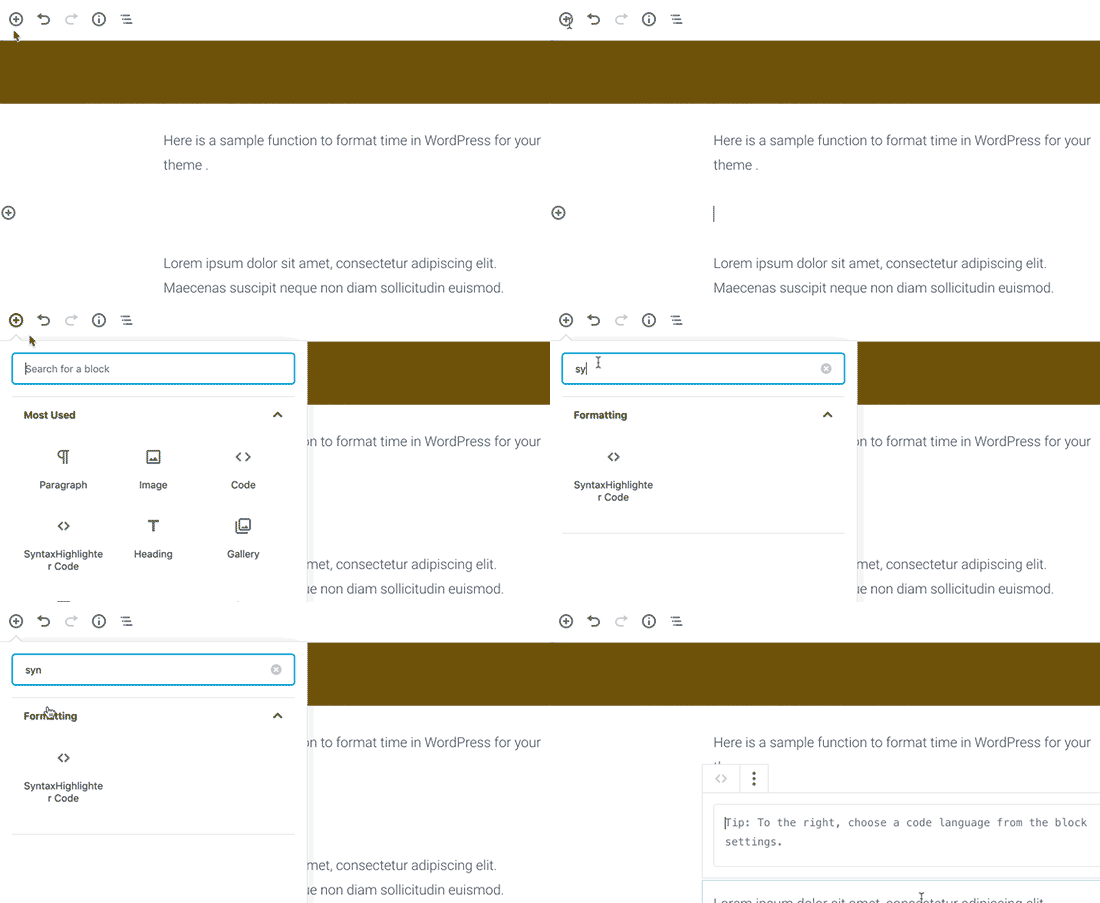
You will now see a new code block in the post editor where you can enter your code.
After adding the code, you need to select the block settings from the right column.
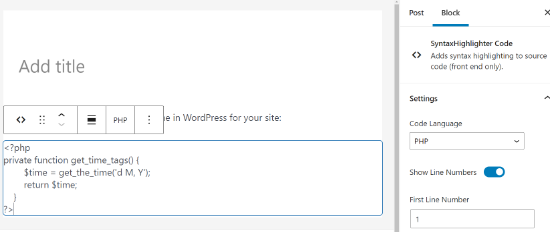
First, you need to select the language for your code, like PHP, CSS, Java, etc. After that, you can turn off line numbers, provide the first line number, highlight any line you want, and turn off the feature to make links clickable.
Once you are done, save your post and click on the preview button to see it in action.
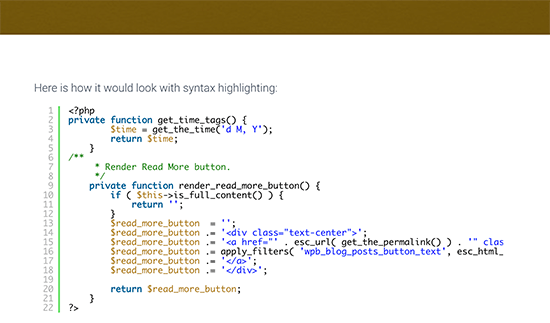
The plugin comes with a number of color schemes and themes.
To change the color theme, you need to visit the Settings » SyntaxHighlighter page.
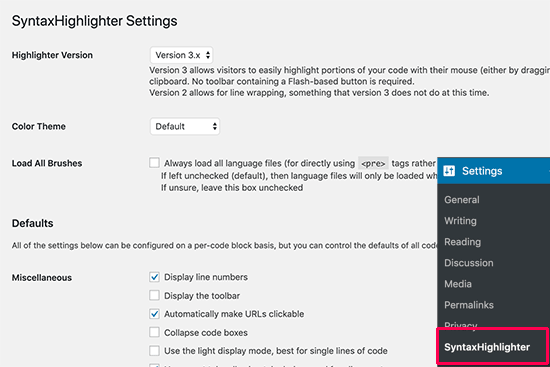
From the settings page, you can select a color theme and change SyntaxHighlighter settings.
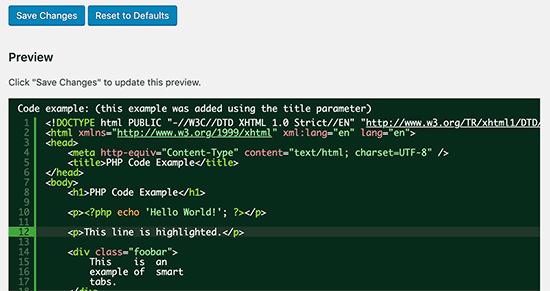
You can save your settings to see a preview of the code block at the bottom of the page.
Using SyntaxHighlighter with Classic Editor
If you are still using the old classic WordPress editor, then here is how you would use the SyntaxHighlighter plugin to add code to your WordPress blog posts.
Simply wrap your code around square brackets with the language name. For example, if you are going to add PHP code, then you will add it like this:
<?php
private function get_time_tags() {
        $time = get_the_time('d M, Y');
        return $time;
    }
?>
Similarly, if you want to add an HTML code, then you will wrap it around the HTML shortcode like this:
<a href="example.com">A sample link</a>
Method 3. Display Code in WordPress Manually (No Plugin or Block)
This method is for advanced users because it requires more work and does not always work as intended.
It is suitable for users who are still using the old Classic editor and want to display code without using a plugin.
First, you need to pass your code through an online HTML entities encoder tool. It will change your code markup to HTML entities, which will allow you to add the code and bypass the WordPress cleanup filters.
Now copy and paste your code into the text editor and wrap it around <pre> and <code> tags.
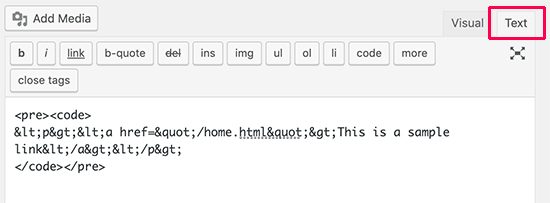
Your code would look like this:
<pre><code>
<p><a href="/home.html">This is a sample link</a></p>
</pre></code>
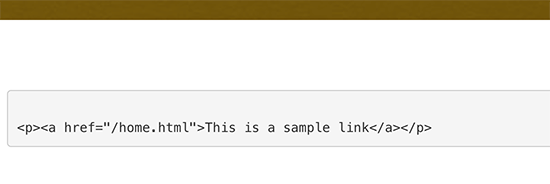
You can now save your post and preview the code in action.
Your browser will convert the HTML entities, and users will be able to see and copy the correct code.
We hope this article helped you learn how to easily display code on your WordPress site. You may also want to see our ultimate list of the most wanted WordPress tips, tricks, and hacks and how to increase your blog traffic.
If you liked this article, then please subscribe to our YouTube Channel for WordPress video tutorials. You can also find us on Twitter and Facebook.





Syed Balkhi says
Hey WPBeginner readers,
Did you know you can win exciting prizes by commenting on WPBeginner?
Every month, our top blog commenters will win HUGE rewards, including premium WordPress plugin licenses and cash prizes.
You can get more details about the contest from here.
Start sharing your thoughts below to stand a chance to win!
Dennis Muthomi says
I think the plugin is great for its job, but…
one feature I’d love to see added is a copy button.
Currently, users have to manually highlight and copy the full code block, which can be tedious, especially for longer snippets.
A single-click copy option would tremendously improve the user experience.
That way, readers could easily grab the code without accidentally missing any part of it when they highlight the code.
WPBeginner Support says
Thank you for sharing that recommendation
Admin
Jiří Vaněk says
Is there a possibility to have a copy code button in the plugin so that the user does not have to copy the code to the clipboard manually?
WPBeginner Support says
Not at the moment but we will keep an eye out for a method we would recommend
Admin
Jiří Vaněk says
Thank you for answer. This is a great shame, because it makes a lot of work easier. Sometimes it happens that even line numbers are copied into the code using the manual method. Elementor has a widget for the code that the copy button has and it’s great. I will follow the update of the article if necessary.
Ms Gray says
Hello,
Can code be put on pages added by third party plugin such as Woocommerce?
WPBeginner Support says
Yes, you would be able to place code on those pages.
Admin
Ravish says
Hi, first of all, Thanks for this blog.
I want to add codes for any problem in different languages (e.g. Python and C++). How can we do that?
WPBeginner Support says
This plugin should still work for those languages as well
Admin
Nimesh says
This is great.
If it wasn’t for this, I would’ve used a separate plugin for input code snippets.
I’m still using WordPress’s classic editor and will add the code snippets to my posts as mentioned in this.
Thank You for this amazing share!
WPBeginner Support says
Glad our guide was able to help
Admin
Induwara says
Thanks,
This article is very useful. I installed the plugin and it works well. There’s a problem with my theme that when I put a code from the block editor the theme displays it with the background color so it’s impossible to see the code. I’m a big fan of WpBegginer!
WPBeginner Support says
Glad our guide was helpful, you should be able to reach out to your theme for assistance with that issue.
Admin
Manju says
Can you suggest a way to display the code from a Github repo in WordPress posts?
WPBeginner Support says
You could place the code as we have in this article and note beneath it where it came from Github. There may be plugin options as well for embedding the code directly
Admin
Kunal Mandalia says
Thanks for tip about “code” tags – worked like a charm.
WPBeginner Support says
You’re welcome
Admin
Mahesh says
Good one.. Thanks for the tip.
WPBeginner Support says
Thank you and you’re welcome
Admin
perveen says
we need coding at wordpress i thought wedont need any coding at wordpress.
WPBeginner Support says
It is not required but for sites that wish to show code to their users, these are some methods they can use.
Admin
Adamu Malte says
Thank you @Syed for your great tutorial.
manasa says
Nice blog with excellent information. Thank you, keep sharing.
Anh says
Great, Just wonder how you can post the code inside
1-click Use in WordPress
and still make the code look like text.
Like how you can post this code
.entry-title { font-family:”Open Sans”, arial, sans-serif; font-size:16px; color:#272727; }1-click Use in WordPress
to your post without changing how it shows on the post.
Rushikesh Thawale says
Thank You for this post.
Christian says
There’s a typo on the word ‘Syntax’…no wonder I was getting no results when I copied paste the text on WordPress plugin search!
Synatx Highlighter Evolved plugin
Ahmed says
Thanks Syed….Great tutorial. I want to ask you that how we can change the font size of code?
Dave Mackey says
I think there is a problem with Syntax Highlighter Evolved in latest versions of WordPress. I, and others, are having it incorrectly display html entities. See support forums for more.
Md Abul Bashar says
How to show code without plugin only coding?
John D says
Personally, I use WP-GeSHi-Highlight, which uses the standard GeSHi codes. I think I used a predecessor of the plugin featured here, but I had difficulty finding the language codes.
Ajay says
Of late, I’ve found it easier to use GISTs to display code and then just embed the Gist in the post
Mikhail S. says
@AJAY, please tell me more about using GIST to display code samples.
Thank you!
Thomas A. Reinert says
I do absolutely agree. They´re pretty well formatted and syntax-highlighted, they´re forkable and they´re versionable too. So WP GIST is the way to go for me at least..