


WordPress comes with an admin bar that displays handy shortcuts for logged in users.
This gives you quick access to admin tasks even when viewing your website’s front-end.
In this article, we will explain what is the WordPress admin bar, and how you can utilize or customize it to your own needs.
You can use the quick links below to jump directly to the section that you’re most interested in:
What is WordPress Admin Bar?
WordPress admin bar is a floating bar displayed for logged in users. It contains links to different admin screens, which allows logged in users to quickly switch to admin area when viewing the website.
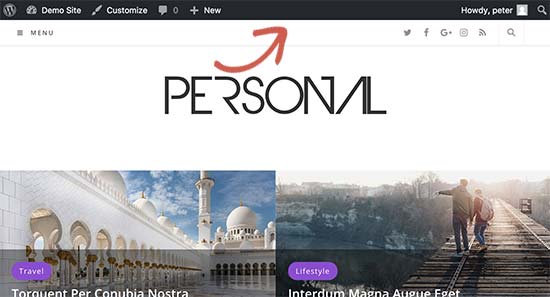
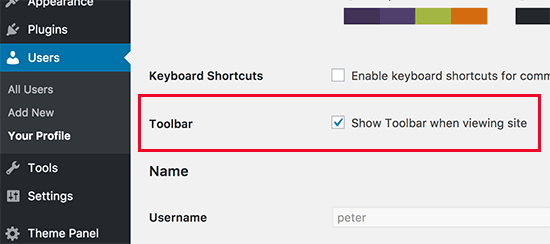
The admin bar is displayed for all users inside the admin area. Individual users can hide the admin bar when viewing the website by editing their user profile.
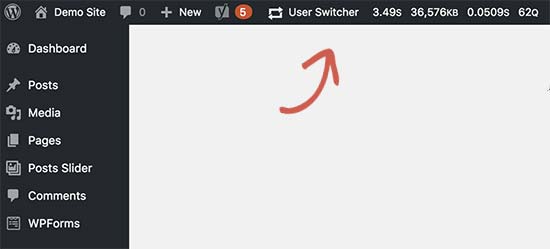
The items displayed in the WordPress admin bar change based on user role and permissions. For example, users with administrator role see different items in the menu bar than users with editor role and so on.
Show or Hide Items in WordPress Admin Bar
Just like everything else in WordPress, the admin bar is fully customizable via custom code or WordPress plugins. Some plugins already take advantage of this feature by adding their own menu items in the admin bar.
To take control of the admin bar, first you will need to install and activate the Adminimize plugin. For more details, see our step by step guide on how to install a WordPress plugin.
Upon activation, go to Settings » Adminimize page and look for the ‘Admin Bar Backend Options’ and ‘Admin Bar Front End Options’ tabs.
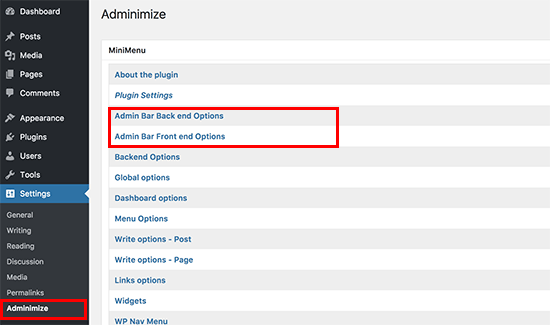
Clicking on each of them will take you to the admin bar options where you can select which items to display in the WordPress admin bar. You can also choose which items are visible to each user role.
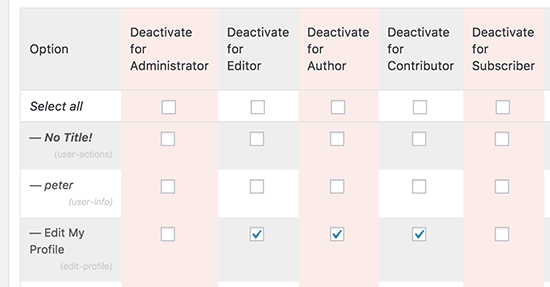
Don’t forget to click on ‘Update options’ button to save your changes.
Adminimize is a powerful plugin and allows you to change not just the admin bar but any admin screen on your WordPress site.
If you’re looking for an alternative, see our guide on how to hide unnecessary items from WordPress admin with the Admin Menu Editor plugin.
Add Custom Links to WordPress Admin Bar
The purpose of the WordPress admin bar is to provide quick shortcuts to different admin screens. You can further customize it by adding your own custom links to the admin bar.
For this, you will need to add custom code to your WordPress files. If you haven’t done this before, then take a look at our guide on how to copy and paste code in WordPress.
You need to add this code to your theme’s functions.php file, a site-specific plugin, or a code snippets plugin.
// add a link to the WP Toolbar
function wpb_custom_toolbar_link($wp_admin_bar) {
    $args = array(
        'id' => 'wpbeginner',
        'title' => 'Search WPBeginner',
        'href' => 'https://www.google.com:443/cse/publicurl?cx=014650714884974928014:oga60h37xim',
        'meta' => array(
            'class' => 'wpbeginner',
            'title' => 'Search WPBeginner Tutorials'
            )
    );
    $wp_admin_bar->add_node($args);
}
add_action('admin_bar_menu', 'wpb_custom_toolbar_link', 999);
In this code, we have added a link to Google that searches WPBeginner. You need to replace ID, title, and href values with your own.
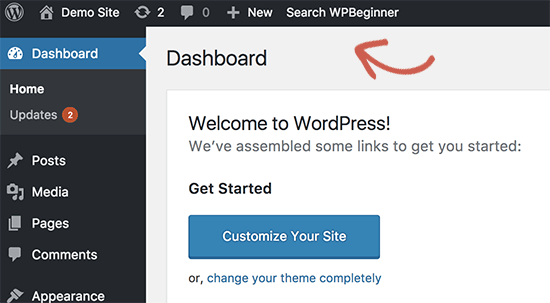
We recommend adding this code in WordPress using the WPCode plugin. It’s the safest and easiest way to add custom code in WordPress without editing your theme’s functions.php file.
To get started, you’ll need to install and activate the free WPCode plugin. If you need help, see this tutorial on how to install a WordPress plugin.
Once WPCode is activated, head to Code Snippets » Add Snippet from your WordPress dashboard. Then, navigate to the ‘Add Your Custom Code (New Snippet)’ option and click the ‘Use Snippet’ button underneath it.
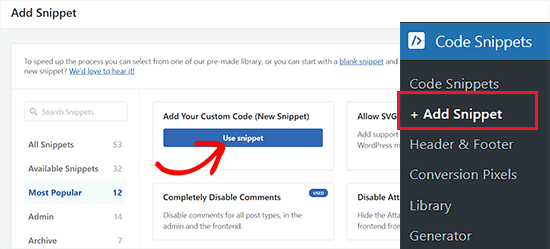
Next, you need to add a title for your snippet, which can be anything to help you remember what the code is for.
After that, paste the code snippet from above into the ‘Code Preview’ box.
Don’t forget to select ‘PHP Snippet’ as the code type from the dropdown menu on the right side of the screen.
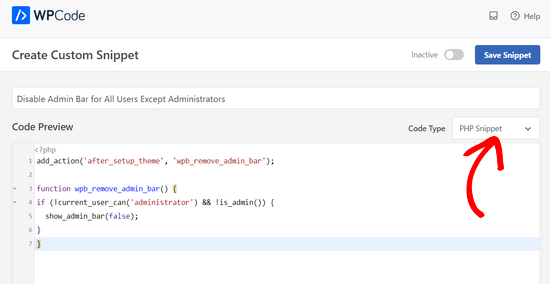
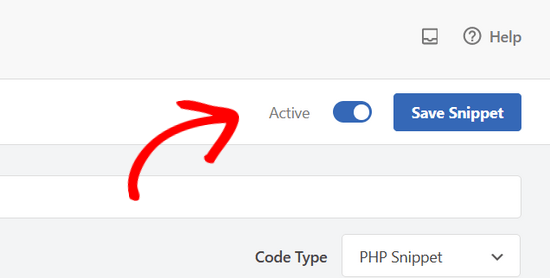
Once that’s done, simply toggle the switch from ‘Inactive’ to ‘Active’ and click on the ‘Save Snippet’ button.
For more details, see our guide on how to easily add custom links to your WordPress admin bar.
Disable Admin Bar for All Users Except Administrators
Admin bar is highly useful for site administrators, editors, and authors. However, it is not very useful if you are running a WordPress membership website or just require users to login for certain tasks.
In that case, you may want to disable the admin bar for all users except site administrators. You will need to add the following code to your theme’s functions.php file, a site-specific plugin, or a code snippets plugin like WPCode.
add_action('after_setup_theme', 'wpb_remove_admin_bar');

function wpb_remove_admin_bar() {
if (!current_user_can('administrator') && !is_admin()) {
  show_admin_bar(false);
}
}
For more details, see our article on how to disable WordPress admin bar for all users except administrators.
We hope this article helped you learn more about the WordPress admin bar. You may also want to see our ultimate step by step WordPress security guide to keep your WordPress admin area safe or see our picks of the best WordPress SEO plugins that you should use.
If you liked this article, then please subscribe to our YouTube Channel for WordPress video tutorials. You can also find us on Twitter and Facebook.





Syed Balkhi says
Hey WPBeginner readers,
Did you know you can win exciting prizes by commenting on WPBeginner?
Every month, our top blog commenters will win HUGE rewards, including premium WordPress plugin licenses and cash prizes.
You can get more details about the contest from here.
Start sharing your thoughts below to stand a chance to win!
Dennis Muthomi says
is there a way to remove or update the “Howdy” greeting at the far right of the admin bar? It feels really dated.
is there maybe a plugin that could replace it with something more modern like just “Hey” or even much better, display the user’s first name only? thanks
WPBeginner Comments says
We happen to have a guide on how to change the greeting in the admin bar: https://www.wpbeginner.com/wp-tutorials/how-to-change-the-howdy-text-in-wordpress-3-3-admin-bar/
Dennis Muthomi says
thanks a bunch for the quick reply and the helpful link! I really appreciate you taking the time to point me in the right direction. That guide looks perfect for what I need.
you guys rock!
Nilutpol says
Hi Sayed, Thanks for the Trick,it worked fine. But now I want to restore the admin bar because of some reasons and I couldn’t. I’ve removed the code but still not appearing bar. What to do ?
WPBeginner Support says
If the code was completely removed you would want to ensure you’ve cleared all caching on your site to prevent it from being a caching issue.
Admin
BaxAndrei says
I have a problem, at me admin bar don’t have drop down effect.
Verna says
I cannot find ANYWHERE that gives direction on how to HIDE/SHOW toolbar in the comments section in WordPress. There is this huge box people can type in to leave a comment, but you have to first click BELOW this LONG TOOLBAR in order to type anything. I’ve had people call me and ask what’s up with that? They thought the comment box wasn’t working because, if you put your cursor TO THE RIGHT of the toolbar, you can’t type. You haveto go all the way to the bottom of the TOOLBAR. Yes, I’m a rookie, and having a difficult time finding out simple things like this. I went into Mantra Settings and there is a lot you can HIDE/SHOW, but not this TOOLBAR. Please help me!
John Galt says
How can I prevent front end content from going behind the WordPress Admin Bar?
I am using a theme that has a sticky menu that always keeps the main navigation on the top of the display. Instead of positioning itself below the WordPress Admin Bar the theme’s main navigation menu is always behind it.
WPBeginner Support says
John, you can disable admin bar on the front end by visiting Users » Your Profile and uncheck the box that says ‘Show toolbar when viewing site’. Also check out our guide on how to disable admin bar for all users except administrators.
Admin
Scott Buehler says
Hey guys, is there a way to remove the “floating” properties so that the bar does appear on the frontend, but doesn’t float? It bugs me when using other floating properties like your Floating Social Bar plugin.
WPBeginner Support says
Add this code to your theme’s functions.php file or a site-specific plugin:
function wpb_move_admin_bar() { ?> <style type="text/css"> #wpadminbar { position: absolute; } </style> <?php } add_action( 'wp_head', 'wpb_move_admin_bar' );1-click Use in WordPress
Admin
Ian says
Is there a way to alphabetically sort the My Sites drop-down menu?
Editorial Staff says
Will look into it. Probably a filter for that.
Admin
bharatkumarvbk says
It is causing a trouble with ‘ wphead’ . And also hiding the logout link and dashboard header content
yoyowp says
How to make that admin bar to be a public bar? like buddypress one, when they are not logged in, that bar will just appear sign in and sign up link
candy says
none of the tricks work for me anymore! no matter what I try I can’t get rid of that DAMN wordpress admin bar anymore!
I now have the latest WP version 3.1 and it seems that all the tricks that worked before, including the ones you mention above DO NOT WORK ANYMORE!
Looks like the WP developers are using dirty tricks to FORCE that stupid, useless top bar on us with any release!
Why on Earth are otherwise such intelligent people and programmers waste their precious time & skills by developing and trying by any price to impose such a huge nonsense as this admin bar?!?
Anyone managed to disable the devil bar in the latest WP version?
Thanks!
Editorial Staff says
Yes, just tried all the tricks and they work.
Admin
Bertrand says
Thanks! Finally was able to remove that damn gap on top of my website.
From Quebec City
shyam jos says
for me WP Admin Bar is a must and i love it..
Rajesh says
Nice tips, great job! Thank u veru much
abdelhafid says
awesome tips , thanks alot guys