


Do you want to add call-to-action buttons in your WordPress posts or pages?
Buttons are a great way to boost conversions. They are highly noticeable, which makes them excellent at redirecting users’ attention to a desired interaction.
For example, you can use a call to action button to send users to a transactional page like a pricing page, product page, services page, and others on your website.
You can also use call-to-action buttons to promote special offers, new products, or affiliate links that point to partner websites.
In this article, we will show you how to easily add beautiful call-to-action buttons in WordPress without writing any code.
Note: This article is for adding custom call-to-action buttons in WordPress. If you want to add social share buttons, then please see our guide on how to add social share buttons in WordPress.
Adding Buttons in WordPress Posts and Pages (Step by Step)
WordPress makes it super easy to add buttons with a built-in Button block. It is a feature that was introduced with the Gutenberg WordPress block editor.
In this article, we will show three ways to add call-to-action buttons in WordPress blog posts and pages. You can pick the solution that best suits your needs.
Feel free to use the table of contents below to navigate through this article easily:
Table of Contents:
Video Tutorial
If you don’t like the video or need more instructions, then continue reading.
Adding Buttons in WordPress Posts / Pages Using Default Editor
This method is easy and recommended for most users. It uses the built-in Button block in the WordPress block editor. If you still use the older classic editor, then you can skip to the next section.
First, you need to create a new post or edit an existing one where you want to add a button.
On your post edit screen, click on the ‘+’ icon and select the Buttons block from the Layout Elements section.
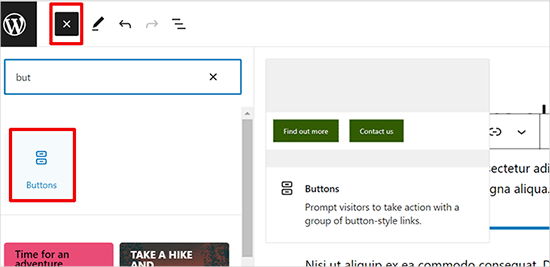
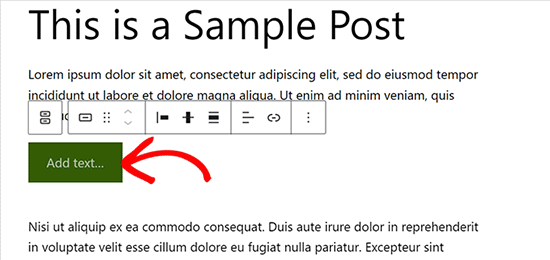
Next, you should be able to see the button block added to the content editor.
Simply click on the ‘Add text…’ area and enter your button text.
After that, click on the Link button in the toolbar to add a link.
You can search for a post or page or simply copy and paste a URL in the link field.
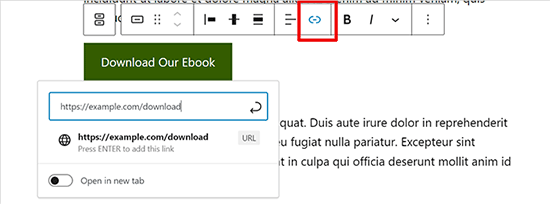
Once done, hit ‘Enter’ or press the ‘Apply’ icon to save your link.
If you want to display the button in the center, you can click on the ‘Justify’ icon and then select ‘Justify Center’. You can also change the vertical alignment of the button from the toolbar.
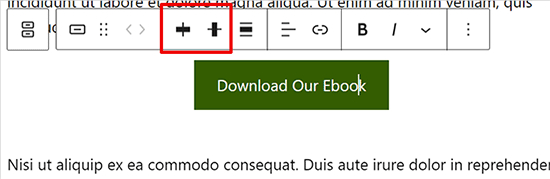
Next, you can customize your button style and change the text and background colors from the block settings panel on the right side.
Simply switch to the ‘Style’ tab under block settings to adjust your button style.
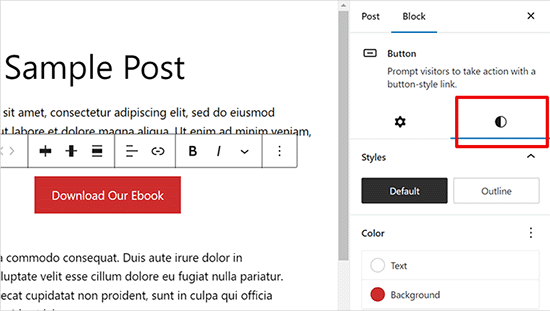
There are three button styles you can choose from: default, outline, and squared. You can try each one by clicking on them and choosing the one that looks best.
The Color Settings section includes five color variations for both the button background and button text. Not only that, but you can also use a custom color of your choice by clicking on the ‘Custom Color’ option.
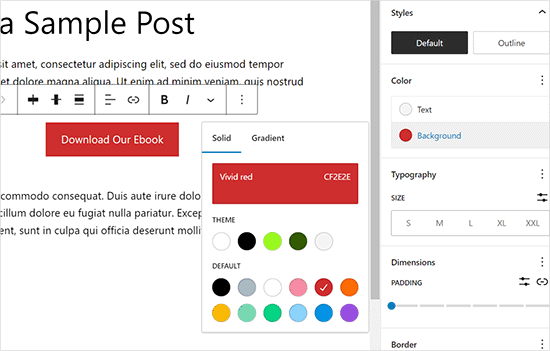
Once you are happy with the button design, you can save your post or publish it to see a live preview.
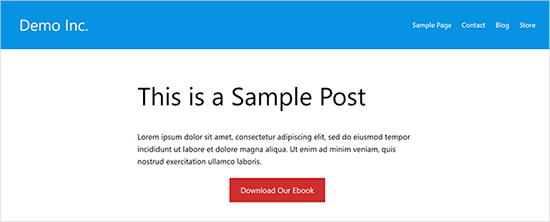
Here is how it looked on our demo website.
Bonus: If you want to see how well your buttons perform, you should use MonsterInsights. It has built-in event tracking for affiliate links, outbound links, and custom events, so you can see how well your buttons are performing. For more details, see important marketing metrics that you must track in WordPress.
Creating a WordPress Button in Classic Editor
The default WordPress block editor is modern, faster, and easier. Some users still use the old Classic WordPress editor.
We don’t recommend using the classic WordPress editor. It is outdated and does not have enough features users need to create awesome content. If you are still using it, then we advise turning it off and start using the block editor.
On the other hand, some users may still want to use it. In that case, you will need an alternative solution to add buttons on your WordPress site.
There are three options available for adding buttons in the WordPress Classic Editor:
- Add a button in WordPress with HTML / CSS code.
- Add a button in WordPress with a WordPress button shortcode plugin.
- Add a button in WordPress without using shortcodes.
Of the three options, the first one is the coding method. You will need to write HTML / CSS code and add it to your website wherever you need a button. It is not beginner-friendly.
The second option is the most commonly used method. That’s because most of the WordPress button plugins provide shortcodes for adding buttons.
The third option is the best because it allows you to easily add buttons to your posts and pages without having to remember the shortcode.
Let’s take a look at how to add buttons in WordPress without using shortcodes.
The first thing you need to do is install and activate the Forget About Shortcode Buttons plugin. For more details, see our step-by-step guide on how to install a WordPress plugin.
Once you have activated the plugin, create a new post or edit an existing one. In the editor, you will see a new button in the visual editor labeled ‘Insert Button’.
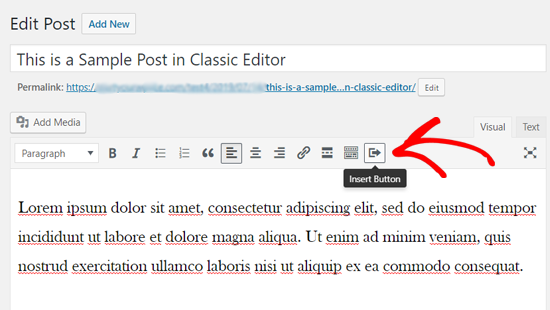
To insert a new button in your post, you need to click on the ‘Insert Button’ icon.
This will bring up a popup window where you can design your new button.
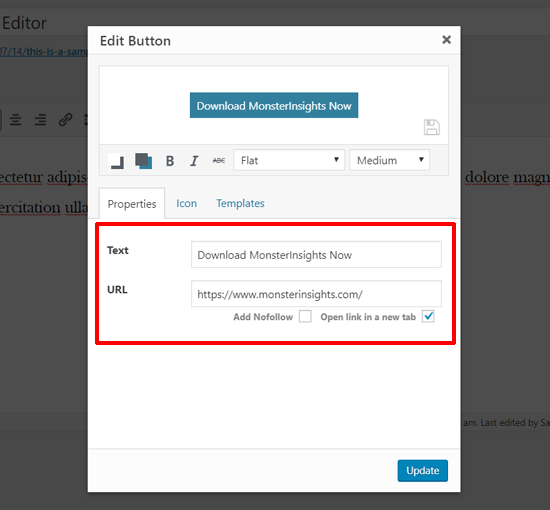
First, you need to add your button text and URL. As you add your button text, you can see a live preview in the box below.
Next, you can add a nofollow tag to your link and open the link in a new tab by clicking on the checkbox options below.
After that, you can select an icon for your button. If you click on the ‘Icons’ tab, then you will be able to see the icons that you can add before or after the text in your buttons.
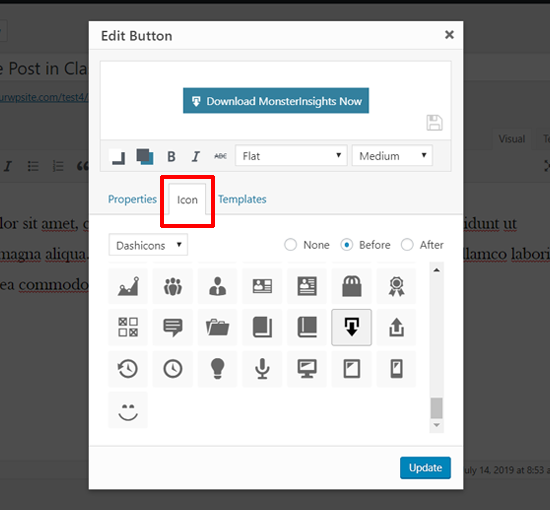
These icons are actually icon fonts (learn how to use icon fonts in the WordPress post editor).
Next, you can choose the text color and background color for your button by clicking on the Color box icon.
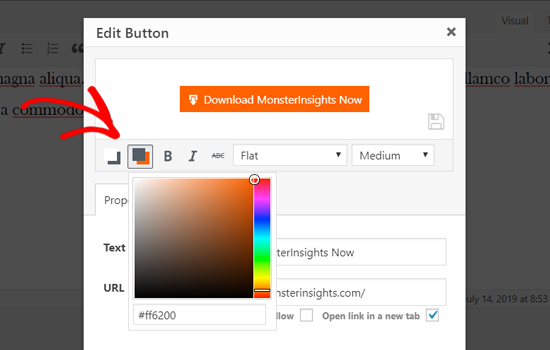
After that, click on the drop-down menu to choose the button style.
There are eight different button styles ready for use.
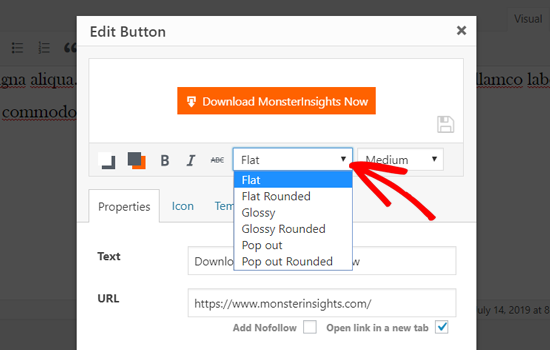
Similarly, you can also choose the button size from extra small to extra large.
Once you are satisfied with the look, simply click on the ‘Update’ button.
You will be able to see your button as it appears in your post, right inside the post editor.
You can also set button alignment by simply selecting the button text and using the toolbar buttons in the classic editor.
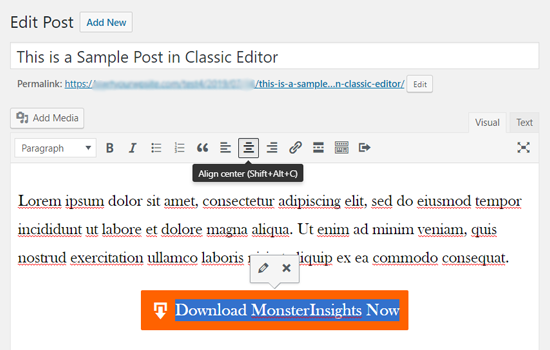
Double-clicking on the button will bring up the Insert Button popup, and you can re-edit your button if you like.
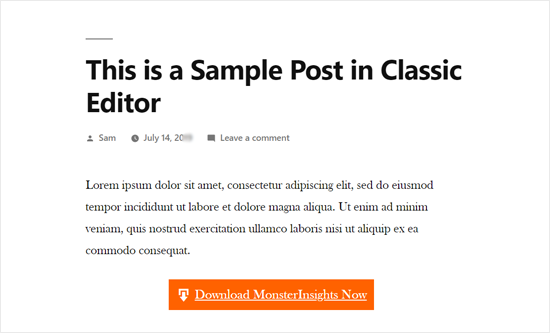
Once you are happy with its design, you can publish or update your post and see it in action. This is how the fancy button appeared on our demo WordPress website.
Adding a Click-to-Call Button in WordPress
In addition to the usual call-to-action buttons, you can also add click-to-call buttons on your website to boost leads and conversions.
A click-to-call button is a specific type of call-to-action button that allows your users to make a phone call to your team with just a tap.
Using the tap-to-call buttons, your site visitors can instantly talk to your team in person and get the information they need. Whether discussing a quote request, pre-sale information, or support issue, phone calls are quick.
As the number of smartphone users is growing, adding call now buttons is even more relevant nowadays.
If you don’t have a business phone, then you may want to look into getting a virtual business phone number.
With that said, let’s look at how to add click-to-call buttons in WordPress step by step.
The first thing you need to do is install and activate the WP Call Button plugin. For detailed instructions, you can see our step-by-step guide on how to install a WordPress plugin.
Upon activation, you need to visit the Settings » WP Call Button page to configure the plugin settings and design your click-to-call button.
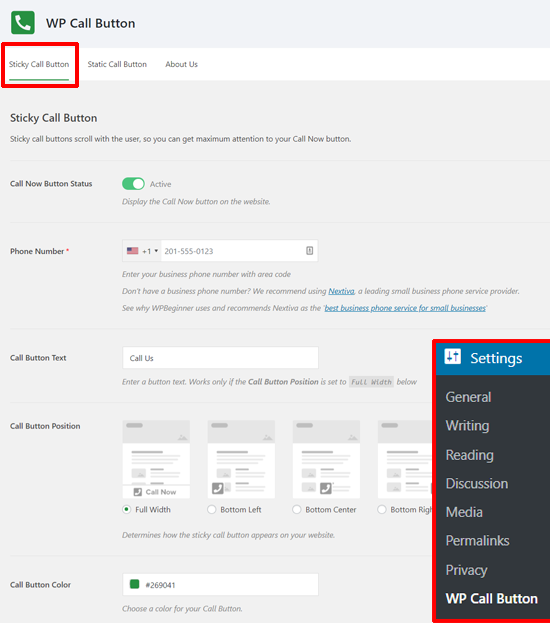
At first, you will see the Sticky Call Button settings. The sticky call button is a conversion-optimized feature that moves the call button along with users as they browse your site.
You can start by activating the Call Now Button Status. Simply click on the switch toggle to activate that.
After that, you need to enter your phone number. WP Call Button has a smart phone number field with your country code. Simply select your country and enter your business phone number.
If you don’t have a business number, then you can get one from Nextiva. It is a trusted business VoIP provider.
Next, you can edit your call button text and choose the call button position and color.
Also, you can select where to show the sticky call button on your website. By default, it shows the call button on all pages and on all devices. You can show or hide the button on certain pages and show it only on mobile devices.
Once you review all the options, you can click on the ‘Save Changes’ button at the bottom. After that, you can visit your website and see the sticky call now button in action.
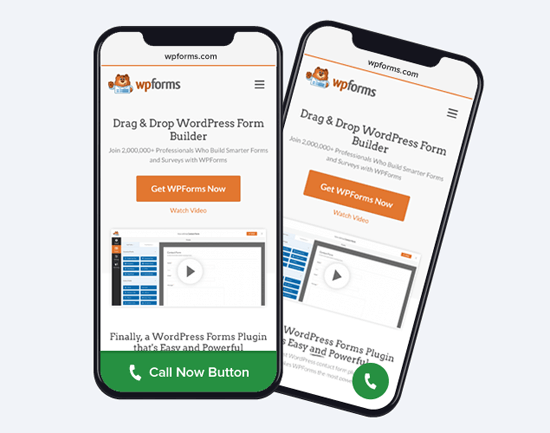
Aside from the sticky call buttons, you can also add static call buttons on your WordPress pages, posts, and sidebars using this plugin.
If you are using the WordPress block editor, then you can easily add the call now button on your pages using the WP Call Button block.
Create a new page or edit an existing page and add the WP Call Button block using your page editor.
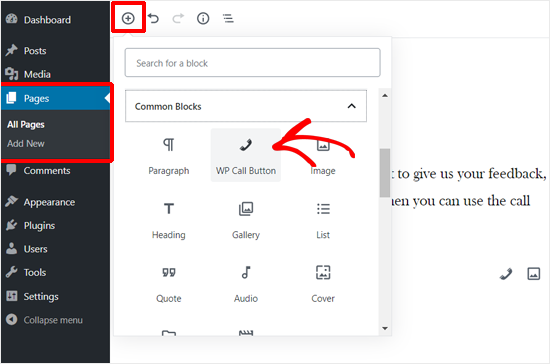
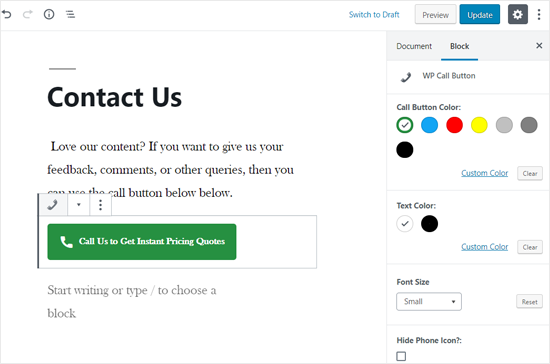
After that, you can customize the button text, button color, text color, and font size and show or hide the phone icon.
Once you are happy with its design, you can publish or update your page.
If you are using Classic WordPress editor, then you need to use the Static Call Button generator to get a shortcode.
Go to Settings » WP Call Button and click on the ‘Static Call Button’ menu at the top.
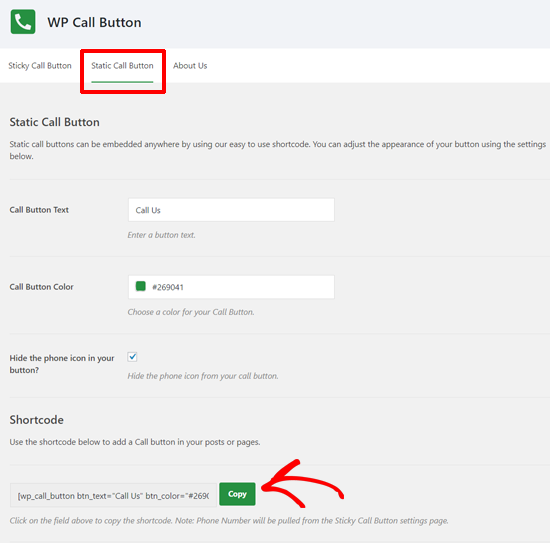
Simply customize the button options and then copy the shortcode. After that, you can use the shortcode in any post or page on your website.
WP Call Button plugin also allows you to add the call button on your WordPress sidebar and other widget-ready areas.
Simply go to Appearance » Widgets and drag the WP Call Button widget to a widget-ready area where you want to show the call button.
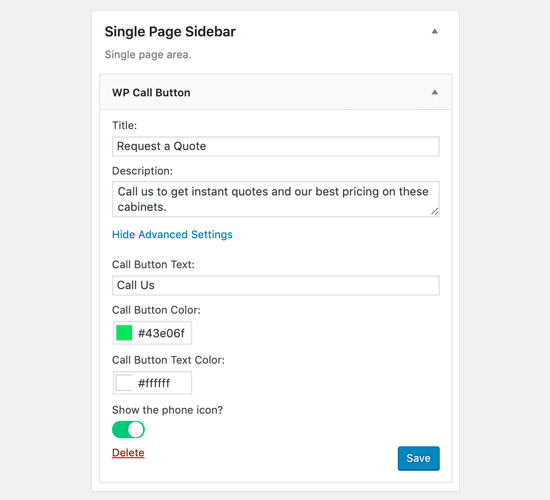
Now you can add a title, a description, and customize the call button from the Advanced Settings section. Once done, save your widget.
That’s it! If you want to see a more detailed tutorial, then you can check our step-by-step guide on how to add a click-to-call button in WordPress.
Bonus Tip for Adding Custom Buttons in WordPress
Adding a call to action button alone is not always enough. You may also want to customize the page or post with a hero image, menus, and a custom layout.
In that case, we recommend using a drag-and-drop WordPress page builder plugin like SeedProd or Thrive Architect.
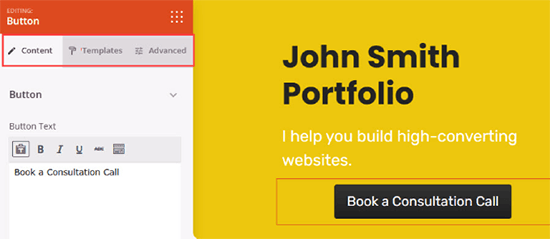
These page builders will help you create custom landing pages with fancy call-to-action buttons exactly how you want them.
Whatever you do, it’s important that you track how your buttons are performing because guessing isn’t the best business growth strategy.
We recommend using MonsterInsights. It has built-in event tracking for affiliate links, outbound links, and custom events, so you can see how well your buttons perform. For more details, see important marketing metrics that you must track in WordPress.
We hope this article helped you to learn how to add buttons in WordPress easily. You may also want to see our complete guide on WordPress conversion tracking or our list of the best WordPress plugins to grow your website.
If you liked this article, then please subscribe to our YouTube Channel for WordPress video tutorials. You can also find us on Twitter and Facebook.


Syed Balkhi says
Hey WPBeginner readers,
Did you know you can win exciting prizes by commenting on WPBeginner?
Every month, our top blog commenters will win HUGE rewards, including premium WordPress plugin licenses and cash prizes.
You can get more details about the contest from here.
Start sharing your thoughts below to stand a chance to win!
Jiří Vaněk says
Is it possible to track some statistics of the button, only with Google Analytics? Unfortunately, I don’t have monstesight, but I do have Google Analytics on my website.
WPBeginner Support says
It is possible but you would need to set up the event tracking in Google Analytics which is why we recommend using MonsterInsights
Admin
Jiří Vaněk says
Thanks for the reply and explanation. I plan to dive a bit more into Google Analytics, as the only things I currently track with them are the number of users, geolocation and backlinks. I know that GA can do an awful lot. However, I have already seen and read several articles on your website, so I believe that thanks to them I will finally understand this tool a little better. Thank you for your great work. She moved me forward in many ways.
sandra says
How can I add a form (first name / email address) to my call to action button?
Or is there a way to adjust a contact form (remove textbox) to do the trick?
I do not code.
WPBeginner Support says
You would want to check with the support for your form plugin, depending on the one you are using there are different possible methods to do what you are wanting.
Admin
Shahzaib says
I have added a button thanks alot but it appears very small and i can’t figure out how to increase its size in block editor
WPBeginner Support says
For the button size, at the moment you would need to use CSS. We have a guide on how to use inspect element that will help you below:
https://www.wpbeginner.com/wp-tutorials/basics-of-inspect-element-with-your-wordpress-site/
Admin
Daniel Piggott says
Hi,
I am currently trying to make a button on WordPress. But there is no option to align in the centre.
Has the latest wordpress omitted the alignment feature of a button?
WPBeginner Support says
You would want to ensure you are targeting the button block and not the specific button to see the alignment options
Admin
Daniel Piggott says
Hi,
Oh wow! I feel silly
Thanks for your help. It’s much appreciated!
Cheers, Dan
WPBeginner Support says
You’re welcome
Carolyn R Cox says
What about a button that performs an action on the page. For example executes a query, reloading the page with the query data (without replacing the page, in other words: no urls.) Is there a simple way to accomplish this without loading a different page? Thanks.
WPBeginner Support says
That would be something that heavily depends on your specific use case and would likely require developer assistance.
Admin
Roger Meachem says
Finally, a clear instruction that works! Thank you. I’ve spent hours trying all manner of things and failing – perhaps they were out-of-date posts but this solved my problem and did so in minutes. It was perfect. I now have buttons that work on the WordPress site.
WPBeginner Support says
Glad our guide was able to help
Admin
Meha Jain says
Hi,
Any idea how I can add read more button on the theme modules?
The theme which i am using is not giving me the option to read more button in the modules on the home page.
How I can add read more button there?
Regards
Meha
(I am a non-technical person.)
WPBeginner Support says
You would want to first reach out to your theme’s support and they may have a recommended method for adding that to your theme.
Admin
Dreamlife says
Thanks for the post. How can I create download button with wordpress premium?
WPBeginner Support says
Sadly, for WordPress.com you would need to check with their support for what is currently allowed
Admin
Rick Hoffarth says
I need to add code to a button in order for the button to take the user to a merchant services portal to make secure payments. So far, the button creators want a URL, not code. How can I connect a button to another site that requires code in order to do it?
Daniel says
Ok, so I know how to make a download button now, but how do I actually make that download happen ?
Thank you!
Mark Bologna says
This was just what I needed. Read the article, downloaded the plugin, and had a working button all within ten minutes. Thanks!
Debbie says
Super quick – just what I needed! Thank you so much. I had mucked around with some that were so hard to setup… I needed a button and this got the job done quick and easy!
Nina says
Not great… styling is very limited
Utkarsh Agarwal says
How to create links to sections on the same page? For example, I need to create a button after the completion of my post which points to the Comments section down below.
Jen Lewis says
Can this plugin be installed on a site that’s on a free plan? In general, do you have to be on one of the paid plans to install additional plugins to your WordPress site?
WPBeginner Support says
Hi Jen,
You are probably using WordPress.com’s free plan. Please see our guide on the difference between self hosted WordPress.org vs free WordPress.com blog.
Admin
Daniel says
It works on sidebar as well? I need to know, thanks!
Mike Ritter says
This plugin has been pulled from the library.
Jolynn Powers says
Mike dose that mean that we can no longer add buttons this way and if so where do we look for other information on how to add buttons?? I need to add three buttons to my work website for a listing of dinning locations, entertainment locations and hotel locations and want to put them on a page rather than a post so that they are always on the site at the same location.
Furquan says
I am searching for button , I have found your post at top in Google but the plugin you have mentioned is no more on WordPress. Could you please help me
Aachal says
Hey.. I want a button “Apply” instead of the page “Apply” on the homepage of my website.
How can that be done. Any lead on this?
bill says
can i add buttons and then deactivate and delete the url and the buttons are still there ???
or is there a way to put in the css codes to function so i have them without a plugin ???
Bridget says
Hi!
Can I link this to plugin contact form 7? If so, how?
Thanks!
Alysha says
Thanks for this! Looks great, but is there anyway to use this plugin to add a button to the header on the homepage?
Toni says
This is a really great plugin! It allows for a lot more customization than the standard shortcakes without having to write your own css!
One question though – why doesn’t it work in the visual text editor of the widgets? This would be so helpful it if also worked in widgets!
Thanks,
Toni
Wolf says
Thank you!! Spent ages looking for something simple like this. Should have known to come here first
mohamed says
thanks for your article…i install it and worked well except for the url. for example : when i write in the url (www.example.com) and publish my post and go to press the button , i found the button rfere to (www.example.net/www.example.com). how to solve this problem?
WPBeginner Support says
Yep, seems like an issue with the plugin. Please try adding full url like this https://www.wpbeginner.com
Admin
Altaf says
Thank You Bhai i am Done Now and Solve my WordPress issue
John says
Thank you. This is exactly what I was looking for!
Alec says
Hi! – is it possible to place several buttons side by side in a row? (with different items) – and how does the reference work?
Eric says
I want to allow users to upload any image using Insert Image button. Will this work in that case?
Yonatan says
Will this work on a sidebar as well ?
Jenny says
Hello there!
This is very useful, but is there any way to use a custom image as a button rather than the options that come with the plugin? I have button images that I’ve downloaded from, and I’d like to use those instead because the logo is familiar to my site visitors.
Warmly,
Jenny
Karan Bhagat says
Hey, I have been using this plugin for more than 2 of my sites and installed it on one more, it was working fine till yesterday, but suddenly now it has stopped working, it is showing any button in the toolbar to add these buttons to post. I deleted and reinstalled it, still facing the issue. Help please
Blake says
How can i add things to the dropdown menu in the editor? i want things like Font size, buttons, or what ever else i chose to put there without using a plugin, is there anyway to do this?
WPBeginner Support says
You can use TinyMCE Advanced plugin for that.
Admin
Nancy says
Thank you! Again! I was searching all over the internet for help with button shortcodes. Couldn’t get them to work. As always, you have the simple answer. I can stop looking any place else for WordPress help!
bryan midgett says
How do I get the buttons on one line instead of vertical? I tried putting between buttons, but the tag prints. When I put my buttons side by side, they run together. Help!
Sacha says
Thanks for the helpful information!
Prasad Saxena says
I want a button to be displayed with each post on the main page of the website, which says go to the website. It should be just beside read more. I did get the button, but i dont know how to configure it so that each post has a different linking url.
Also the url can be inserted from the post itself. I mean while writing it. Just a box below, a text box where you can put the link to the button.
Please help….
WPBeginner Staff says
Please make sure you are writing your post in the Visual Editor mode. The button does not appear in the text editor.
CEA says
I installed the plugin and activated it, but am not seeing any change to my editor. I am using WP 4.0. What am I missing? Please help!
Bal Chandra Dhawan says
I added this button today but URL didn’t work.
I added to page xyz.com/policies and add URL xyz.com/registration,
on clicking it says page not found and in address bar I see. xyz.com/policies/xyz.com/registration. Its adding existing page URL ?
Don’t know why?
Sarah McLain says
Very helpful! Thank you
WPBeginner Staff says
It could be. Did you check by switching to a default theme?
Bill Gibson says
One problem: I guess it is a link underline that is going through the button text (almost like a strikeout). I have tried smallest and largest button sizes and the line is always through the text. I even tried to add “no decoration” to the style manually and that was ignored. Could this be theme specific? Thanks.
Seo service says
I just installed this plugin and I adore it! I
already am putting it to good use on my blog. Thanks so much for the heads-up
on this.
WPBeginner Staff says
No sorry this plugin is not supposed to do that.
Prishan Latchman says
Is there a button that will allow me to add a specific amount of money to it so that when it is clicked it will increase the current value by that set amount?
E.G. The button is set to an amount for R20.00 and the item (a pair of shoes) for R100.00 and every time someone clicks on the button the price for the shoes goes up by R20.00 to R120.00
bucur says
very good this plugin, I like it 5 stars
Brenda Malone says
Thanks for the heads-up on this excellent plugin! I have installed on my sites AND donated to the author.
Rostislav Sofronov says
This plugin is useful tool, rated to 5
WPBeginner Staff says
Thanks for writing such a useful plugin.