


Are you looking for the best social media plugins for your WordPress site?
There are so many social media plugins available for WordPress that it becomes overwhelming for beginners to choose the best plugin.
In this article, we will share our expert pick of the best social media plugins for WordPress that you can install right away.

What to Look for in a WordPress Social Media Plugin?
The main problem with most social media plugins for WordPress is performance. Since these plugins have to load additional stylesheets and scripts, they often slow down your website. For more on this topic, see our article on how WordPress plugins affect your site’s load time.
You need to find a balance between the plugin’s features and the performance of your WordPress site. A social media plugin with lots of features can become less useful if it’s slowing down your website and affecting user experience.
Next, you need to decide which social networks will be more prominently displayed on your website. Adding fewer options can reduce clutter and offer a better user experience.
Many social media plugins allow you to show social icons in the sidebar, below an article, before an article, and so on. You need to decide how you would like to display them on your site and if the plugin supports that option.
Unlike other best WordPress social media plugin lists, we’ll only share the plugins that are built with performance in mind. Each of these plugins will cover various different social media use cases, so there won’t be too many plugins that have duplicate functionality.
Having said that, let’s take a look at some of the best social media plugins for WordPress.
1. Smash Balloon Instagram Feed Plugin
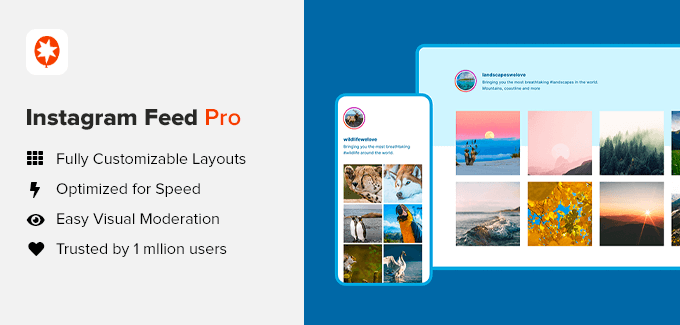
Want to display your Instagram photos in WordPress? Smash Balloon Social Photo Feed allows you to beautifully display your recent Instagram photos in WordPress. It’s the most popular social feed plugin used by over 1 million websites.
It’s highly customizable, and you can select from one of the many feed layouts including hashtag feeds, shoppable feeds, Instagram stories, and more. You can even selectively display user-generated content on your site with the built-in moderation system.
Smash Balloon has all the advanced features you can think of such as the ability to highlight specific Instagram posts, display items you’re tagged in, combine multiple Instagram account content in one feed, and more.
The best part is that all images are cached, so your site will be blazing fast. You can also embed the feed anywhere on your site including blog posts, pages, sidebar, product pages, and more.
For detailed instructions, see our guide on how to create a custom Instagram photo feed in WordPress.
Note: There’s also a free version of Instagram Feed for WordPress by Smash Balloon that comes with basic features that you can use to get started with.
Alternative: You can also use Envira Gallery to create Instagram galleries in WordPress. Its Instagram Addon allows you to link your gallery images directly to Instagram to increase engagement and followers.
2. Shared Counts

Shared Counts is a fast and easy-to-use social media plugin for WordPress. It comes with a limited number of the most popular social networks: Facebook, Twitter, Google+, Stumbleupon, Pinterest, Yummly, and LinkedIn.
There are multiple button styles, and you can choose where to show the button (before or after the content or manually). You can also enable it for custom post types.
The plugin tries to get the social share count for each network. You can also choose to just show the total number of shares on all networks.
We’re using Shared Counts for WPBeginner social share buttons.
3. Uncanny Automator
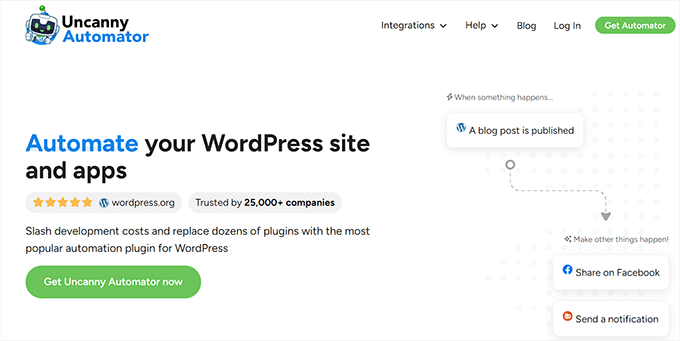
Uncanny Automator is the best WordPress automation plugin. It helps you connect your WordPress site with your favorite apps, so you can automate routine tasks and save time.
For example, you can use it to set up a workflow that automatically shares your new blog posts on Facebook, Twitter, and Instagram.
The best part is that you can set up automations without any coding skills. It’s a point-and-click setup.
If you’re running an online store, then you can set up smart automations like asking users to share a testimonial after they make a purchase. If you’re selling online courses, then you can ask users to share their certificate photos on Instagram to get additional rewards.
Uncanny Automator also lets you connect your WordPress site with dozens of other popular apps like Google Sheets, Slack, MailChimp, Zoom, and more.
This is why it’s on our list of must-have WordPress plugins for all websites.
Note: There’s also a free version of Uncanny Automator that comes with basic integrations that you can use to get started with.
4. Smash Balloon Facebook Feed Plugin
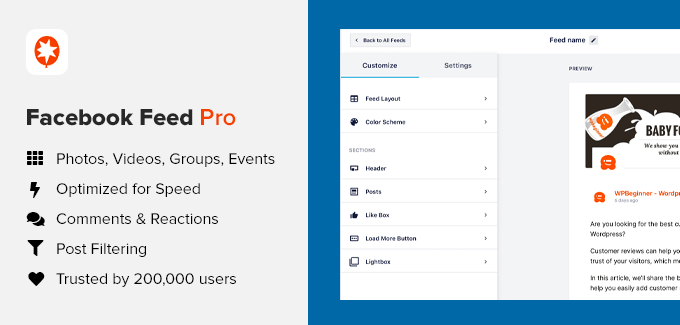
Want to display a custom Facebook feed in WordPress? Smash Balloon Facebook Feed allows you to seamlessly integrate your Facebook content into WordPress. It’s the most popular social feed plugin used by over 200,000 websites.
You can use it to display your Facebook page content, photos, videos, albums, and events. There’s also a feed template to showcase your Facebook group content.
All Facebook feeds can be customized with an easy-to-use custom feed builder that allows you to filter posts, show comments & reactions, and more.
Smash Balloon has all the advanced features you can think of such as the ability to display live video, filter posts by word or hashtag, combine multiple Facebook account content in one feed, and more.
The best part is that all images are cached, so your site will be blazing fast. You can also embed the feed anywhere on your site including blog posts, pages, sidebar, product pages, and more.
For detailed instructions, see our guide on how to create a custom Facebook feed in WordPress.
Note: There’s also a free version of Facebook Feed for WordPress by Smash Balloon that comes with basic features that you can use to get started with.
5. AIOSEO
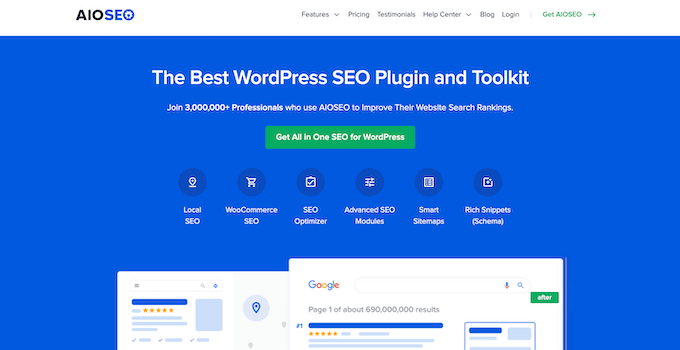
All in One SEO is the best WordPress SEO plugin used by over 3 million websites. Aside from helping you optimize your WordPress site for higher SEO rankings, it also helps you optimize your website for social media.
All social media networks rely on metadata to display the right images and content when someone shares a page from your site.
AIOSEO lets you set custom thumbnails for social media networks like Facebook, so you can fix the wrong Facebook thumbnail image issue for your site.
It also lets you set up Twitter cards for WordPress, so you can get rich snippets on Twitter. The best part is that you get a full social preview for each post and page inside the WordPress block editor, so you can control exactly how your content will look on social media platforms.
AIOSEO also lets you enter social profiles for your website and author for SEO knowledge panels inside Google which can help boost your rankings.
Last but not least, it has the ability to enter social media ownership verification code that you’re often asked to add to claim ownership of your page and unlock additional analytics on platforms like Facebook and Pinterest.
For all these reasons, we use AIOSEO on WPBeginner to improve our SEO and social rankings.
Note: There’s a free version of AIOSEO available that comes with basic features that you can use to get started with.
6. Smash Balloon Twitter Feed Plugin
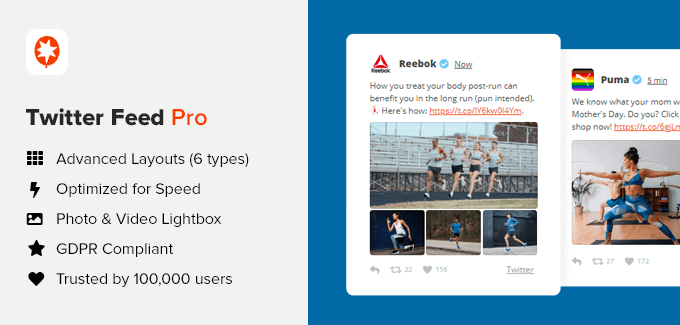
Want to display custom Twitter feeds in WordPress? Smash Balloon, the leading social feed plugin for WordPress, has a custom Twitter Feed Pro plugin that lets you seamlessly integrate Twitter content into their WordPress site. It’s trusted by over 100,000 website owners.
Smash Balloon Twitter plugin comes with 6 different feed types including user tweets timeline, mentions timeline, home timeline, Twitter hashtag feed, Twitter search terms, and more.
All feed layouts are highly customizable, so you can use them to match your brand colors and styles. You can use a multi-column masonry layout, display tweets in rotating carousel sliders, add infinite scroll for tweets, and show Tweet engagement stats including Likes, Retweets, and replies.
You can combine multiple Twitter account feeds into one, moderate which tweet shows up on your site from a specific hashtag (great for user reviews), enable Twitter card view, and more.
Smash Balloon Twitter Feed Pro has built-in post caching, so it always loads fast, and the best part is that it is GDPR compliant.
For detailed instructions, see our guide on how to create a custom Twitter feed in WordPress.
Note: There’s also a free version of Twitter Feed for WordPress by Smash Balloon that comes with basic features that you can use to get started with.
7. RafflePress
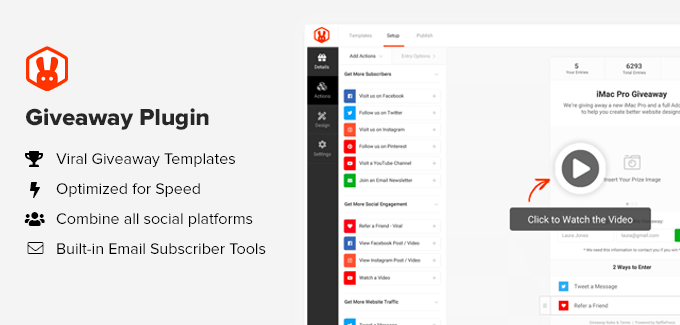
RafflePress is the best WordPress giveaway plugin to help you grow your website traffic and social media followers using viral giveaways and contests.
It comes with a drag-and-drop giveaway builder and tons of pre-built viral giveaway templates that are designed to help you get more subscribers, improve social engagement, and increase your traffic.
RafflePress seamlessly integrates with Facebook, Instagram, YouTube, Twitter, and Twitch. Their viral refer-a-friend feature is really powerful and can truly supercharge your growth.
You can use giveaway actions to get more video views, get more followers on Instagram, get more likes on Facebook, increase Twitter followers, get more blog comments, and more.
Users can get more entries in the giveaway by completing giveaway actions. RafflePress lets you combine multiple entries, so you can get maximum benefits. Since it integrates with all the best email marketing services, you can use the giveaway to also get more email subscribers.
We use RafflePress to run giveaways on the WPBeginner site, and it’s a must-have WordPress plugin if you want to grow faster.
For more details, see our step-by-step guide on how to create a giveaway in WordPress to grow your social media following.
Note: There’s also a free version of RafflePress but it has limited entry options. To get the full power, you need to use the Pro version.
To learn more about RafflePress, you can read our in-depth RafflePress review.
8. MonsterInsights
MonsterInsights is the best WordPress analytics plugin used by over 3 million websites. It helps you properly set up Google Analytics and see the stats that matter right inside your WordPress dashboard.
We believe you can’t improve what you can’t measure. It’s a lot easier to double your traffic and sales when you know exactly how people find and use your website.
MonsterInsights helps you identify which social media networks and campaigns are working the best, so you can double down on what works and stop wasting time on what doesn’t.
You can use it to unlock easy-win opportunities, improve conversions, and grow your revenue.
The best part is that it’s user-friendly so you don’t have to be a data nerd to see how your social media efforts are performing.
It also comes with other powerful features like the Headline Analyzer which helps you write more click-worthy headlines to boost your social media traffic. There is also a popular posts addon that lets you showcase the most popular content on your WordPress homepage, sidebar, and other areas.
We use MonsterInsights to power our website analytics on WPBeginner.
For more details, see our step-by-step guide on how to properly set up Google Analytics in WordPress.
Note: There’s also a free version of MonsterInsights that comes with basic features that you can use to get started with.
9. Smash Balloon YouTube Feeds Plugin
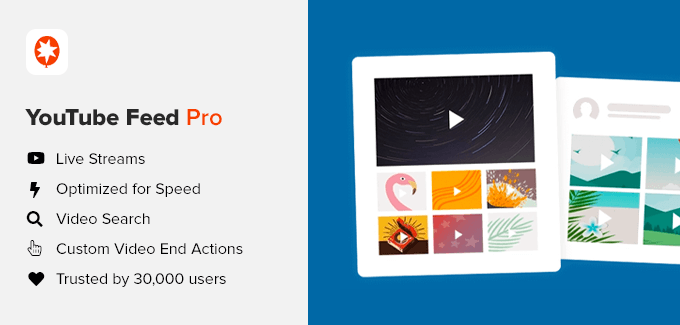
Want to display a custom YouTube feed in WordPress? Smash Balloon YouTube Feed allows you to seamlessly integrate your YouTube content into WordPress. It’s the most popular YouTube feed plugin used by over 40,000 websites.
You can use it to display your latest YouTube videos from your channel, display playlists, embed YouTube live streams, and more. It comes with multiple layout options, so you can display the content how you want without any restrictions.
It comes with multiple YouTube feed layouts including grid, gallery, list, and carousel slider.
You can also use this YouTube plugin to curate content from your favorite channels, selectively show videos with certain keywords in the title, convert videos into new posts on your website, and even build custom YouTube feeds using tailored search queries.
Smash Balloon has all the advanced features you can think of such as the ability to have custom pause and end actions for product placements, smart loading of YouTube players to boost website speed, Gutenberg block editor support, and more.
For detailed instructions, see our guide on how to create a custom YouTube feed in WordPress.
Note: There’s also a free version of YouTube Feed for WordPress by Smash Balloon that comes with basic features that you can use to get started with.
Alternative: Envira Gallery also allows you to create beautiful and responsive YouTube video galleries in WordPress. See our list of the best YouTube video gallery plugins for more details.
10. Pretty Links

Pretty Links is one of the best affiliate and link-shortening plugins for WordPress used by over 300,000 websites.
It makes it easy to share brandable short links on your social media profiles. This is great for sharing affiliate links or product links on your Instagram stories, reels, YouTube videos, podcasts, and more.
The benefit of Pretty Links is that it lets you create links that are memorable and easy to type for your users.
You can easily track all the link clicks and manage them from a central place inside your WordPress dashboard.
Aside from the social media benefits, it also comes with smart content marketing features to boost affiliate revenue such as automatic keyword replacement, advanced redirect types, and more.
Note: There’s also a free version of Pretty Links that comes with basic features that you can use to get started with.
11. Smash Balloon TikTok Feeds Plugin
Want to display your TikTok videos in WordPress? Smash Balloon TikTok Feeds Pro allows you to easily embed custom TikTok feeds anywhere on your WordPress site.
You can beautifully display your TikTok videos in 3 different layouts, including standard, carousel, and masonry. Controlling how your feeds look is simple. In a few clicks, you can change the number of videos, which content is displayed, post styles, and more.
There are no limitations, you can add as many feeds on your site as you want. You can even filter your videos based on a specific word or hashtag to create curated feeds for different parts of your website.
It also comes with a media lightbox feature that allows visitors to watch your TikTok videos in a popup lightbox and control the playback with TikTok’s own iframe video player.
The plugin is page speed optimized and offers optimized images, background caching, and local storage to keep your site lightning fast. Plus, visitors can use the built-in features to load more TikTok videos.
You can check out the demo of TikTok Feed Pro to see it in action.
Note: There’s also a free version of the Feeds for TikTok plugin with basic features that you can use to get started.
12. SeedProd

SeedProd is the best WordPress page builder plugin used by over 1 million websites. It comes with a drag & drop page builder that you can use to create custom landing pages and even completely custom WordPress themes (no coding needed).
The best part is that it comes with social media integration that you can use to create a link in bio page for your Instagram profile.
SeedProd comes with over 300+ pre-made page layouts that you can use to create custom sales pages, webinar landing pages, and just about every type of landing page that you can imagine.
A lot of bloggers and website owners use SeedProd to create custom landing pages for social media campaigns.
It seamlessly integrates with popular email marketing services and other third-party platforms.
Note: There’s also a free version of SeedProd that comes with essential features that you can use to get started with.
13. Smash Balloon Social Wall
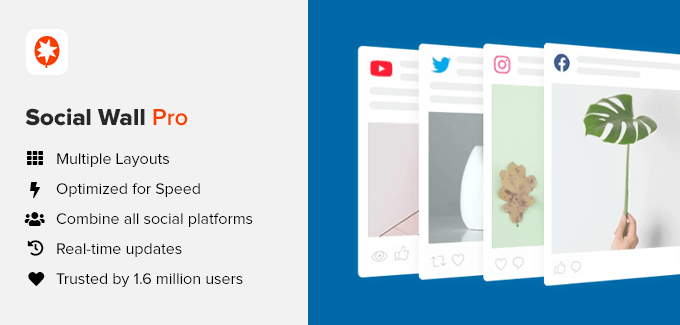
Smash Balloon Social Wall plugin lets you create a smart community page on your website that combines the social media content from your Instagram, Facebook, Twitter, and YouTube channel.
It’s super simple to set up and is one of the easiest ways to increase social engagement. You can choose from the Grid, List, or Carousel layout to highlight your best social media posts.
You can see the demo of Social Wall here.
This plugin is not a standalone plugin, and it only works when you have the other social media feeds plugin from Smash Balloon.
14. WP Tasty Pins

WP Tasty Pins is the best WordPress Pinterest plugin for SEO. It helps you easily optimize your images for Pinterest so that you can drive more traffic to your site.
You can set Pinterest descriptions for your images with hashtags and keywords that will perform well in Pinterest search results. The plugin also allows you to add a Pinterest description to your images, in addition to image alt text, so that you don’t have to choose between SEO and accessibility.
Plus, you can quickly add Pinterest follow buttons, hover buttons on all images, and Pinterest banners on post images to get more shares and followers.
There’s also an option to disable pinning on certain images. This way, you have more control over your brand’s presence on the platform.
Note: While WP Tasty Pins was created with food bloggers in mind, you can use the plugin for any type of blog.
15. OptinMonster
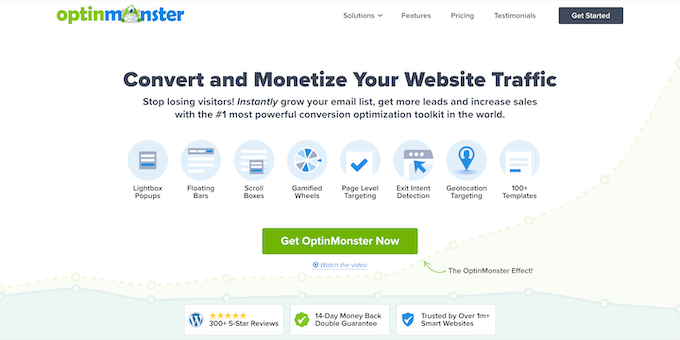
OptinMonster is the best WordPress popup plugin in the market used by over 1 million websites. It helps you convert visitors abandoning your website into social media followers and email subscribers.
You can use it to create dynamic popups, floating bars, scroll boxes, or even gamified spin to win campaigns to grow your social media followers. All social media popups are fully responsive and work on all devices.
OptinMonster comes with a chatbot integration for ManyChat that helps you grow your business with Facebook messenger.
Since the popup builder is fully drag-and-drop and comes with tons of personalization features, you can really use it to promote anything you like. It comes with powerful features like A/B testing, geolocation targeting, exit-intent detection, page-level targeting, and more.
This is why it’s consistently rated the #1 most powerful conversion optimization toolkit in the world, and we use it on WPBeginner.
Note: There’s also a free version of OptinMonster that comes with essential features for small websites.
16. Smash Balloon Reviews Feed Plugin
Reviews Feed Pro by Smash Balloon allows you to display reviews from Facebook, Google, Yelp, and TripAdvisor anywhere on your WordPress site.
The plugin will auto fetch new reviews from Facebook and other platforms to keep your site up-to-date, build social proof, and increase customer trust.
With the multiple layout options and intuitive feed editor, you can easily control the look, colors, spacing, and more to create a Facebook reviews feed that meets your design needs.
You can even highlight specific reviews to make them stand out and use the visual moderation tools to hide reviews from certain users on your feed.
Note: There’s also a free version of the Reviews Feed plugin that you can use to get started.
Bonus: Nextend Social Login
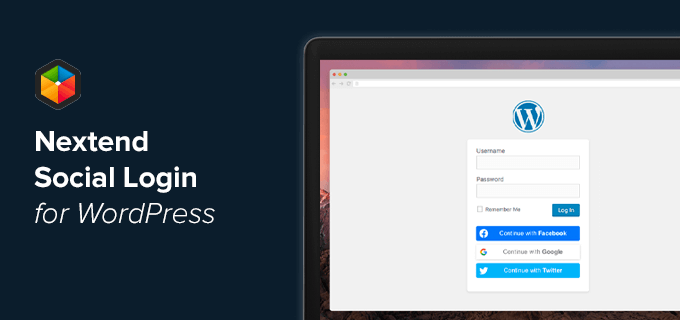
Nextend Social Login is the most popular social login plugin for WordPress. It lets your visitors register and log in to your website using their social profiles.
It comes with built-in support for Login with Facebook, Login with Google, Twitter connect, and even has support for login with other popular platforms like Apple, LinkedIn, Microsoft, Github, Amazon, PayPal, Slack, Discord, and more.
Several studies have shown that adding social login to your eCommerce store or WordPress membership site can help boost conversions since it reduces the extra steps needed to create a profile.
It comes with several other powerful features like letting users link their WordPress profile on your site with their social profile, request custom username, connect social login with WordPress comments, and more.
Nextend social login plugin works with all major WordPress registration & eCommerce plugins like WooCommerce, Easy Digital Downloads, BuddyPress, and even the default WordPress login & registration forms.
Note: There’s also a free version of Nextend social, but it doesn’t support all the popular login methods.
Bonus: Better Click to Tweet
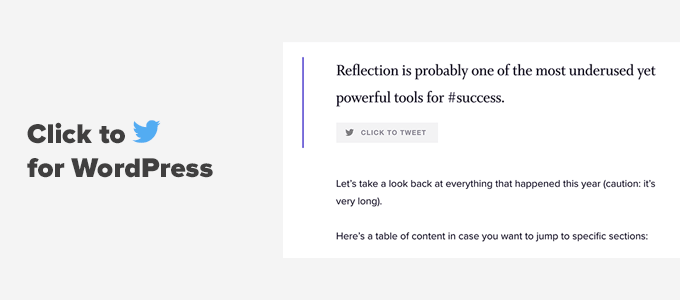
Better Click to Tweet is a free plugin that lets you add click-to-tweet blocks in WordPress. This is a great standalone social media plugin for WordPress that does one thing and does it really well.
It’s fully compatible with the WordPress block editor as well as the classic editor. You can add beautiful quotable tweets that match your brand styles.
Our founder Syed Balkhi uses this plugin on his personal blog.
Final Thoughts on Best WordPress Social Plugins
Generally, when you see the list of the best social media plugins, it contains only the social sharing plugins which all offer duplicate functionality, and most of them will slow down your site.
This is why we have only listed the absolute best WordPress social media plugins for the various use cases.
If you’re looking for the best social sharing plugin for WordPress that is also fast, then go with Shared Count (free) or WP Tasty Pins (premium).
If you’re looking for the best social media feed plugin to display your social media content from Facebook, Twitter, Instagram, TikTok, or YouTube, then go with Smash Balloon. They offer the best social feeds plugin for WordPress, and over 1.7 million websites use their plugin.
Frequently Asked Questions (FAQs)
Having helped millions of readers with WordPress, we have answered quite a lot of questions. Below are the answers to the most frequently asked questions about WordPress social media plugins.
Are there other WordPress-sharing plugins in the market?
Yes, there are literally dozens of other WordPress social media plugins in the market. We did not include them in our article to help our readers avoid choice paralysis.
Also, you might be surprised to see that we haven’t included several popular social media plugins like AddThis, ShareThis, AddToAny, Sumo, Shareaholic, and others because they all load external scripts that significantly slow down your sites. Furthermore, some of these free social sharing plugin companies are also selling your user data.
Aside from that, there are other social plugins like Monarch, Social Snap, Ultimately Social, Jetpack, etc that we believe are not as performance optimized as the sharing plugins we mentioned above.
How can I automatically share my WordPress content on social media?
There are several WordPress plugins and SaaS tools that can help you automate your social media sharing including Uncanny Automator, Revive Social, Buffer, Jetpack Social, and more.
We believe that Uncanny Automator is the best solution since it also lets you build many other automated workflows to save you time.
Which WordPress plugins can help me get more social media followers?
The easiest and fastest way to increase your social media followers is by running a viral giveaway. RafflePress is the best social media giveaway plugin for WordPress.
We regularly use that across our websites to help us grow our social media followers. Its refer-a-friend and other viral features help you leverage the word of mouth advertising to get more social followers.
The other tool we use is OptinMonster. We created custom slide-in popups that have helped us grow our Facebook group to over 80,000+ members.
Can I create a paywall to hide my WordPress content?
Yes, you can absolutely use WordPress to create a paywall to hide your premium content. We recommend using the MemberPress plugin which has this functionality.
It lets you control the number of free views after which you can require readers to pay to join your site similar to popular sites like NY Times, and others.
Here’s our detailed guide on how to create a paywall in WordPress.
We hope this article helped you find the best social media plugin for your WordPress site. You may also want to see our ultimate step-by-step WordPress SEO guide for beginners, and our comparison of the best push notification software.
If you liked this article, then please subscribe to our YouTube Channel for WordPress video tutorials. You can also find us on Twitter and Facebook.





Syed Balkhi says
Hey WPBeginner readers,
Did you know you can win exciting prizes by commenting on WPBeginner?
Every month, our top blog commenters will win HUGE rewards, including premium WordPress plugin licenses and cash prizes.
You can get more details about the contest from here.
Start sharing your thoughts below to stand a chance to win!
Long says
I also use the Shared Counts plugin to create share buttons on my web. I was impressed with the speed when hitting the share button on the wpbeginner web. How do I customize it to get that speed. My website often takes a long time to load when I press the share button of Shared counts
WPBeginner Support says
Usually, there shouldn’t be a large speed difference in sharing plugins unless you mean how quickly your page loads. We would recommend taking a look at our tips below for speeding up your WordPress site to help it load faster.
https://www.wpbeginner.com/wordpress-performance-speed/
Admin
Martyna says
Hey
I chose Shared counts and installed it on my website. Thank you
WPBeginner Support says
Glad our recommendation was helpful!
Admin
Bailey says
Hello,
Will there be a Tiktok Icon available soon?
WPBeginner Support says
You would need to check with the individual plugin’s support for when support for Tiktok would be added.
Admin
Sandeep says
Hey,
Great Content as always.
WPBeginners sidebar social widget [right upper corner] is awesome. May I know which plugin or tool you are using.
Thank You
WPBeginner Support says
We manually created that specific widget.
Admin
Mitul Radadiya says
Thanks for sharing advance using the plugin.
WPBeginner Support says
Glad our article was helpful
Admin
levani says
thanks for letting me know about these social shering plugins I will choose one of them
WPBeginner Support says
Glad we could recommend you some good plugins
Admin
SIRAJ says
Very useful evergreen article. Thanks for sharing
WPBeginner Support says
You’re welcome
Admin
Hrvoje says
Which plugin do you use where you have share amount? And is it possible to share specific page for example?
WPBeginner Support says
For our site, we’re using the shared counts plugin with some customizations for design.
Admin
Shivam Verma says
First, thank you for sharing such informative content.I have a question,Is it difficult to use IFTTT with WordPress.
WPBeginner Support says
It can take a little to understand how it works but overall it shouldn’t be very difficult
Admin
Vatsal says
How do i get my social media post in my website page.
A want to add my social media post on my website. whenever i post on Facebook that same post automatically visible inside my web page.
Is there any plugin available or whats the possible way to do this…
Thank you
WPBeginner Support says
You may want to take a look at Smash Baloon for what it sounds like you’re wanting
Admin
Amit says
which social icon plugin you are using?
It seems that it is very light and load faster.
WPBeginner Support says
We’re using shared counts from our article here: https://www.wpbeginner.com/plugins/best-social-media-plugins-for-wordpress/
Admin
Marino Baccarini says
Love your rectangular horizontal Social Share buttons and total shares. What plugin are you using? Thanks very much,
WPBeginner Support says
For the moment we’re using the shared counts plugin from our list here: https://www.wpbeginner.com/plugins/best-social-media-plugins-for-wordpress/
Admin
rohini says
how to style the social icons like you did in your site ,with those gaps and lines , i dont know css, thanks
WPBeginner Support says
You can see the CSS we use on our site by using inspect element which we explain in our guide here: https://www.wpbeginner.com/wp-tutorials/basics-of-inspect-element-with-your-wordpress-site/
Admin
Vik says
Hi
Thanks for your post.
I am actually looking for plugin to auto publish my woo-comm products and not the generic WP post / pages. I’ve tried a few but all of them offer pages & post auto-post / publish but none for woo-comm products. Any plugin (paid/free) that can be setup to post to a few social platforms (FB, twitter, Linkedin, pinterest, IG & more)
TIA
~Vikas
WPBeginner Support says
You may want to take a look at IFTTT: https://www.wpbeginner.com/wp-tutorials/how-to-automate-wordpress-and-social-media-with-ifttt/
Admin
Ashutosh Singh says
Can You Tell Me which Plugin Do You Use For Social Share In WP Beginners
WPBeginner Support says
Unless I hear otherwise, we’re currently using the shared counts plugin
Admin
Rafiq says
i’m using addtoany but sometimes the share count reset back to zero. is it have to do with cache plugins?
WPBeginner Support says
That is the most likely reason. If it continues you may want to reach out to the plugin’s support for their recommendations.
Admin
Anju Dua says
I LOVE shareaholic!! Must have plugin.
WPBeginner Support says
Thanks for sharing the plugin you like
Admin
filmowepodroze.pl says
Excellent post, thank you for this information.
WPBeginner Support says
Glad you like our article
Admin
Sudharshana says
Excellent information! Thank you so much!
WPBeginner Support says
You’re welcome
Admin
Rosaline Callaghan says
Thank you for this article which I came across whle researching social media share buttons. Super excited to read about Revive Old Posts. Did not know there was such a thing. Fabulous!
WPBeginner Support says
Glad our article could help
Admin
Laurent C says
Hi,
I think it’s very lame to use some custom code whilst at the same time promote in-the-can plugins whilst not sharing your ideas on how to make a custom code… will not be coming back to your blog.
WPBeginner Support says
Apologies that you feel this way, the goal of our article was to bring attention to methods beginners could use for getting social media icons set up to begin with. Due to the difficulty of setting up custom code, that is why we did not include that method in this article.
Admin
Abhishek says
Thanks for such a great information
Alexandre .. says
which one was used on this page?
Elum Valentine says
I have been using Sassy Social Share on my blog, it’s a good social sharing plugin.
Thanks for this article.
Leona says
Hello,
I would like to insert social share button in the widget sidebar. Do you know if some plugin allow this ?
Thanks
Matt Adams says
Thanks for this post it’s great. Sassy worked a treat. Which plugin (if any are you using for your horizontal share buttons – they look neat. Cheers, Matt
Chris says
The Simple Social Icons plugin hasn’t been updated in over a year, and hasn’t been tested with any recent versions of WordPress. So not a valid recommendation for 2018…
WPBeginner Support says
Hi Chris,
The plugin works great and we still recommend it.
Admin
Danny says
Chris has an excellent point. A plugin that hasn’t been updated in over a year tells me that the developer is not concerned about security or cares about his product enough that people are using it. “It works great” is not a valid response. 1. There are thousands of systems out there and it needs to be tested and vetted against the latest versions of software to avoid bugs, deprecated functions, security updates and WordPress core releases. 2. Security is very important – lots of apps work great, then they conflict with other plugins and they have holes – serious flaws etc. Who is testing that? I don’t see the plugin developer do it. 3. Serious developers are constantly releasing updates with every major release of WordPress core, so this plugin I’ll skip since the developer is not serious about his product.
WPBeginner Support says
Hi Danny,
Thanks for sharing your concerns and we understand them.
Plugins are often tested by plugin developers themselves and popular plugins have larger user base which means issues get reported quickly. For example, Simple Social Icons plugin is developed by StudioPress one of the biggest theme shops and the creators of the popular Genesis theme framework. It has over 200,000+ active installs and the underlying code is used in some of their best selling themes. That’s why we are so confident in our recommendation.
The good thing about WordPress is that you have many options. If you feel uncomfortable using one solution, then you can always find another one and give it a try. For example, this article includes 10 other social media plugins that you can use.
Jude says
I installed EA Share Count but the count doesn’t work even though I tried them out a few times. Is there any additional coding/customisation to be done on my end?
Jejelaye Ridwan says
Am a blog beginner, I would love to know the plugins I need for my blog..
Thanks
Faith Biete says
Thank you for posting. The plugin I am looking for is the one you are having on your website. Could you please let me know what plugin are you using.
Liz says
I am so glad I stumbled upon your site. I was looking at the plugins on WordPress and was more than overwhelmed with the long list of available plugins. I shall spend the rest of my day reading and getting to know what they are and how I can use them on my site. Thanks so much for having this useful resource. I am so excited!
Chhaom Huon says
This is great list. From the top 3, EA Share Count, Sassay Social Share, and AddtoAny which is the best recommended one?
WPBeginner Support says
Hey Chhaom,
EA Share Count, its super fast and very well coded.
Admin
Palla Sridhar says
Hello.
what social sharing plugin are you using on this blog.
WPBeginner Support says
Hi Palla Sridhar,
We are using a custom plugin, written specially for our own websites.
Admin
Alexandre .. says
is it anything y’all would like to share? it looks really neat and simple.
Gagan says
Is the any wp plugin which also gives an option to share on youtube along with facebook and linkedin??
Awontis says
Is Sassy Social Share only compatible with WordPress Sassy version?
Andrew Wilkerson says
Great article. Just wondering how these compare to what’s already in Jetpack?